Review a Settlement Offer
Check discount and expiry, approve delivery, manage negotiation, and complete an accepted reduced-payoff offer.
A settlement changes the amount the organization expects to recover. Check the economics, authority, client agreement, and payment record before you advance its status.
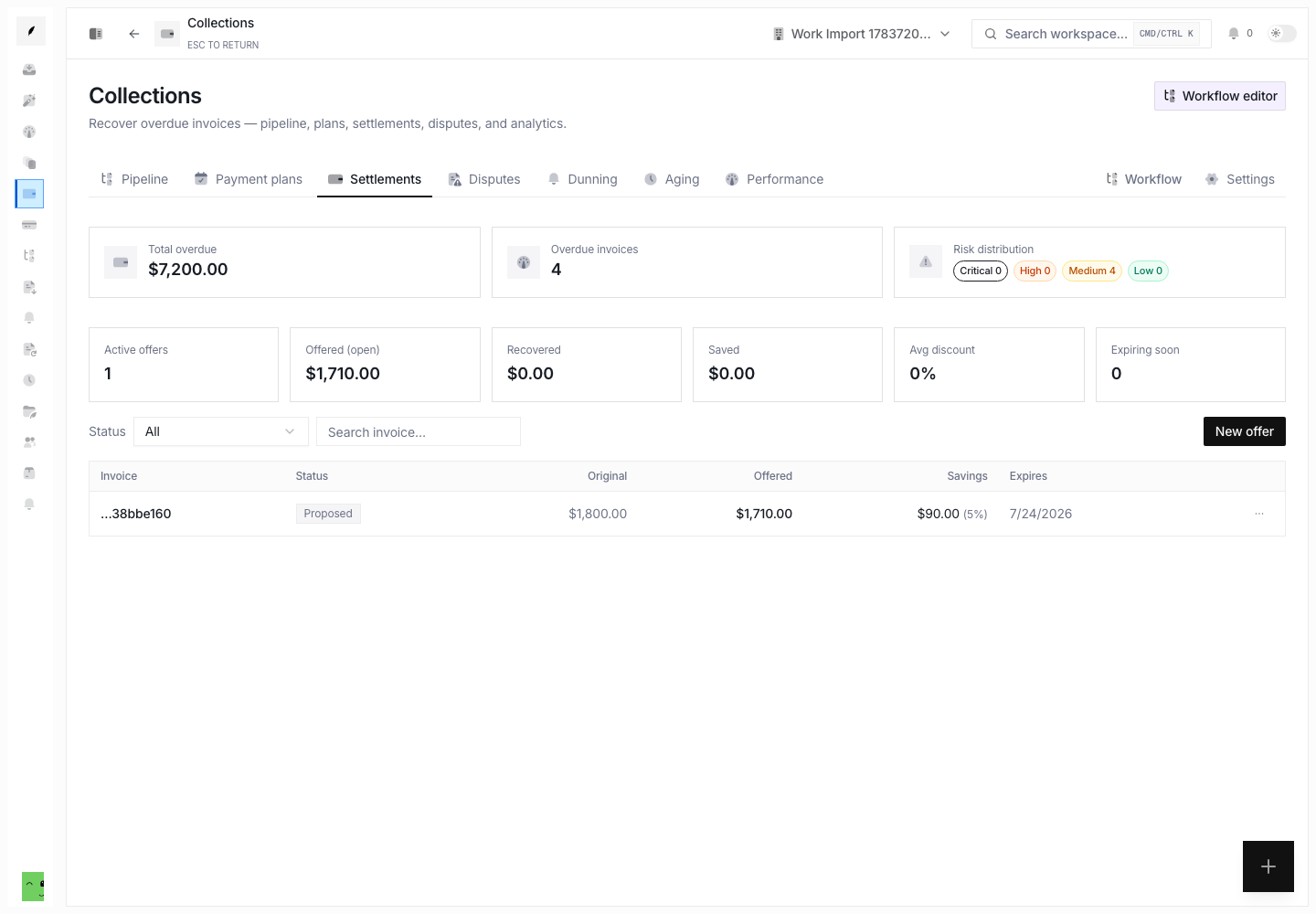
1. Open the Offer
Open Collections → Settlements. Filter by status when you work approvals, offers near expiry, accepted offers, or completed history. Select the row for full details and activity.
2. Review the Terms
Confirm:
- the offer links to the correct invoice
- the original and offered amounts are accurate
- the absolute and percentage savings match the intended concession
- the expiry gives the client the intended response window
- the terms note states what the client needs to know
- the delivery path matches how you will send the offer
Do not use the offer status as evidence that the client accepted. Confirm acceptance from the portal, message history, or another recorded source.
3. Approve and Send
For a Proposed offer, open the actions menu and select Approve & send. Choose Portal, Email, or Manual, then confirm.
- Use Portal when the client must see the offer in the portal.
- Use Email when Conduitt must hand the offer to outbound delivery.
- Use Manual when your team will deliver it elsewhere.
Manual delivery only records the path. It does not send a message.
4. Manage the Response
For an open offer:
- use Resend when you must send the same terms again
- use Counter to record a different payoff amount
- use Accept only after the client agrees
- use Reject when the client declines the offer
- use Extend expiry when the same offer remains valid for longer
- use Expire when the client can no longer accept the offer
Keep the expiry and the client communication aligned. If you extend the system date but do not tell the client, the terms can conflict.
5. Complete After Payment
An Accepted offer is not complete until you record the payment.
- Confirm the settlement payment exists.
- Copy its payment UUID.
- Open the offer actions and select Complete (record payment).
- Enter the payment ID and select Complete.
Completion records the payment, applies the agreed discount as an invoice adjustment, and settles the invoice. Do not complete against a pending or unrelated payment.