Start and Work Invoice Threads
Learn how invoice threads begin in Corinthian, how inbound email joins them, and how to reply, note, and resolve work from the thread view.
This page covers the thread-entry workflow. Corinthian does not have a standalone "new thread" button in the inbox. Threads start from invoice and inbound-email flows, then become the shared record for follow-up.
Before you start
Make sure the invoice has a real client attached. Corinthian only creates invoice threads when the invoice can be tied back to a client record.
1. Create, draft, or update an invoice with a client attached
The normal way to start a thread is to create an invoice that already has a client linked.
Corinthian ensures one thread per invoice when the invoice record is created, auto-saved as a draft, or updated with a qualifying client context. If the invoice has no client, the thread helper skips creation.
Practical path
- Create or pick the client first.
- Create the invoice, save the draft, or use the quick-create invoice flow with that client attached.
- Open Inbox → Threads or the invoice-linked inbox page to find the thread.
You can also create the thread later by linking a saved client onto an existing invoice that previously had no saved client.
2. Confirm the thread exists in the queue
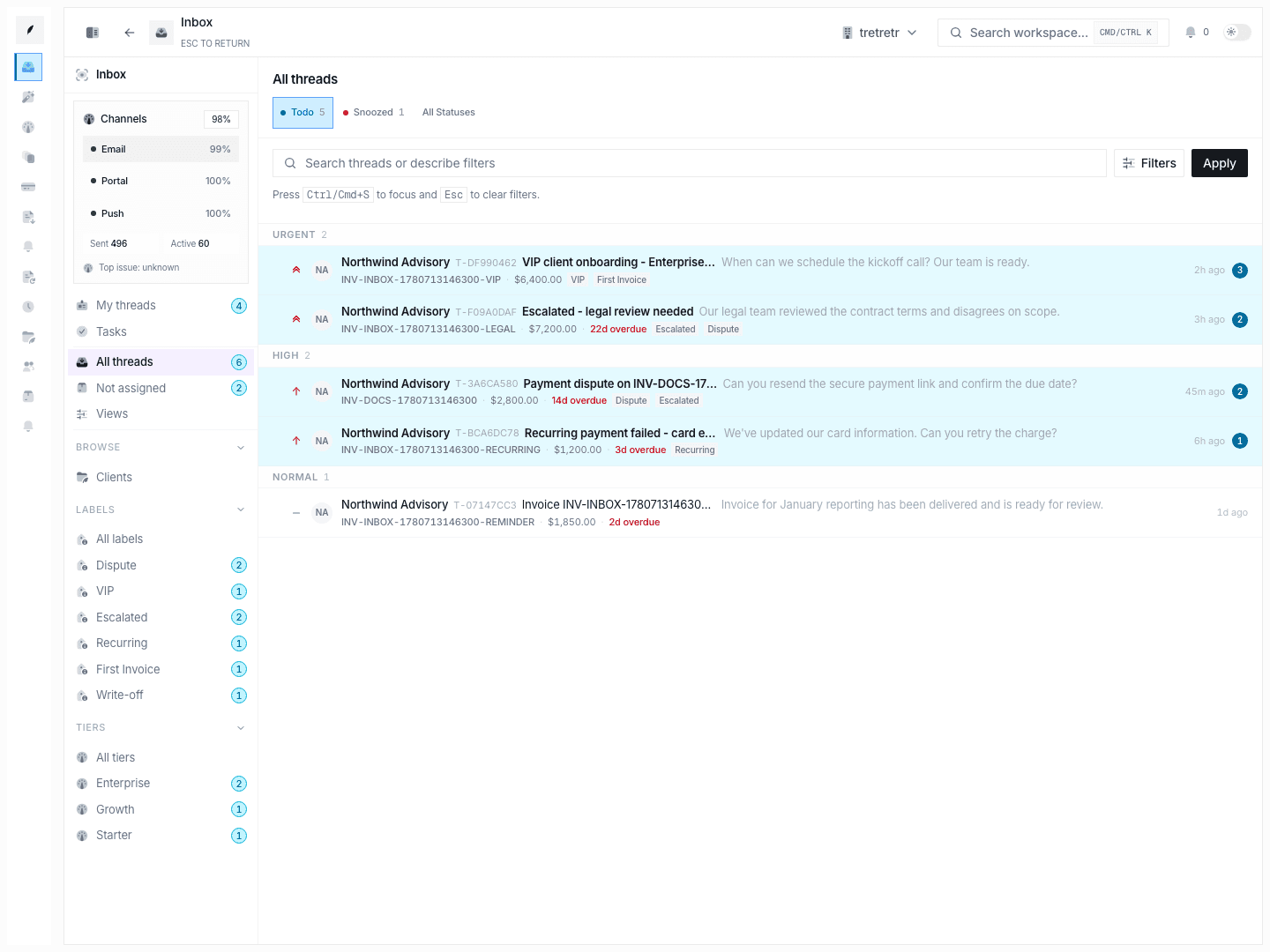
After the invoice record exists, go to Inbox → Threads.
Check that the new thread shows the right:
- client name
- invoice number
- subject
- amount and status context
The thread appears in the queue owned by the user tied to that invoice or saved client record. The inbox list is broader in All threads, but it is not yet a fully shared organization queue.
For invoice-created threads, the initial subject is based on the invoice number and the thread starts as a shared billing record even before customer replies arrive.
3. Open the thread and read the timeline first
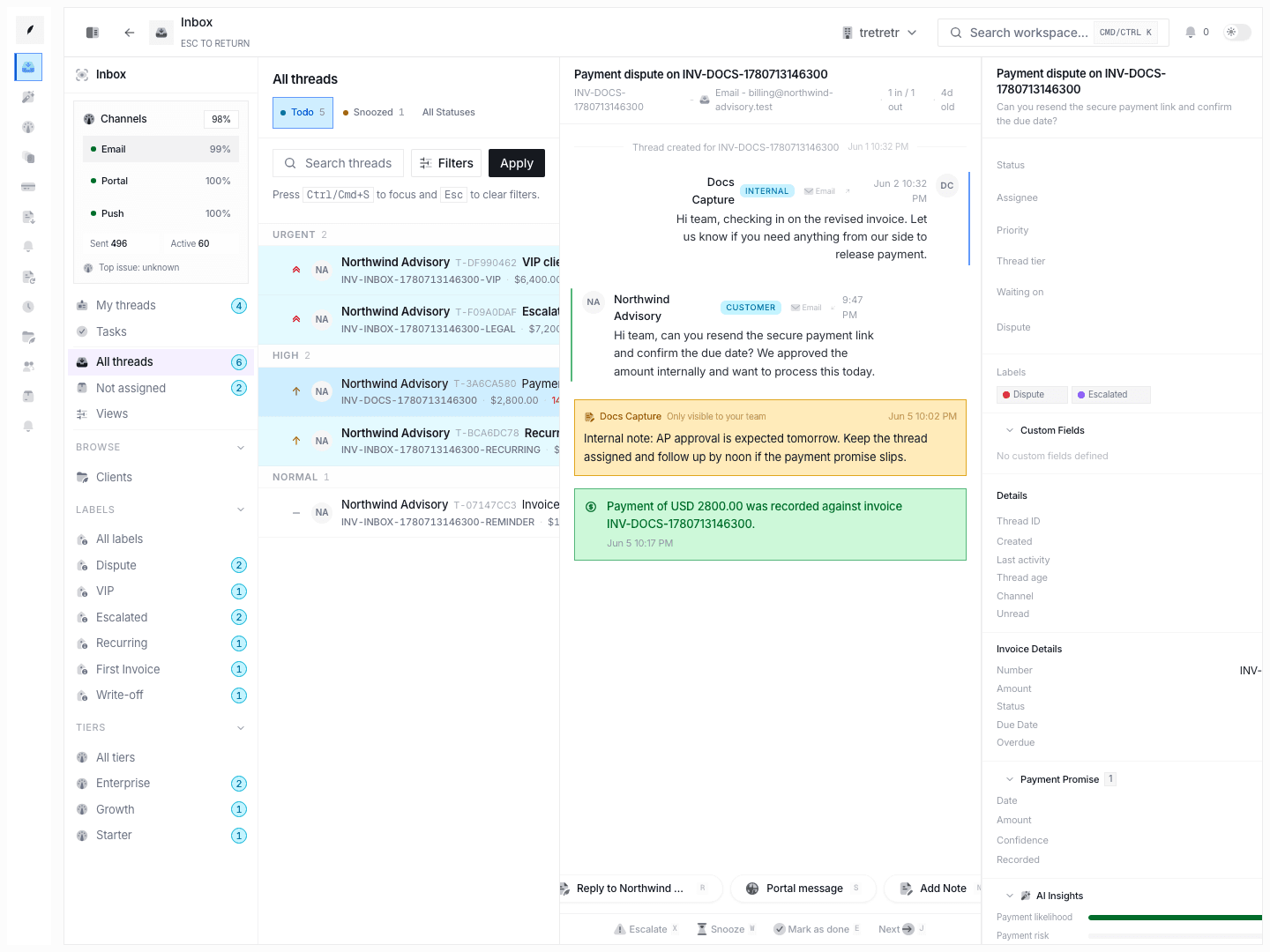
When you open a thread, Corinthian:
- loads the thread metadata and timeline
- marks the thread read
- preserves queue context in the left rail
- starts listening for live updates
Read the timeline before acting so you do not overwrite earlier promises, reminders, or teammate notes.
4. Use the right composer mode
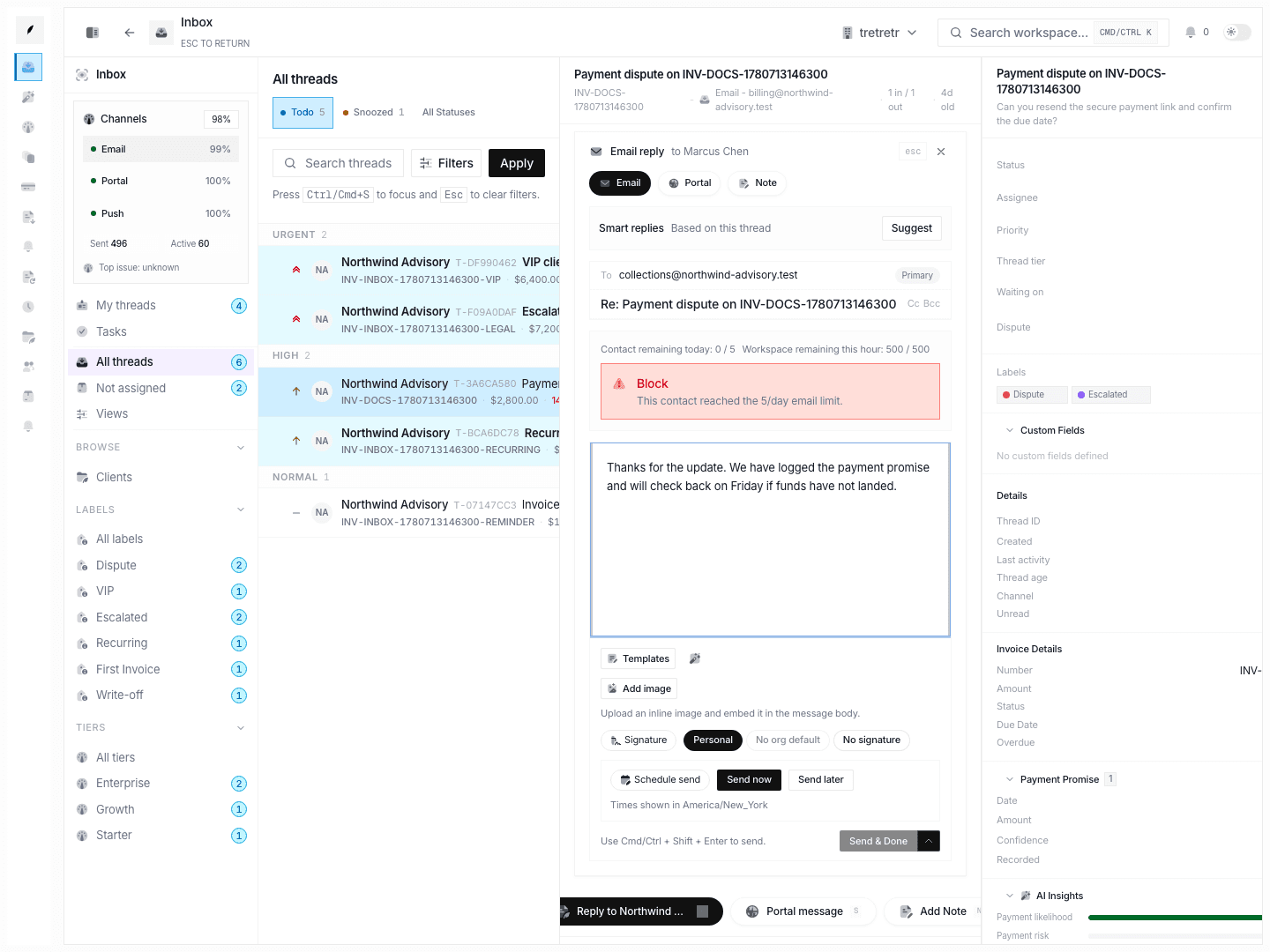
Use Reply for customer-visible communication and Add Note for internal context only.
Reply mode
The current reply composer supports:
- subject editing, defaulting to a threaded reply subject
- optional
CcandBcc - rich insertions from the composer toolbar
- Send & Mark Done
- Send (keep open)
Sending an email reply creates an outbound inbox event and queues email delivery from the same thread.
Note mode
Use notes when the update is for the team only. Notes stay attached to the thread timeline without sending customer email.
5. Know how inbound email joins or reopens work
Corinthian tries to attach inbound mail to the right thread before creating anything new.
The inbound handler can use:
- the thread-specific reply path from outbound messages
In-Reply-Toheaders from prior outbound email- sender matching against a known client when a new thread needs to be created from inbound mail
If a customer replies to a thread that is already done or snoozed, Corinthian reopens it to todo automatically.
That means the real close condition is "closed until the customer replies again."
6. Keep the thread current
Once the thread is open, update the right-hand metadata so the queue reflects reality:
- status
- assignee
- priority
- labels and tier
- dispute or waiting-on context
- payment promise data
- follow-ups and tasks
The thread is not just a message log. It is the execution record for what happens next on that invoice.
7. Work within the current limitation
There is no normal manual "create arbitrary thread" workflow in the inbox UI.
If you need a new thread:
- create or save the invoice with a client attached, or
- let inbound email create or reopen the thread through the routed mail path
Do not expect teammates to seed threads from the queue itself.
What to verify before you leave the thread
- the thread is attached to the correct invoice and client
- the latest customer-visible response is present if you meant to send one
- any promise, follow-up, or task is recorded
- the status is
todo,snoozed, ordonefor a reason - the next teammate can understand the thread without external context