Settings Business Hours
Define the organization-wide timezone and daily operating windows.
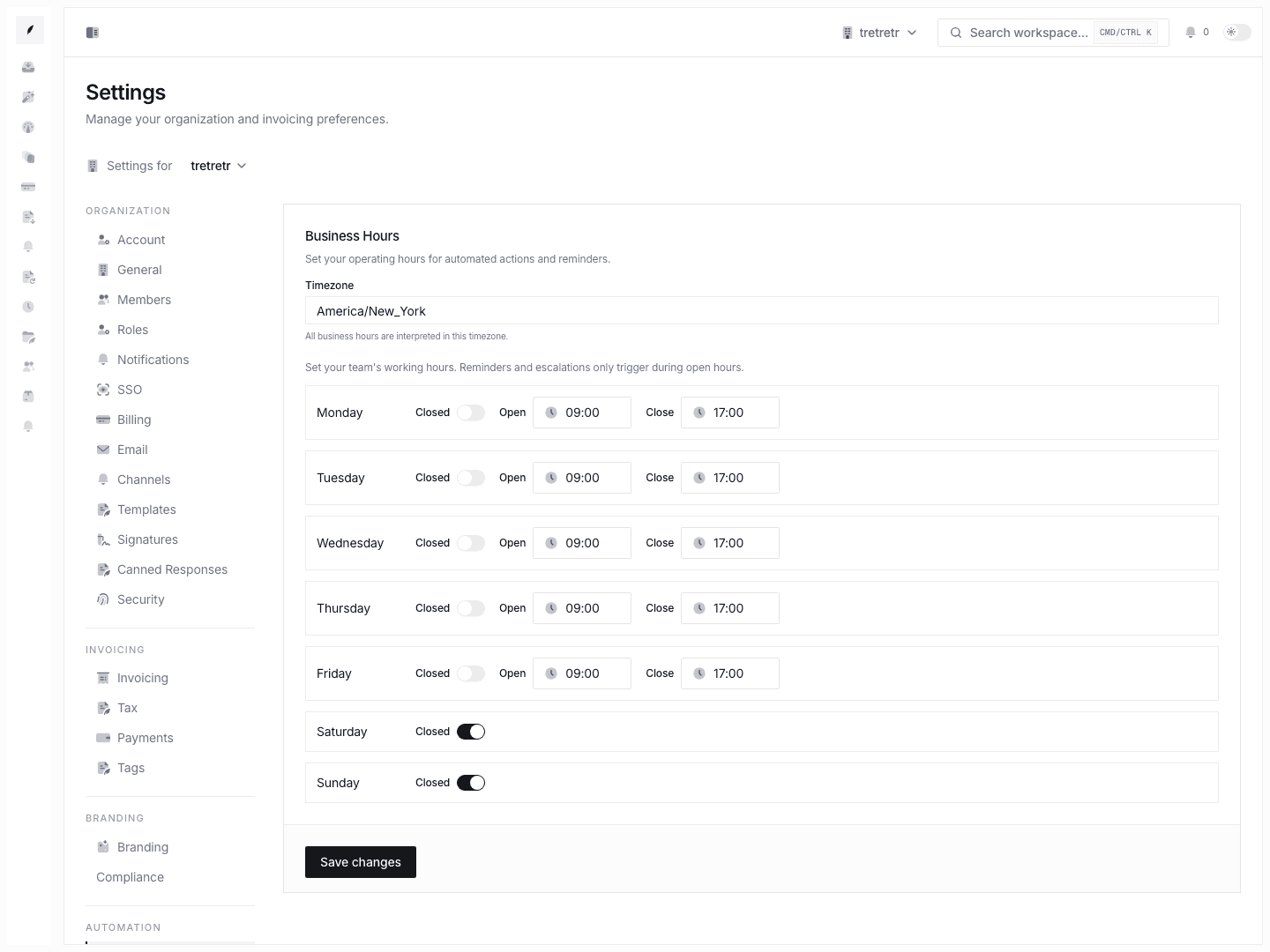
Settings → Business Hours is where you maintain the shared operating schedule for the workspace.
What You Can Configure
- workspace timezone
- enabled days
- one open and close window per enabled day
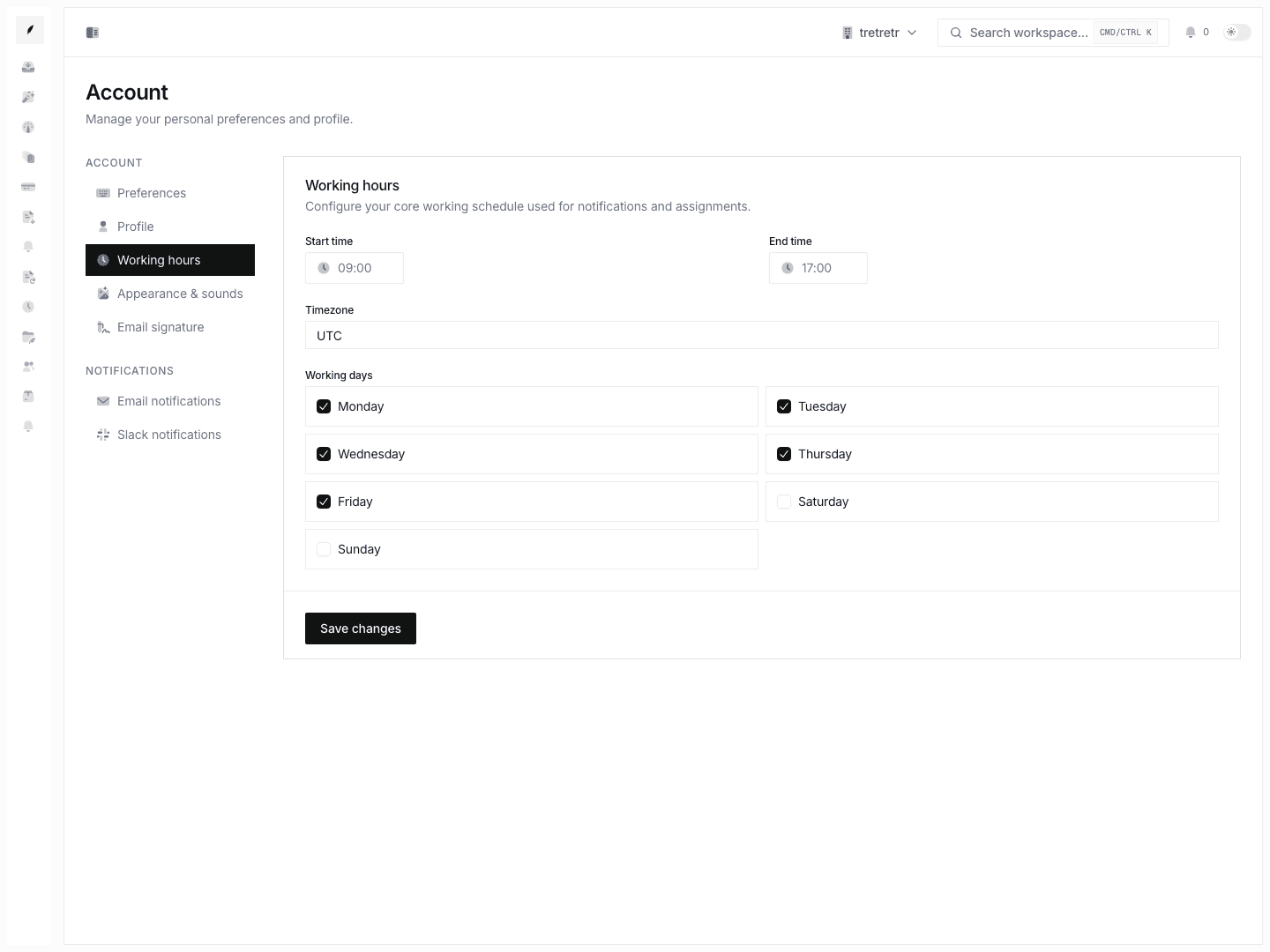
This is the organization schedule. Personal availability belongs in Account Working Hours.
Configure the Weekly Schedule
- Open Settings → Business Hours.
- Select the workspace timezone.
- For each working day, set the open and close time.
- Disable days when the organization is closed.
- Save.
| Day | Open | Close | Enabled |
|---|---|---|---|
| Monday | 09:00 | 17:00 | Yes |
| Tuesday | 09:00 | 17:00 | Yes |
| Wednesday | 09:00 | 17:00 | Yes |
| Thursday | 09:00 | 17:00 | Yes |
| Friday | 09:00 | 17:00 | Yes |
| Saturday | -- | -- | No |
| Sunday | -- | -- | No |
Current Limitations
The current business-hours form does not document:
- holiday calendars
- multiple time blocks per day
- contact-level timezone overrides
- business-day due-date calculations
- SLA-clock calculations
If those controls are not visible in the product, they are not part of the current documented workflow.
Troubleshooting
My individual schedule did not change
That is expected. Personal working hours are configured under Account Working Hours.
Automation timing still looks wrong
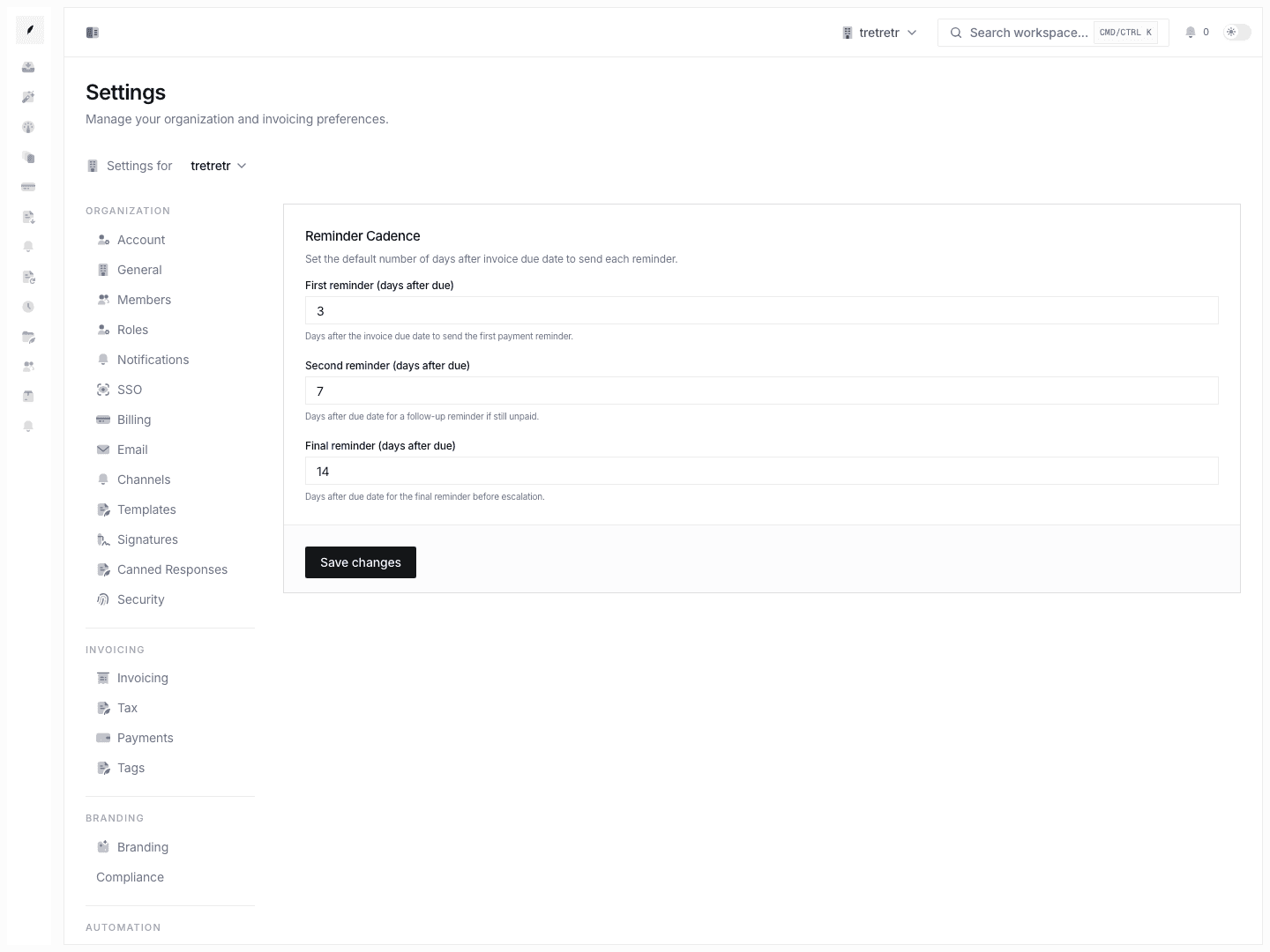
Review both business hours and the specific automation or reminder settings. A workflow must use business-hour-aware scheduling before this page can affect it.