Filtering and Saved Views
Search and filter Corinthian workspaces, then save report views where saved views are available.
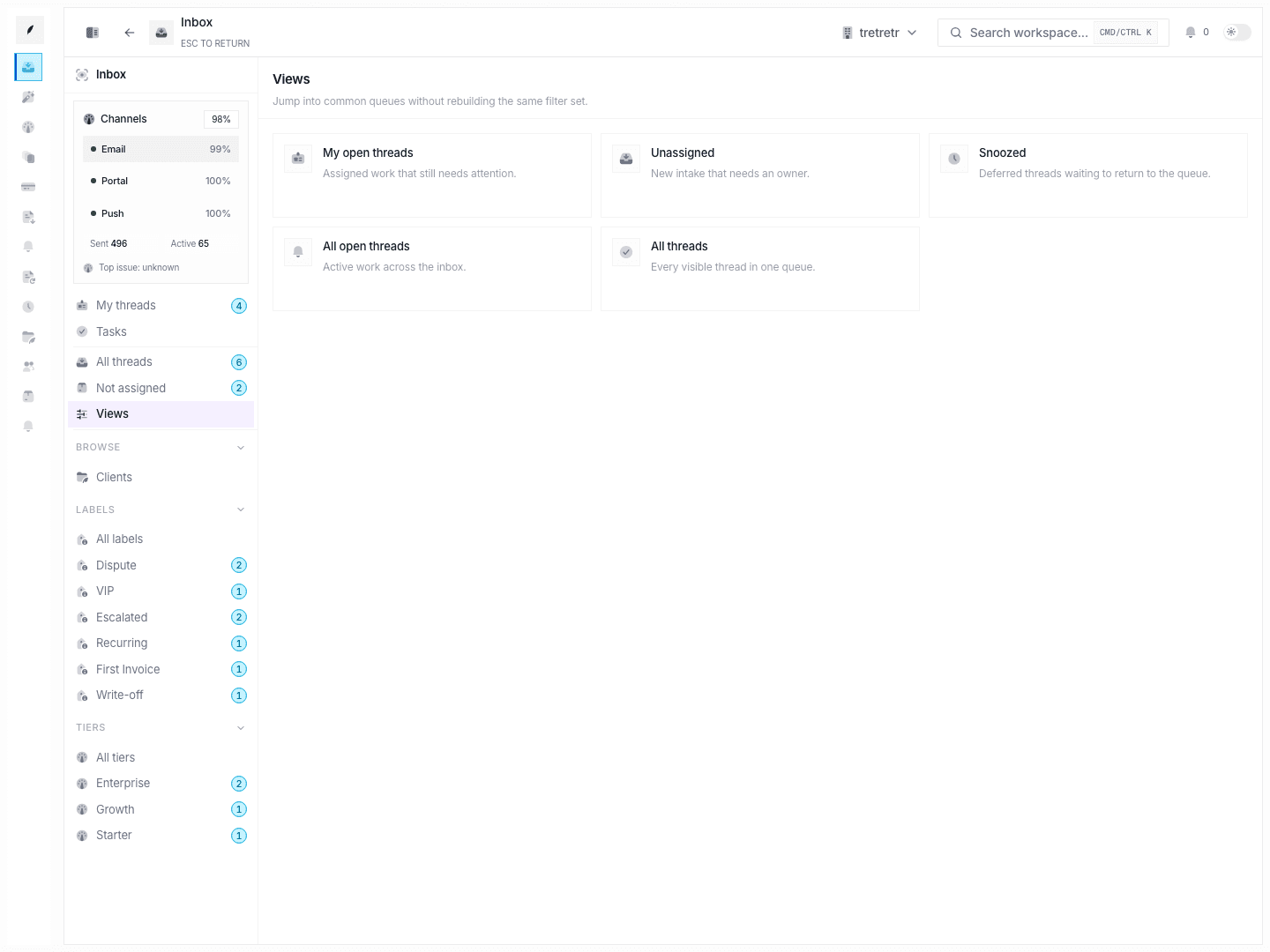
Corinthian includes search and filtering across key work areas. The exact filters depend on the page you are using. Saved views are currently available for reports, while inbox views are predefined shortcuts for common queues.
Inbox Filters
The Invoice Inbox helps your team manage communication threads tied to invoices, payments, and client requests.
Current inbox filtering focuses on:
| Filter | What It Does |
|---|---|
| Search | Finds matching thread text and visible queue context. |
| Status | Switches between active, snoozed, done, and broader queue states where available. |
| Priority | Narrows the queue by priority. |
| Labels | Shows threads with selected labels. |
The Views page in the inbox provides quick links for common system queues such as My open threads, Unassigned, Snoozed, All open threads, and All threads. These are predefined shortcuts, not custom saved views.
Invoice List Filters
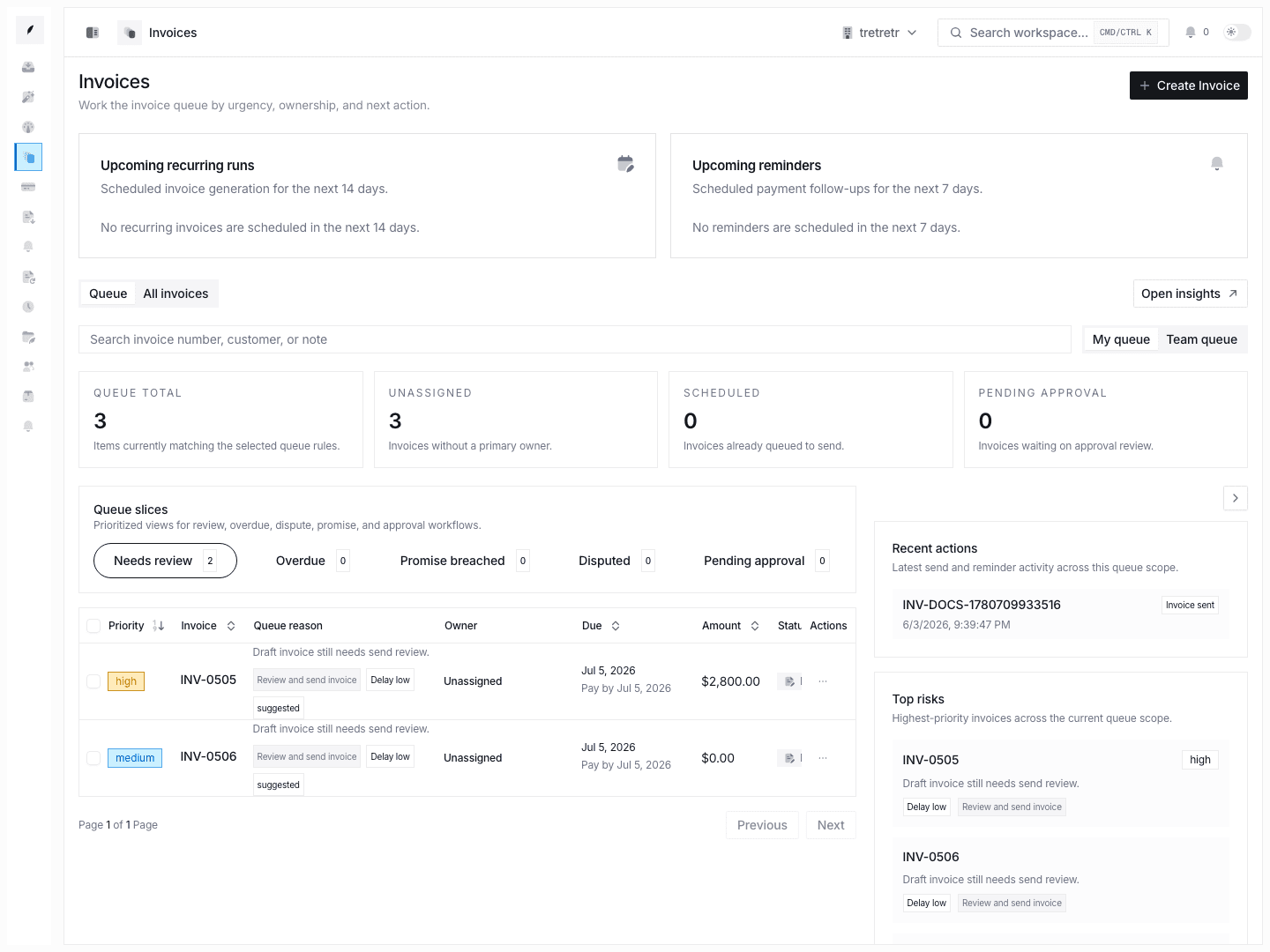
The invoices list supports filtering and table controls for working with saved invoice records. Use the available controls to narrow by status, customer, date, or search text depending on the current invoice table configuration.
After narrowing the list, select rows to use supported invoice bulk actions such as generating PDFs, sending, scheduling, applying templates, duplicating, marking paid, canceling, deleting, or adding tags.
Client List Search
The Clients workspace supports searchable client records. Use search to find clients by the fields exposed in the directory, then open the detail sheet or full client profile for editing, enrichment status, portal controls, and invoice context.
Report Saved Views
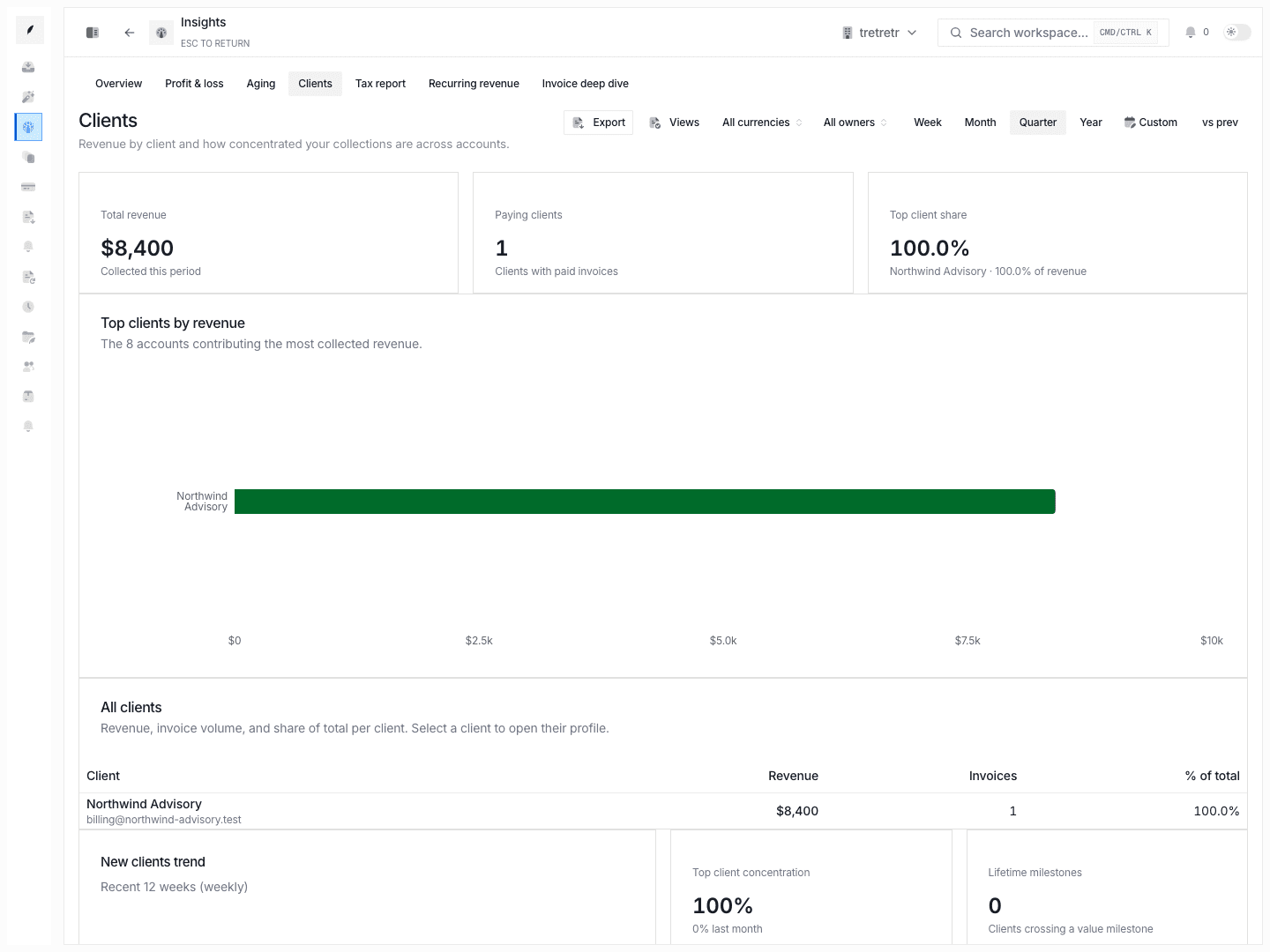
Saved views are available in reporting views. A saved report view stores the current report type and URL parameters so you can reapply the same period and filters later.
To save a report view:
- Open the report or insight page you want to reuse.
- Configure the period and available filters.
- Open Views.
- Save the current view with a descriptive name.
Saved report views can be applied or deleted from the same Views menu.
Search Tips
- Start with broad search text, then narrow with page-specific filters.
- Use predefined inbox views for queue ownership and snoozed work.
- Use report saved views for recurring reporting cuts.
- Name saved report views by the question they answer, such as "Monthly aged receivables" or "Q2 client revenue."