Templates & Branding
Standardize invoice output with template structure, branding defaults, and asset-backed presentation controls.
Templates and branding turn invoice creation from one-off document formatting into a repeatable customer-facing standard. In Corinthian, that work is split between the invoice builder, branding settings, and asset upload pages for logos and signatures.
Who uses it
- finance teams maintaining consistent invoice output
- brand owners controlling logo and color usage
- teams with multiple invoice motions that still need a shared presentation standard
Typical Workflow
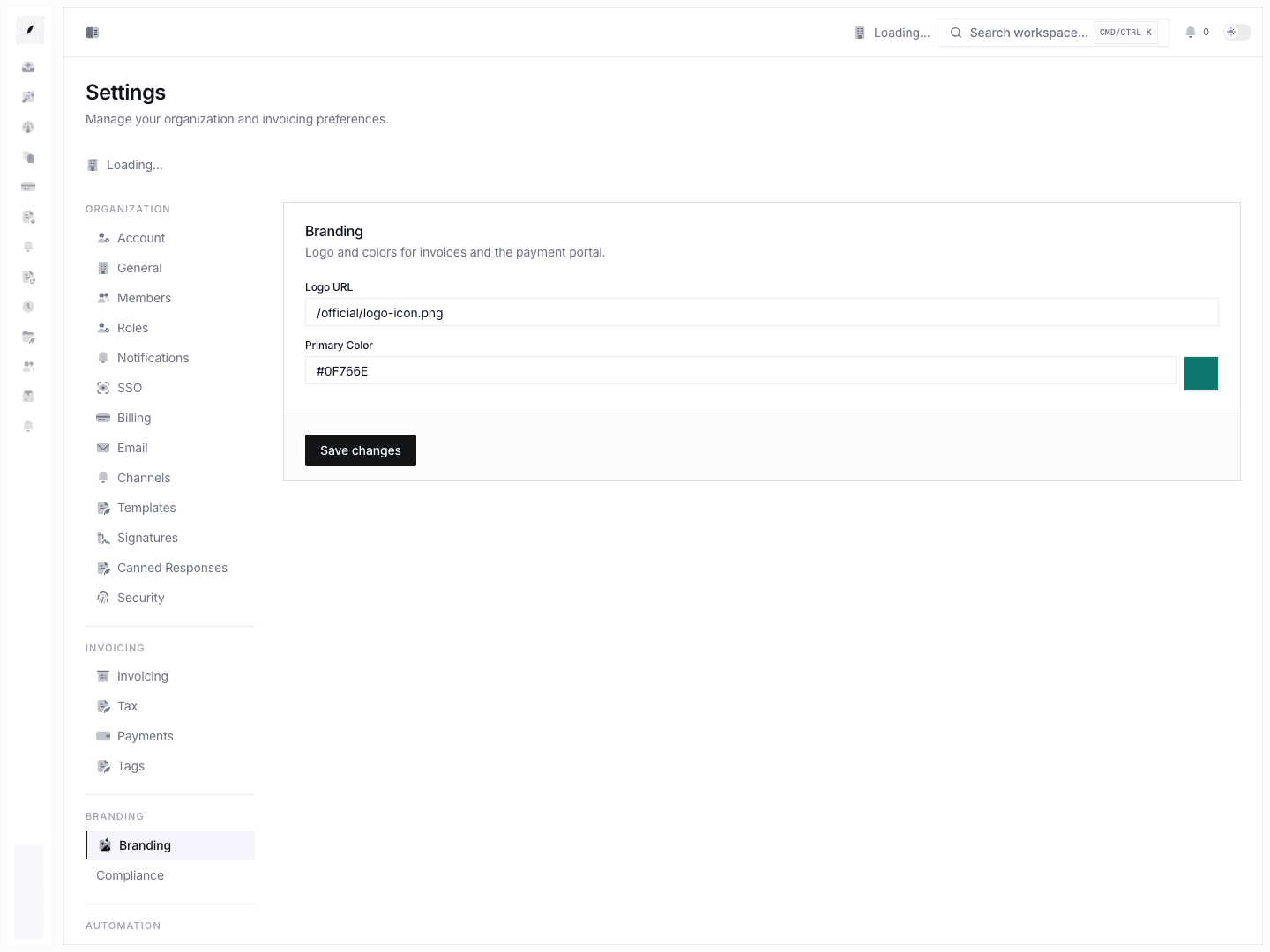
- Set workspace branding under Settings → Branding.
- Confirm logo and color values are valid and preview correctly.
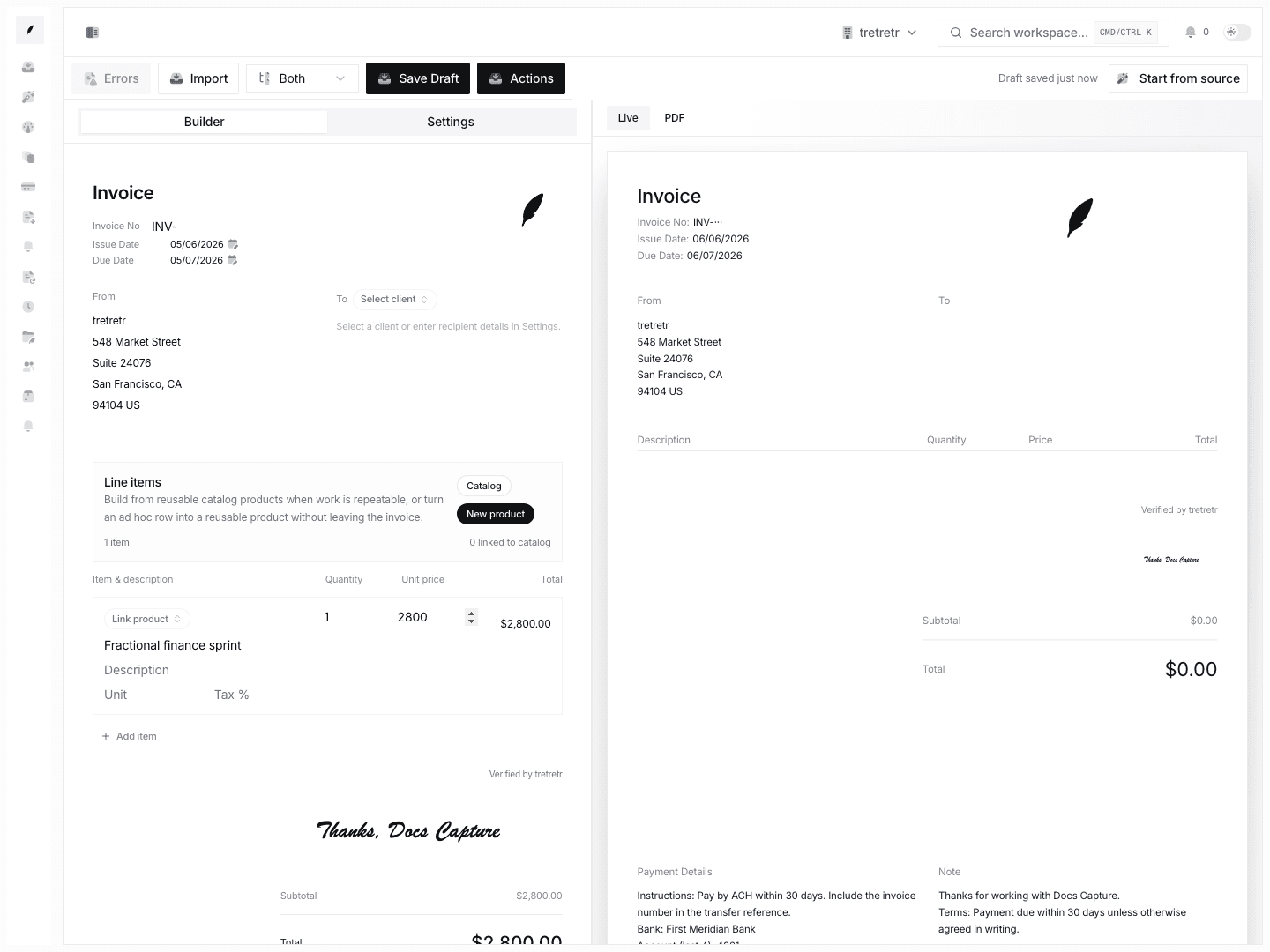
- Use the invoice builder to review how those defaults render in live preview.
- Reuse the same structure across invoices instead of reformatting from scratch.
When configured well, invoices render with the expected brand treatment and consistent structure across senders.
What you can configure
- logo URL and preview
- primary brand color
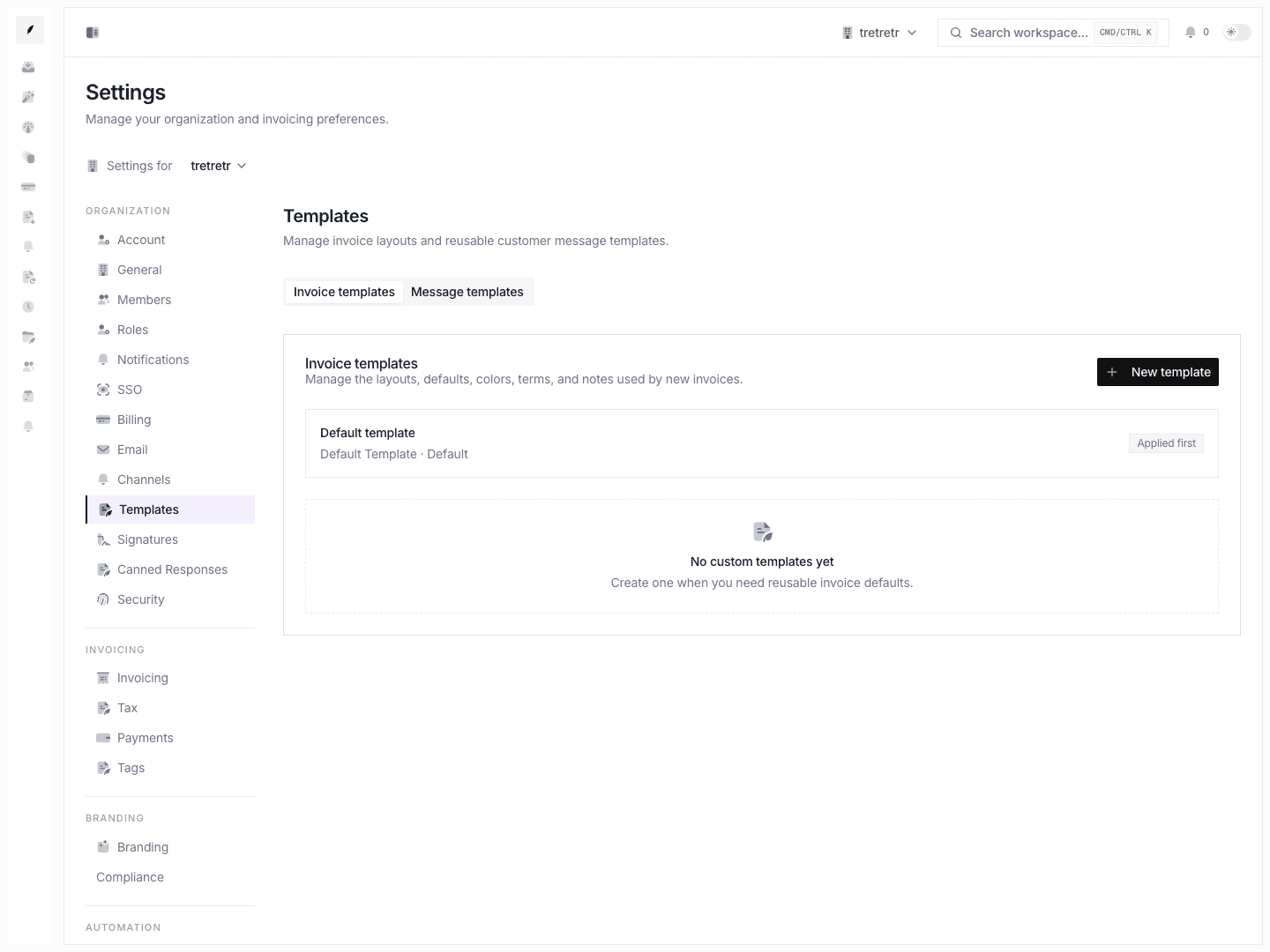
- invoice template and theme behavior in the document preview
- signature assets used in invoice and portal-adjacent output
- invoice defaults such as notes, terms, and payment detail blocks that affect document appearance
Asset behavior
Logo and signature handling are feature-level building blocks in the app:
- logo uploads feed organization branding and invoice presentation
- signature assets support personal or company-signature workflows where applicable
- invalid or unreachable asset URLs usually show up first in preview rather than only after delivery
State and permission behavior
- branding settings are workspace-wide and should be treated as shared defaults, not personal preferences
- invoice preview can differ between old and new invoices if branding or template defaults changed recently
- personal signature behavior belongs in Account Email Signature, while organization logo and color belong in workspace settings
Troubleshooting
The invoice preview has no logo
Check the saved logo URL and confirm it resolves to a valid image. Broken external URLs are a common cause.
The document colors do not match the intended brand
Verify the primary color value is a valid hex color and re-open preview from a fresh draft after saving settings.
One teammate sees different invoice styling than another
Check whether one invoice is inheriting newer workspace defaults while another was created before the branding update.