Invoice Insights
Review invoice analytics for status trends and reporting-oriented billing analysis.
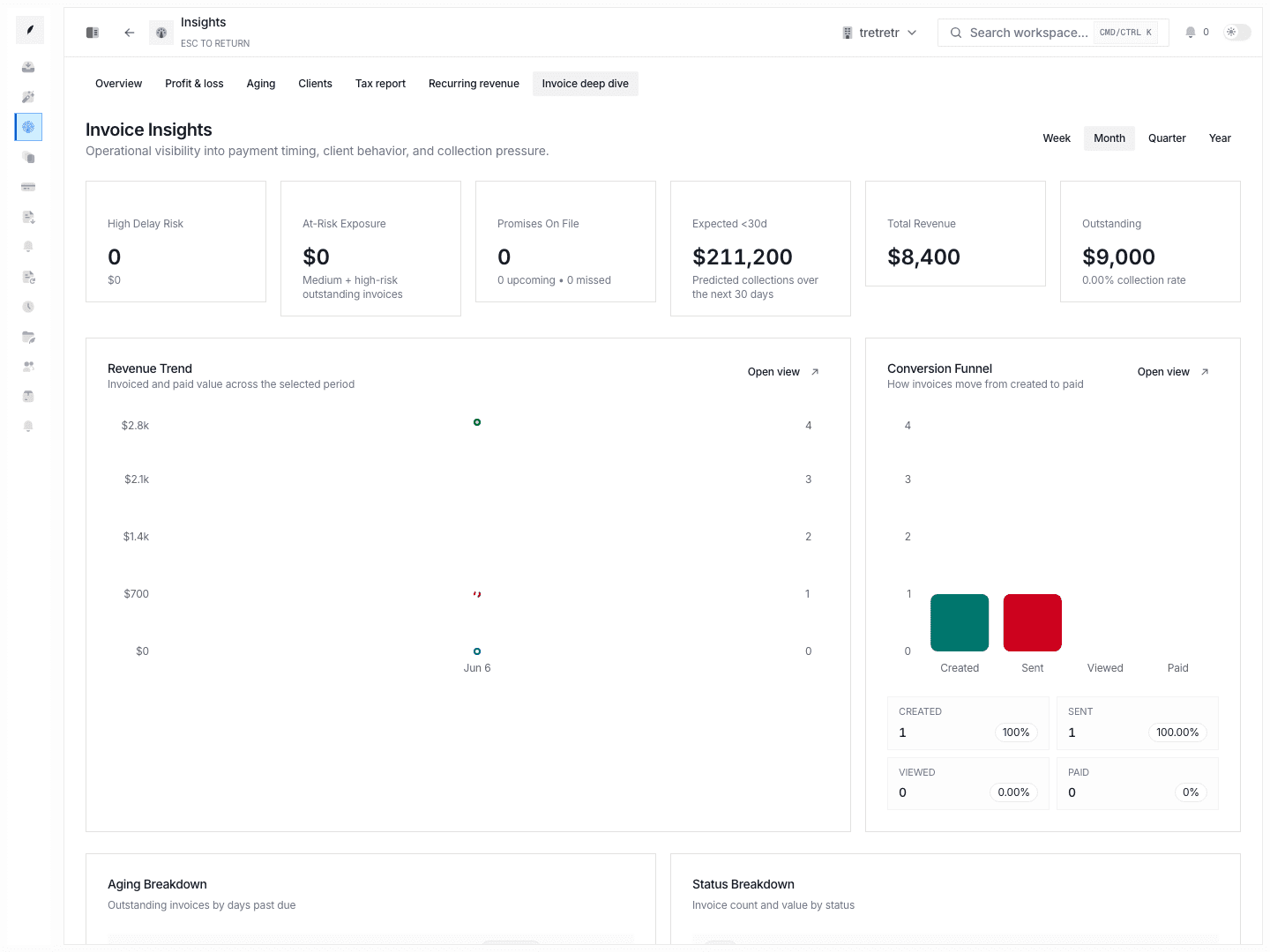
Use Invoices → Insights when you need a reporting-first view of invoice performance rather than a work queue.
Typical Workflow
- Open Invoices → Insights.
- Review invoice-level reporting and status signals.
- Use the result to decide which clients, invoices, or queues need attention next.
This page helps you separate reporting review from day-to-day queue work.
Metric definitions
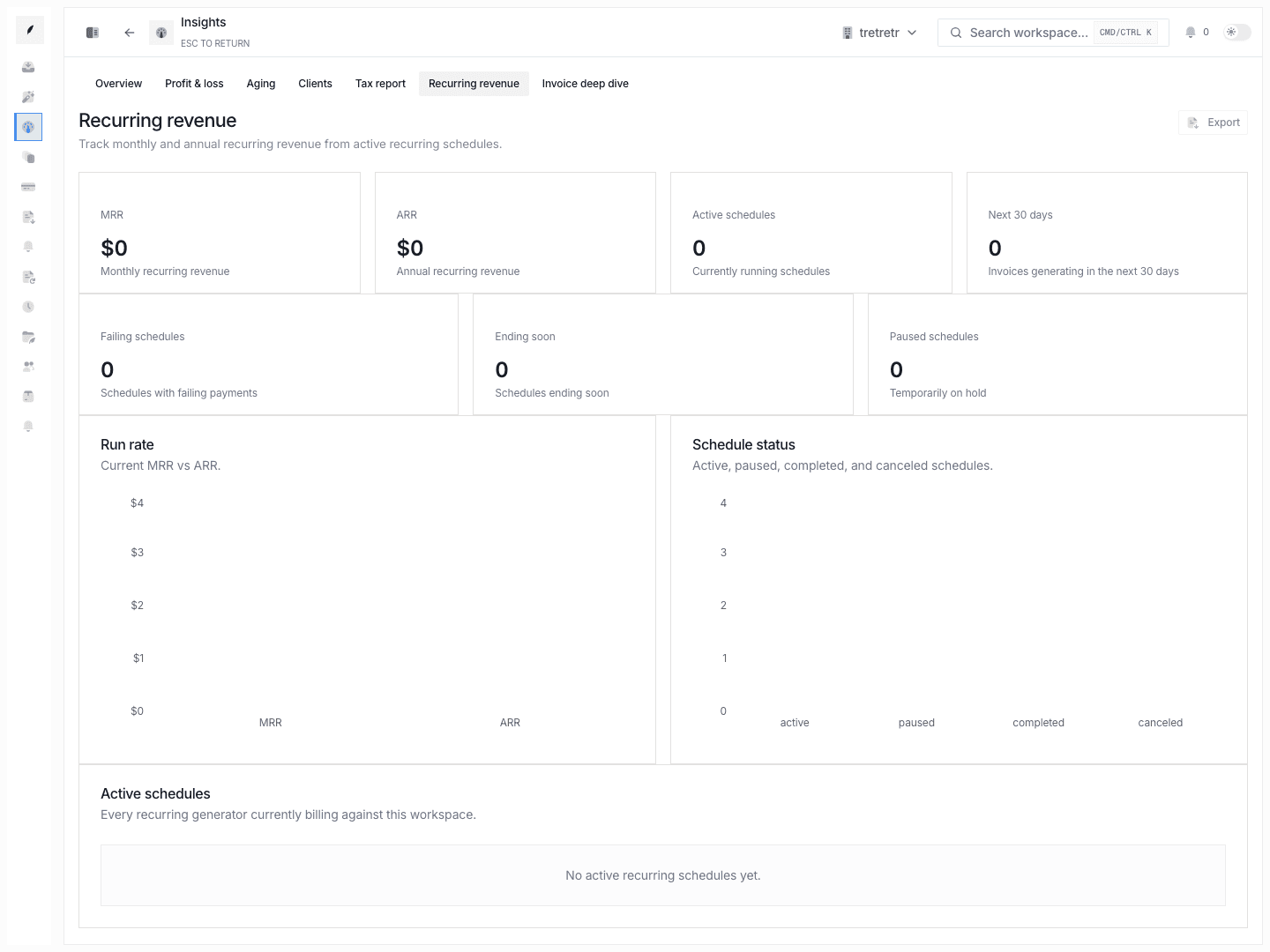
The insights dashboard shows the following key metrics:
| Metric | Definition | Why it matters |
|---|---|---|
| DSO (Days Sales Outstanding) | Average number of days between invoice issue and payment receipt | Lower DSO means faster cash conversion |
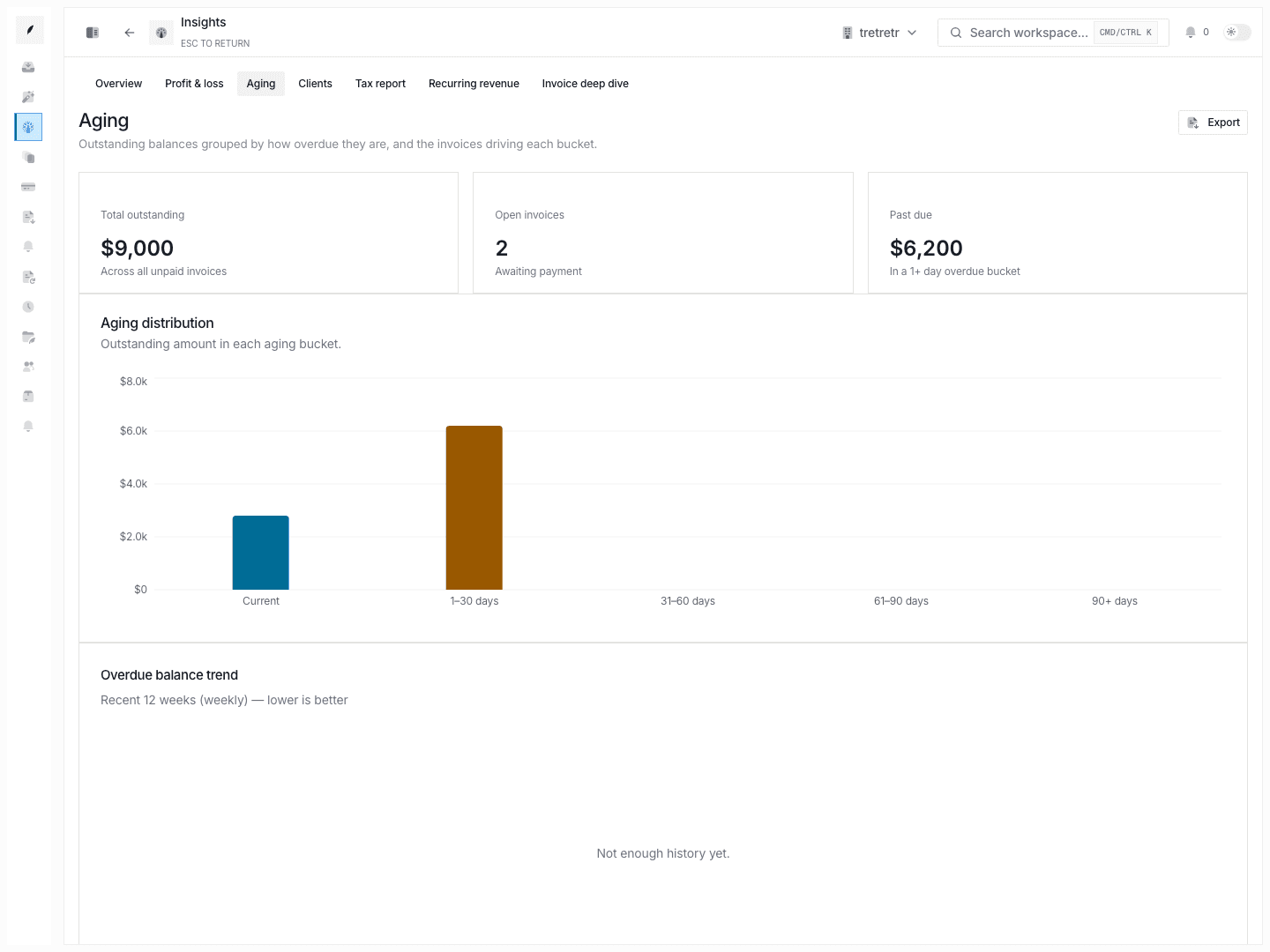
| Aging buckets | Count and value of invoices grouped by days overdue: current, 1-30, 31-60, 61-90, 90+ | Identifies where overdue concentration sits |
| Collection rate | Percentage of invoiced value collected within the selected period | Measures recovery effectiveness |
| Payment velocity | Median days from invoice delivery to payment, tracked over time | Reveals whether clients are paying faster or slower |
| Revenue trend | Total invoiced and collected amounts plotted per period | Shows revenue trajectory at a glance |
Tip: Monitor DSO and collection rate together. A rising DSO paired with a stable collection rate means payments are slowing but eventually arriving. A rising DSO with a falling collection rate signals real trouble.
Date range selection
All metrics respect the date range picker at the top of the page. Options include:
- Last 7 days
- Last 30 days
- Last 90 days
- This quarter
- This year
- Custom range — pick any start and end date.
Changing the date range re-calculates every metric and chart on the page.
Trend analysis
Toggle between weekly, monthly, and quarterly granularity to view trends. Use these views for different purposes:
- Weekly — spot short-term fluctuations and the impact of recent campaigns or reminder batches.
- Monthly — compare performance across billing cycles.
- Quarterly — align with fiscal reporting periods and board-level summaries.
Comparing periods
Click Compare in the date range toolbar to activate period-over-period comparison. The system aligns the comparison window automatically:
- Selecting "Last 30 days" compares against the 30 days before that.
- Selecting "This quarter" compares against the previous quarter.
- Custom ranges compare against an equal-length window ending the day before your start date.
Comparison deltas appear as percentage badges next to each metric card.
Tip: Run a period comparison after launching a new Reminder and Follow-up Automation to measure its impact on collection rate and payment velocity.
Exporting reports
To export the current view:
- Set your desired date range and granularity.
- Click Export in the top-right corner.
- Choose CSV or PDF format.
- The file downloads immediately.
CSV exports include raw values per period. PDF exports include charts as rendered on screen.
Warning: Exports respect the current date range. Double-check the range before exporting.
Using insights to identify at-risk accounts
Combine insights data with the inbox to act on what you find:
- Check the Aging buckets chart for invoices in the 61-90 and 90+ day bands.
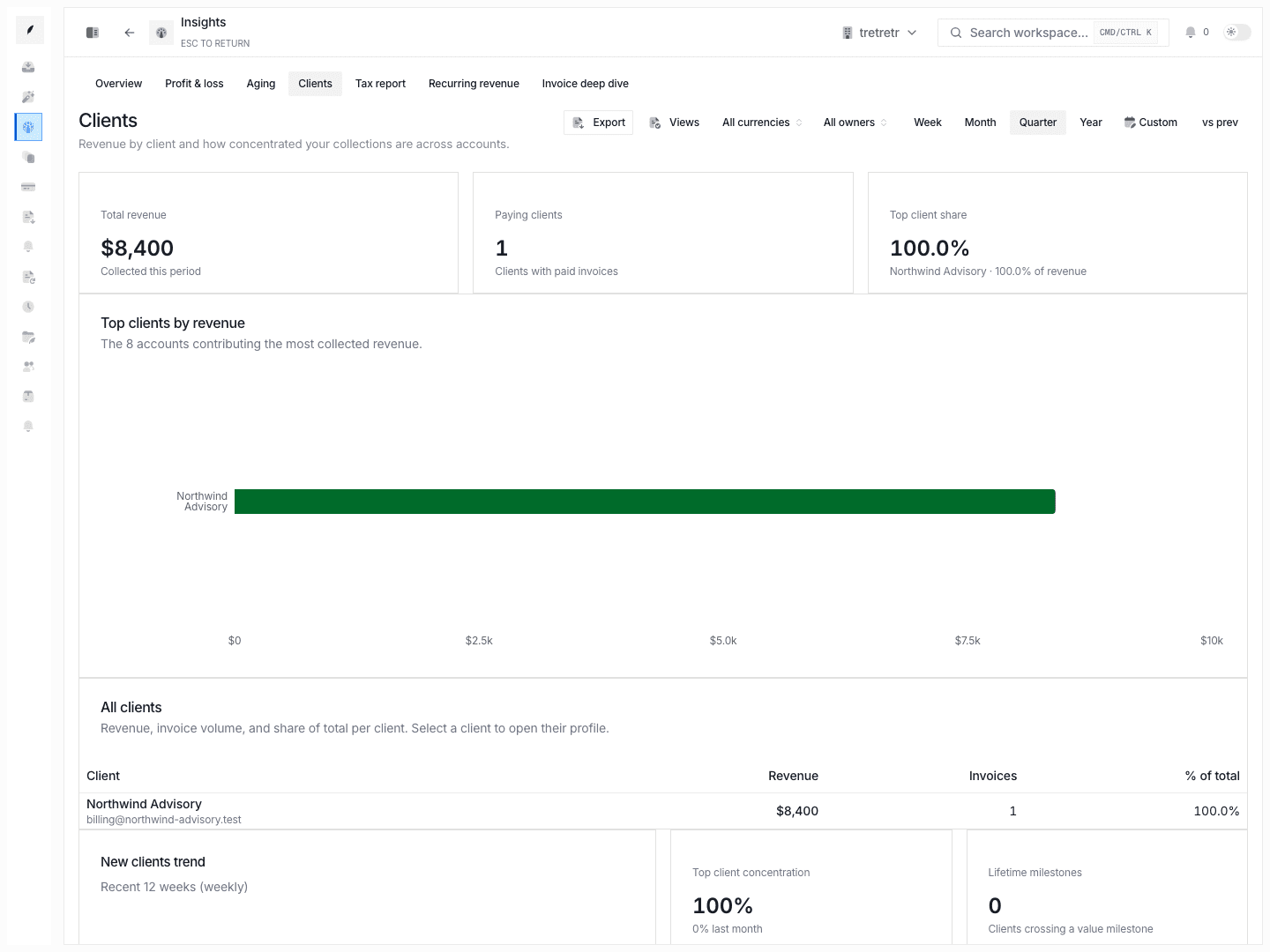
- Note which clients appear most often in the overdue segments.
- Navigate to Inbox Browse Clients and open those client cards.
- Review open threads and escalate or adjust the reminder workflow as needed.
The aging bucket breakdown also appears on individual Client Profiles, so you can share account-level reports with stakeholders.
What It Helps You Do
- invoice status analysis
- payment-progress review
- broader invoice reporting
State and permission behavior
- this page is reporting-oriented and should be paired with invoice detail, client, or inbox views when you need action context
- insights quality depends on the completeness of the underlying invoice data
Edge cases
- Invoices in draft status are excluded from DSO and collection rate calculations.
- Voided invoices are excluded from all metrics. If you void a large invoice, expect metric shifts in the following period.
- Multi-currency invoices are grouped by currency. The dashboard does not convert across currencies. Filter by currency if your organization bills in more than one.
Troubleshooting
This page answers "what is happening" but not "what do I do next"
That is expected. Use the inbox, invoice record, or client profile for execution details.
Metrics look wrong after a bulk import
Bulk-imported invoices backdate into the period matching their issue date. Give the system a few minutes to recompute aggregates after large imports.