Settings: Invoicing, Finance & Automation
Manage invoice defaults, tax, payments, branding, compliance, business hours, and reminders.
This page covers the finance and automation half of Settings. These pages define how invoices are numbered, what default payment and tax information is shown, how branding is applied, and when automated follow-up should happen.
Related Settings Pages
- Settings Invoicing
- Settings Tax
- Settings Payments
- Settings Tags
- Settings Branding
- Settings Compliance
- Settings Business Hours
- Settings Reminders
Typical Workflow
- Update the workspace defaults before creating new invoices at scale.
- Save the settings change.
- Re-open a new draft or customer-facing flow to verify the effect.
After you save changes here, new invoices and reminder workflows inherit the intended defaults without manual re-entry.
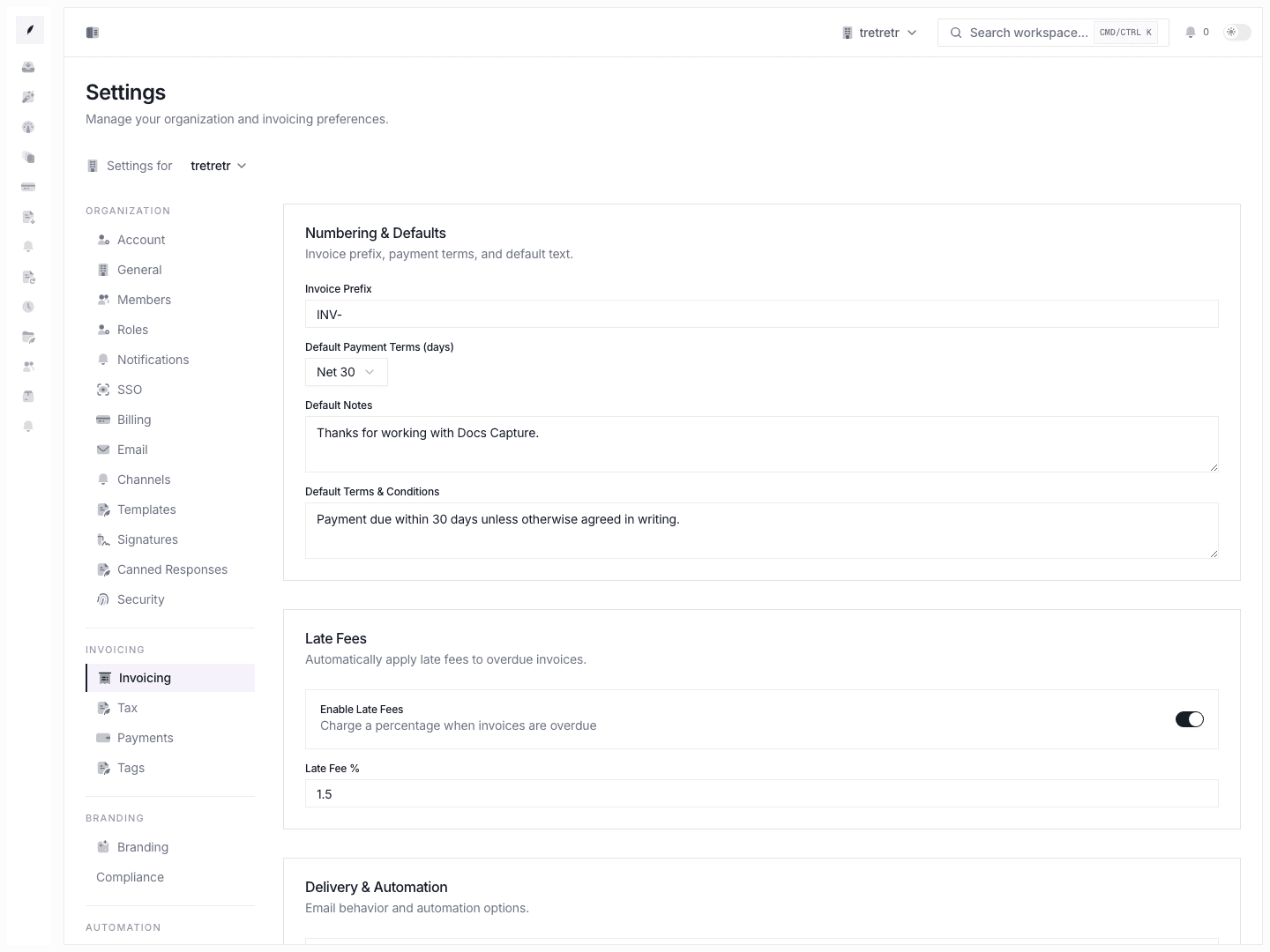
Invoicing
Use Settings → Invoicing for:
- invoice prefix
- default payment terms
- default notes and terms
- late-fee enablement and percentage
- attach-PDF behavior
- always-BCC email
- auto-reminders
- partial-payment policy
This page is the main source of invoice-creation defaults.
Tax
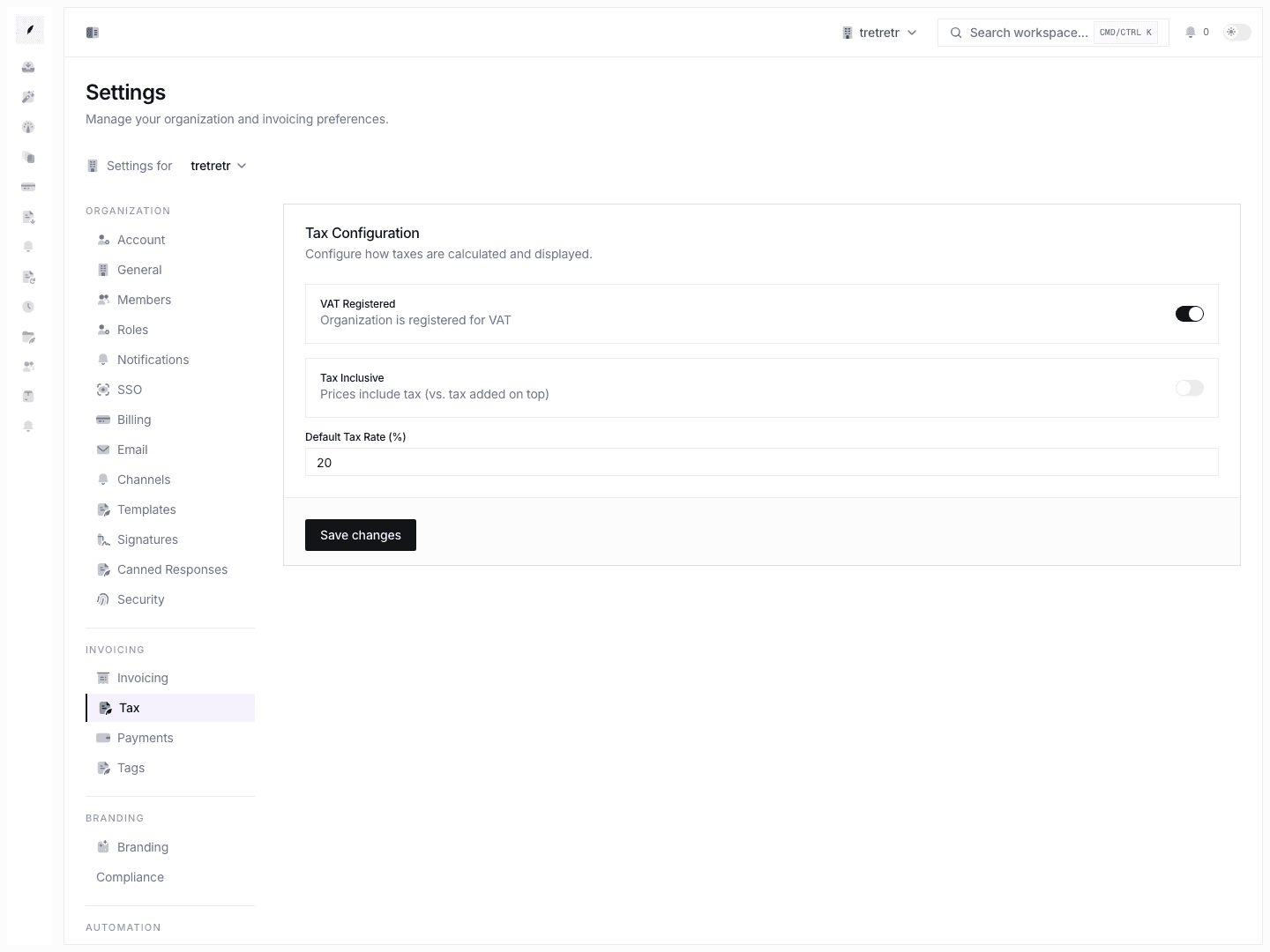
Use Settings → Tax to control:
- VAT registration state
- tax-inclusive pricing behavior
- default tax rate percentage
Payments
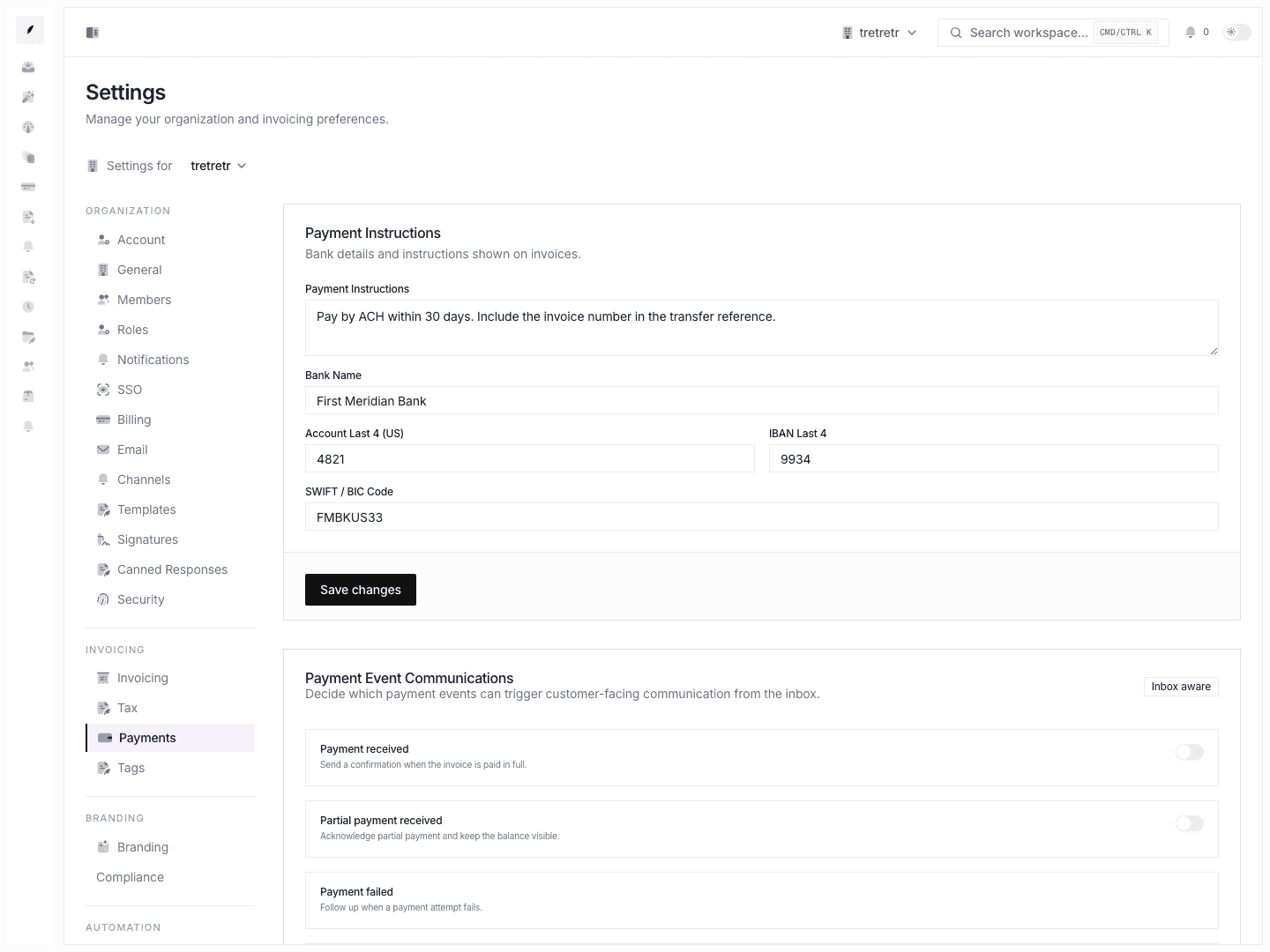
Use Settings → Payments for:
- payment instructions
- bank name
- account last four
- IBAN last four
- SWIFT code
These values shape invoice payment blocks and should be reviewed whenever banking details change.
Tags
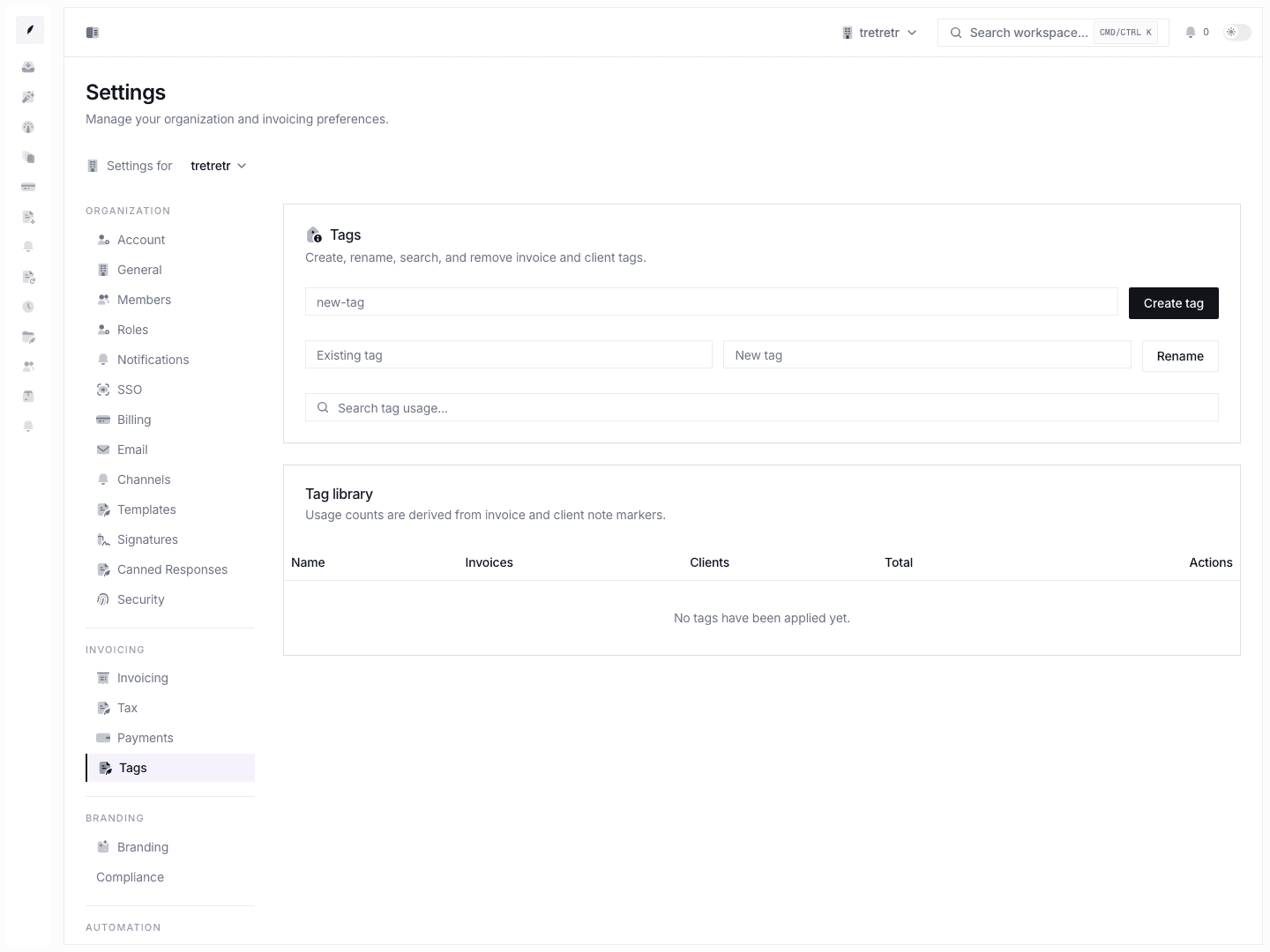
Use Settings → Tags for:
- creating invoice and client tags
- renaming existing tags
- searching tag usage
- reviewing invoice and client usage counts
- removing tags that should no longer be used
Tag changes affect the shared library teams use for organizing invoice and client work.
Branding
Use Settings → Branding for:
- logo URL
- primary brand color
This page is the organization-level counterpart to personal signature settings.
Compliance
Use Settings → Compliance for:
- registration number
- DUNS number
- LEI
These identifiers are useful when invoices need stronger legal or procurement credibility.
Business hours
Use Settings → Business Hours to define:
- organization timezone
- daily open and close windows
This is the org-level schedule page and is distinct from personal working hours.
Reminders
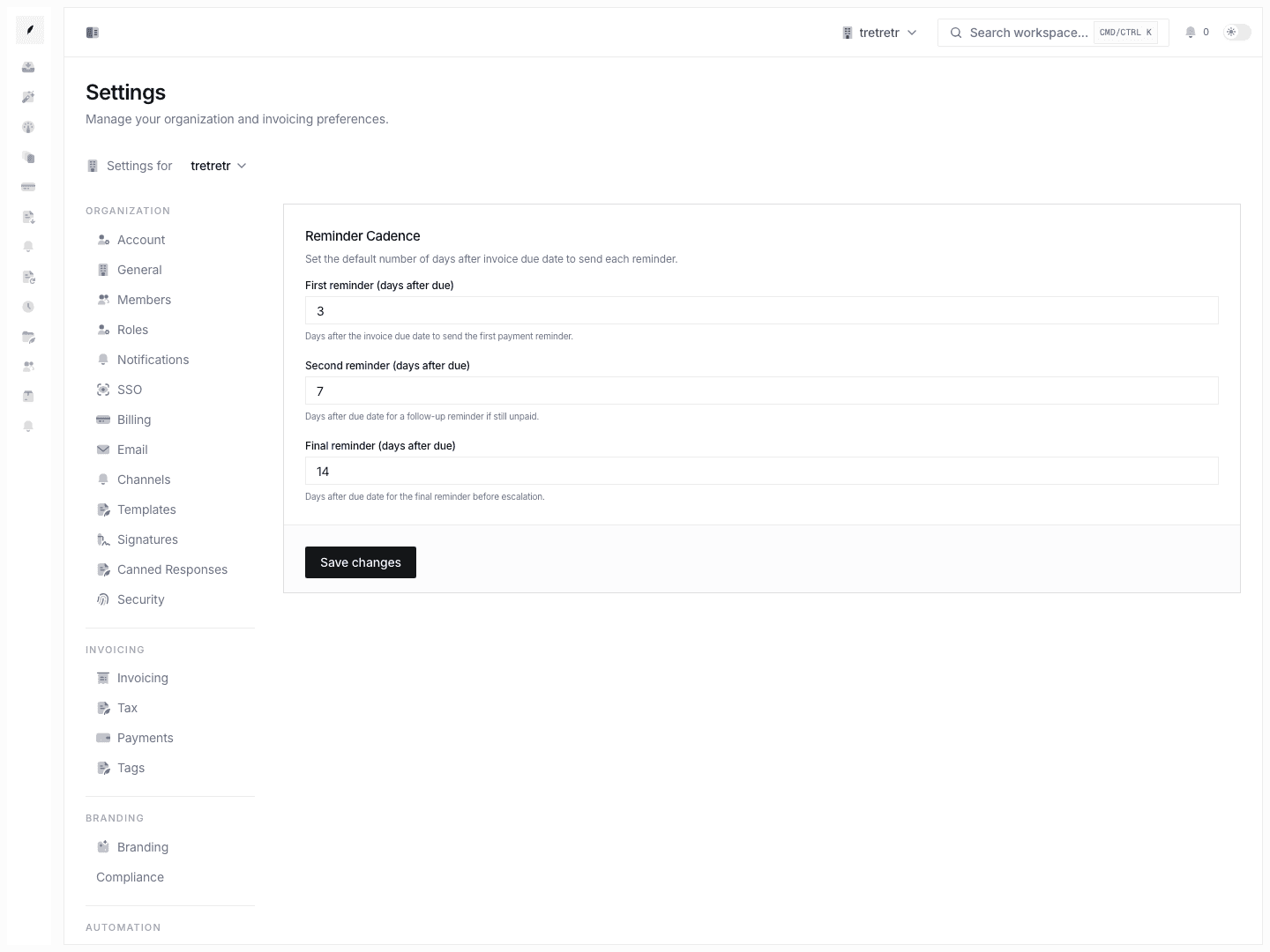
Use Settings → Reminders to set:
- first reminder days after due date
- second reminder days after due date
- final reminder days after due date
These values support consistent overdue follow-up behavior.
Permissions and state behavior
- finance defaults are workspace-wide and should be changed deliberately
- some settings affect only newly created invoices, so do not expect old drafts to backfill automatically
- payment and tax settings should be reviewed together when legal entity or banking details change
- business hours are shared organizational metadata, not a per-user notification preference
Troubleshooting
A new invoice does not use the expected prefix or terms
Confirm the workspace invoicing settings were saved before the draft was created. Older drafts can still reflect older defaults.
The payment block looks incomplete
Review Settings → Payments and confirm the bank and transfer fields were filled in with the intended values.
Reminder timing feels inconsistent
Check both Settings → Invoicing and Settings → Reminders. Reminder enablement and reminder cadence are related but configured separately.
Branding changed, but an existing invoice still shows the old look
Open a fresh draft to validate the new defaults. Existing invoices may preserve prior state depending on when they were created.