Inbox Browse Clients
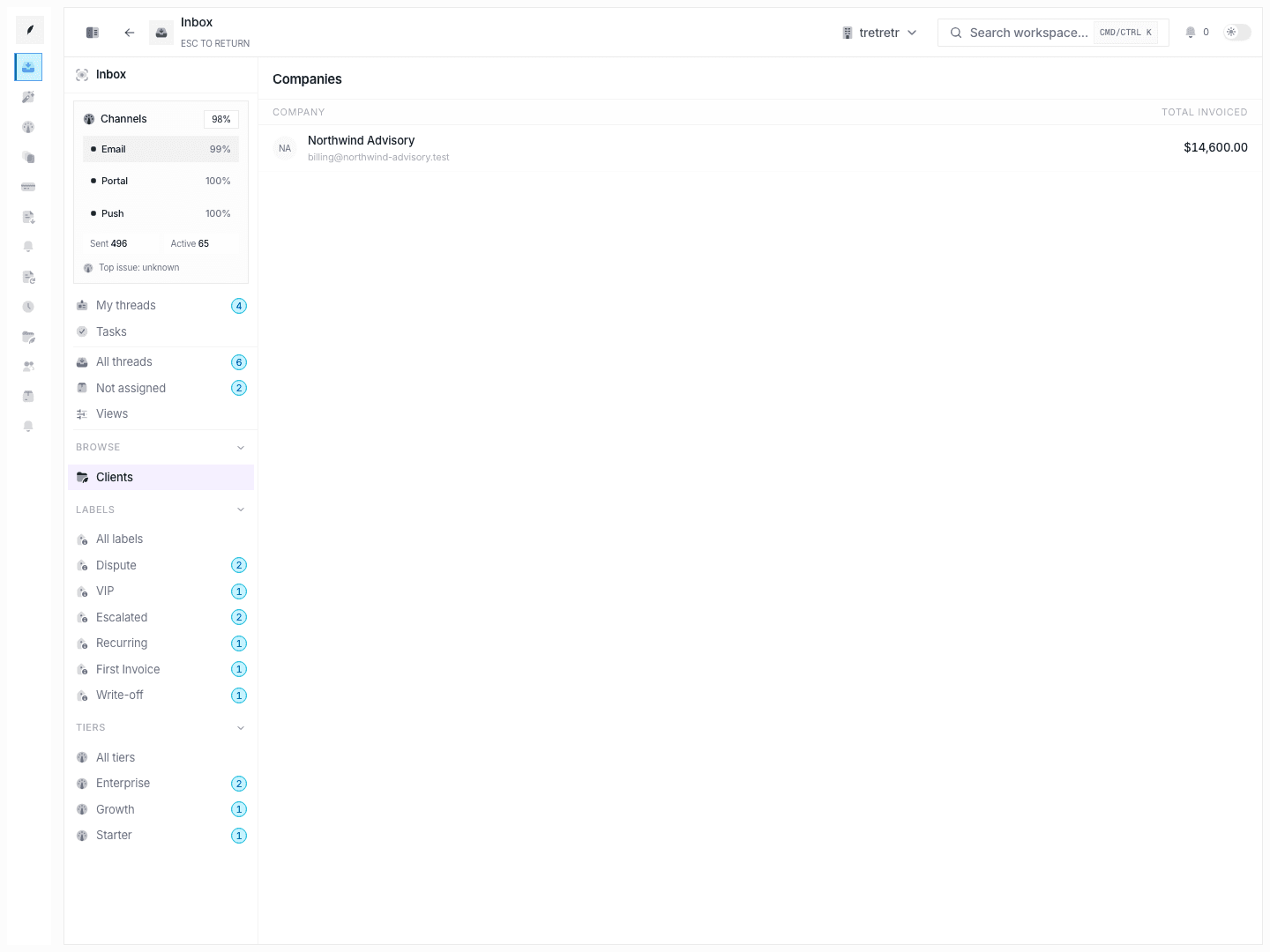
Regroup inbox work by company so the team can review all billing communication for one client.
Use Inbox → Browse → Clients when you want to navigate inbox work from the client outward.
Typical Workflow
- Open Inbox → Browse → Clients.
- Select the company you want to inspect.
- Move into the filtered thread list for that client.
This view lets you review all visible invoice communication for one customer without rebuilding filters manually.
Client grouping view
The default view lists clients alphabetically with a summary card for each. Every card shows:
| Field | Description |
|---|---|
| Company name | Primary display name from the client record |
| Client email | Contact email, shown when present |
| Thread count | Number of visible inbox threads for this client |
| Total invoiced | Sum of all invoice amounts tied to this client |
| Oldest open thread | Age of the longest-running unresolved thread |
Cards with open threads appear first. Clients with no active inbox work sort below.
Searching by client name or email
Use the search bar at the top of the browse view. It matches against:
- company name (partial match, case-insensitive)
- primary contact email
- client alias or trade name if set
Type at least two characters to trigger results. The list filters live as you type.
Tip: If you know the client's invoice number but not their name, search from Invoices Overview instead and navigate to the client from there.
Viewing all threads for a client
Click a client card to open the thread list scoped to that company. This view behaves like the standard inbox list but pre-filtered to one client. You can further narrow results by status, label, or priority using the filter bar.
The thread list shows the same columns as the main inbox: subject, status, assignee, last activity, and overdue indicator.
Moving from inbox to client context
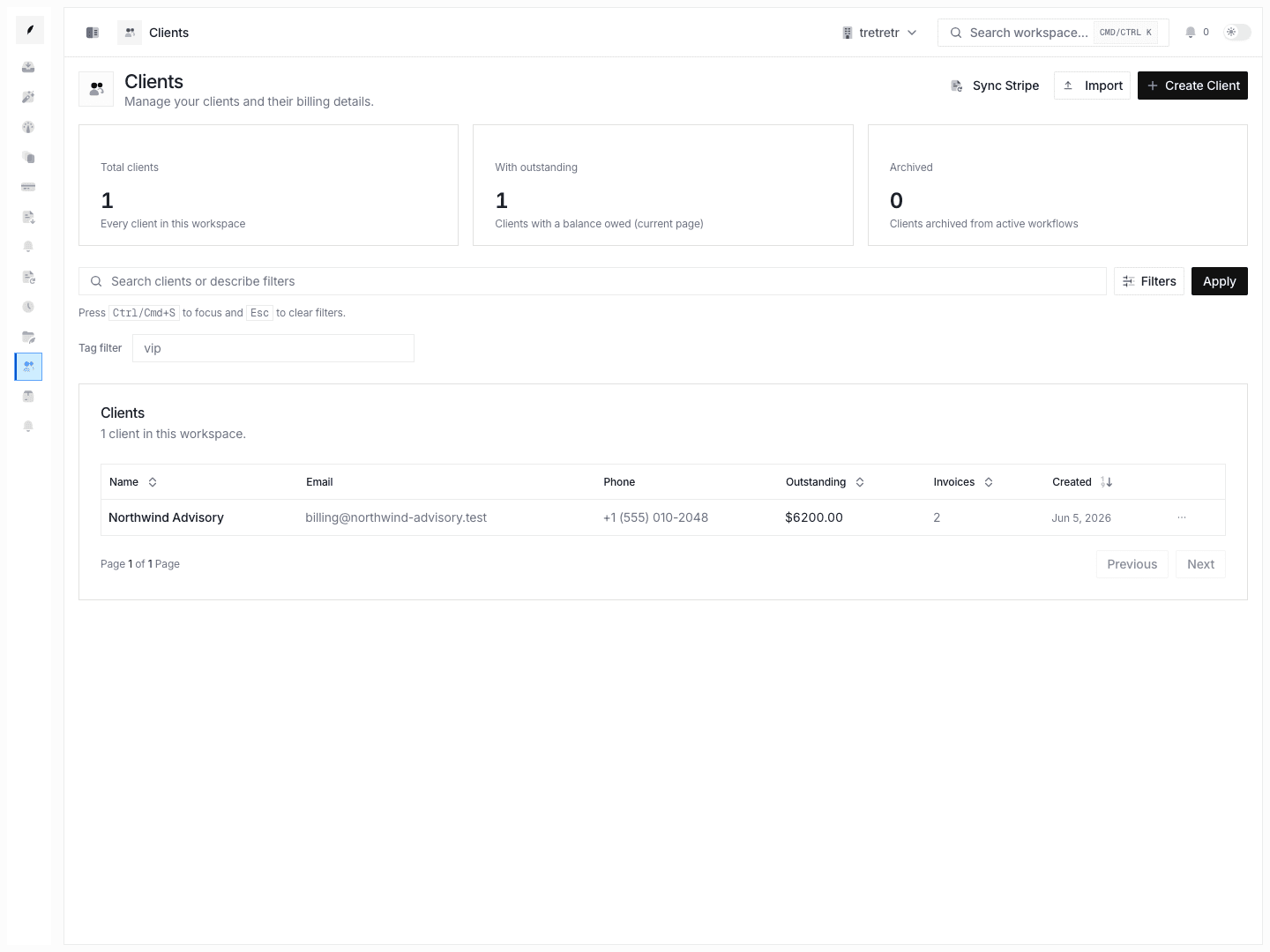
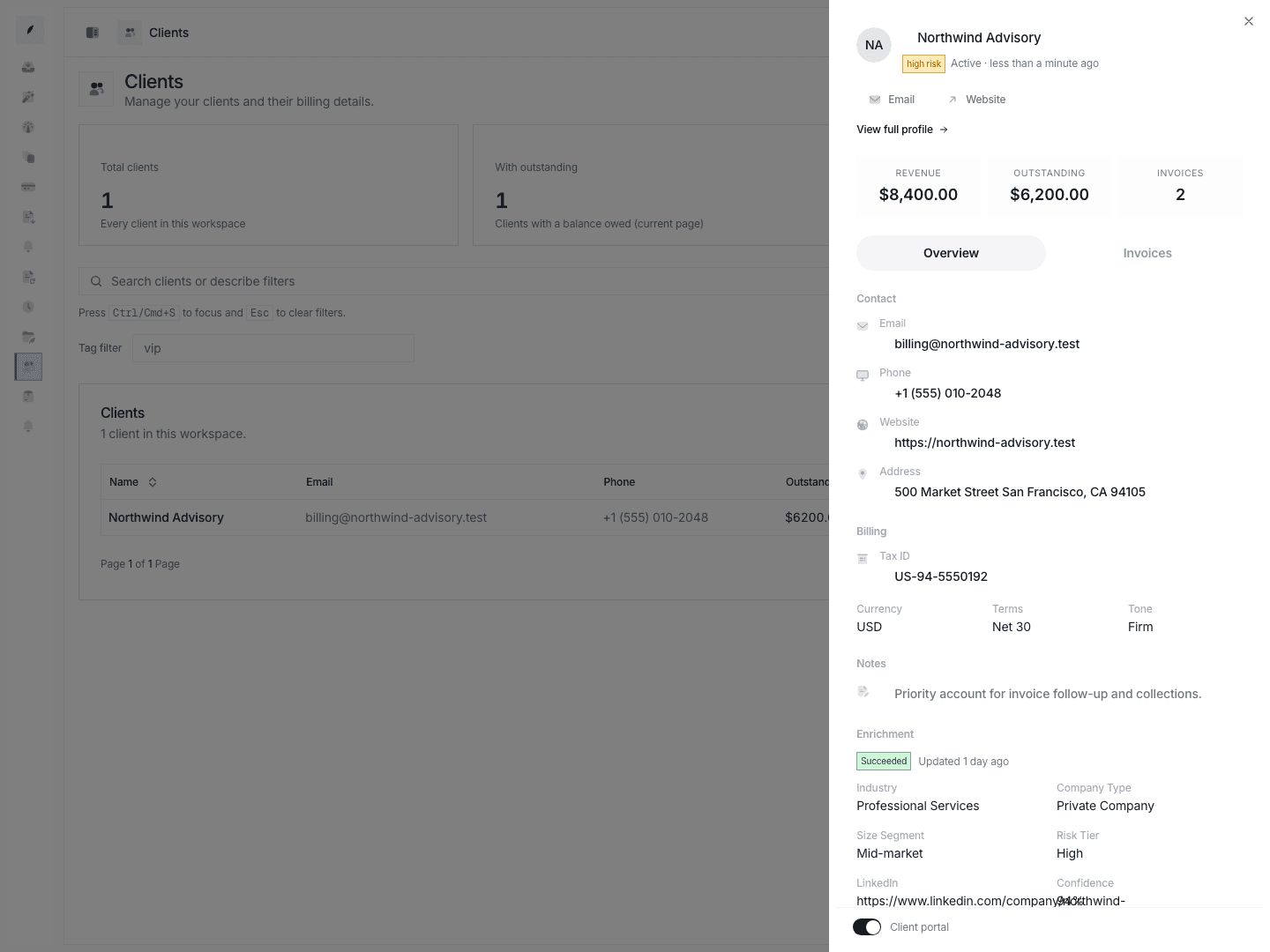
Use the client-scoped thread list to decide whether the work should stay in the inbox or move to the client record. For client details, open the client profile or Clients workspace.
Filtering by invoice status
When viewing threads for a specific client, use the invoice status filter to isolate threads tied to a particular invoice state:
- Overdue — threads linked to invoices past their due date.
- Pending — threads linked to unpaid invoices that are not yet overdue.
- Paid — threads linked to settled invoices (useful for post-payment follow-up).
- Draft — threads linked to invoices not yet sent.
Warning: The invoice status filter applies to the invoice linked to each thread. Threads without a linked invoice do not appear when any invoice status filter is active.
What This View Shows
- company name
- client email when present
- total invoiced amount
State and permission behavior
- browse-by-client only shows threads visible under the current visibility rules
- a client can exist in the directory without having visible inbox work here
Edge cases
- Clients with multiple contacts show threads for all contacts under one card.
- If a client has no email on file, the email field is blank but the card still appears.
Troubleshooting
The client exists, but no inbox work appears
The client may not have linked threads yet, or the visible thread scope may still be limited by ownership.
Thread count on the card does not match the threads I see
The card count includes threads across all statuses. If you have a status filter active inside the client view, the visible list may be smaller.