Accept Payments
Align Stripe connection, invoice payment instructions, and payment recording with the payment setup documented for Corinthian.
Corinthian has two practical payment setup jobs in these docs:
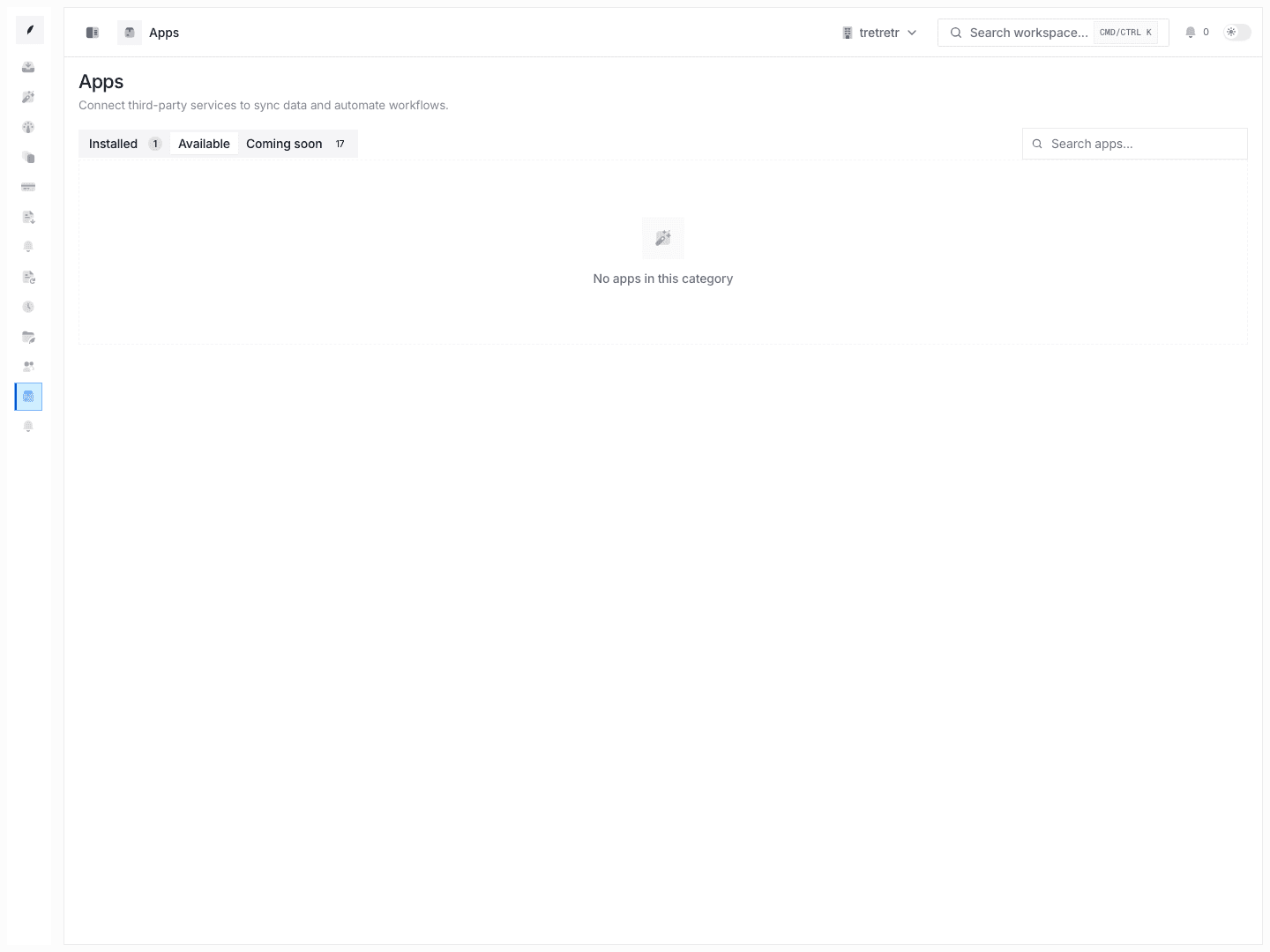
- connect Stripe from Apps if your workspace uses the Stripe integration
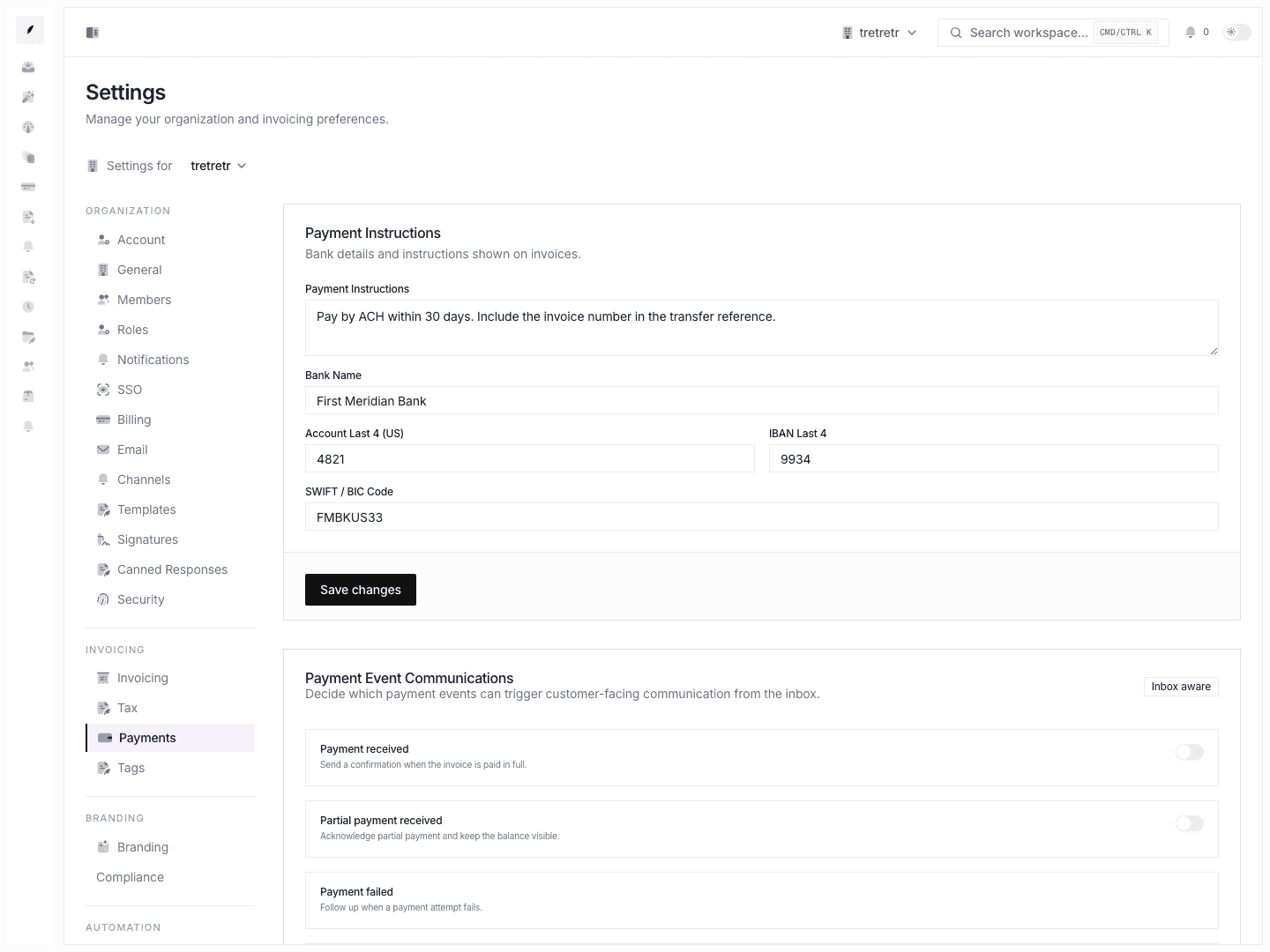
- maintain manual payment instructions under Settings → Payments
Connect Stripe
- Open Apps.
- Find the Stripe integration in the installed or available list.
- Complete the connect flow.
- Return to the app card to confirm the workspace is connected to the intended environment.
Use Apps for Stripe connection state. Do not look for Stripe connect buttons inside Settings → Payments.
Maintain Manual Payment Instructions
- Open Settings → Payments.
- Enter the instructions clients should follow if they are paying by transfer or another manual path.
- Save the bank reference fields you want shown on invoices.
- Draft an invoice and confirm the wording is correct.
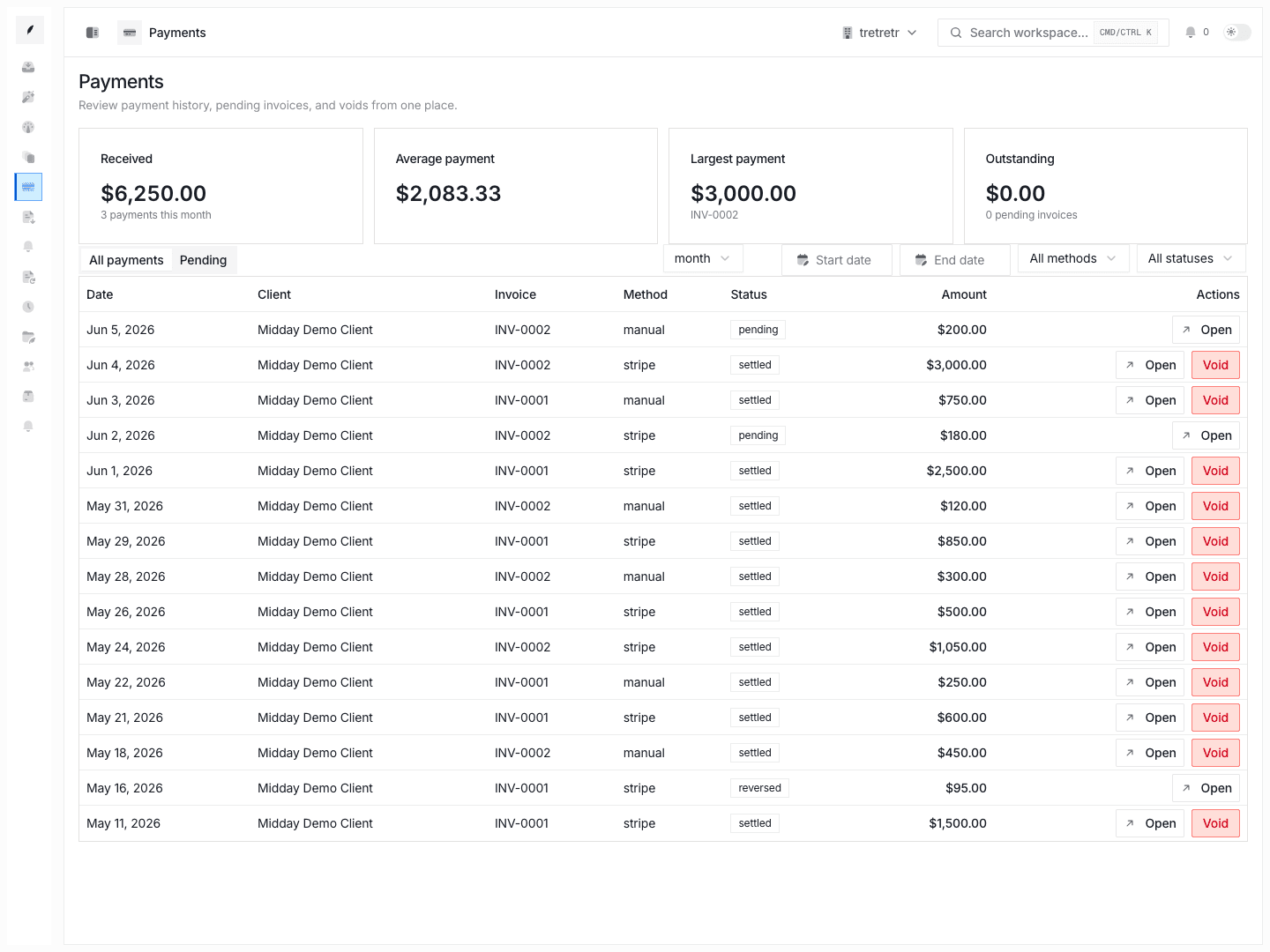
Record Payments Through the API
If your team records payments programmatically or manually after money arrives, use the Payments API. It supports recording payments, listing them, and voiding payment records.
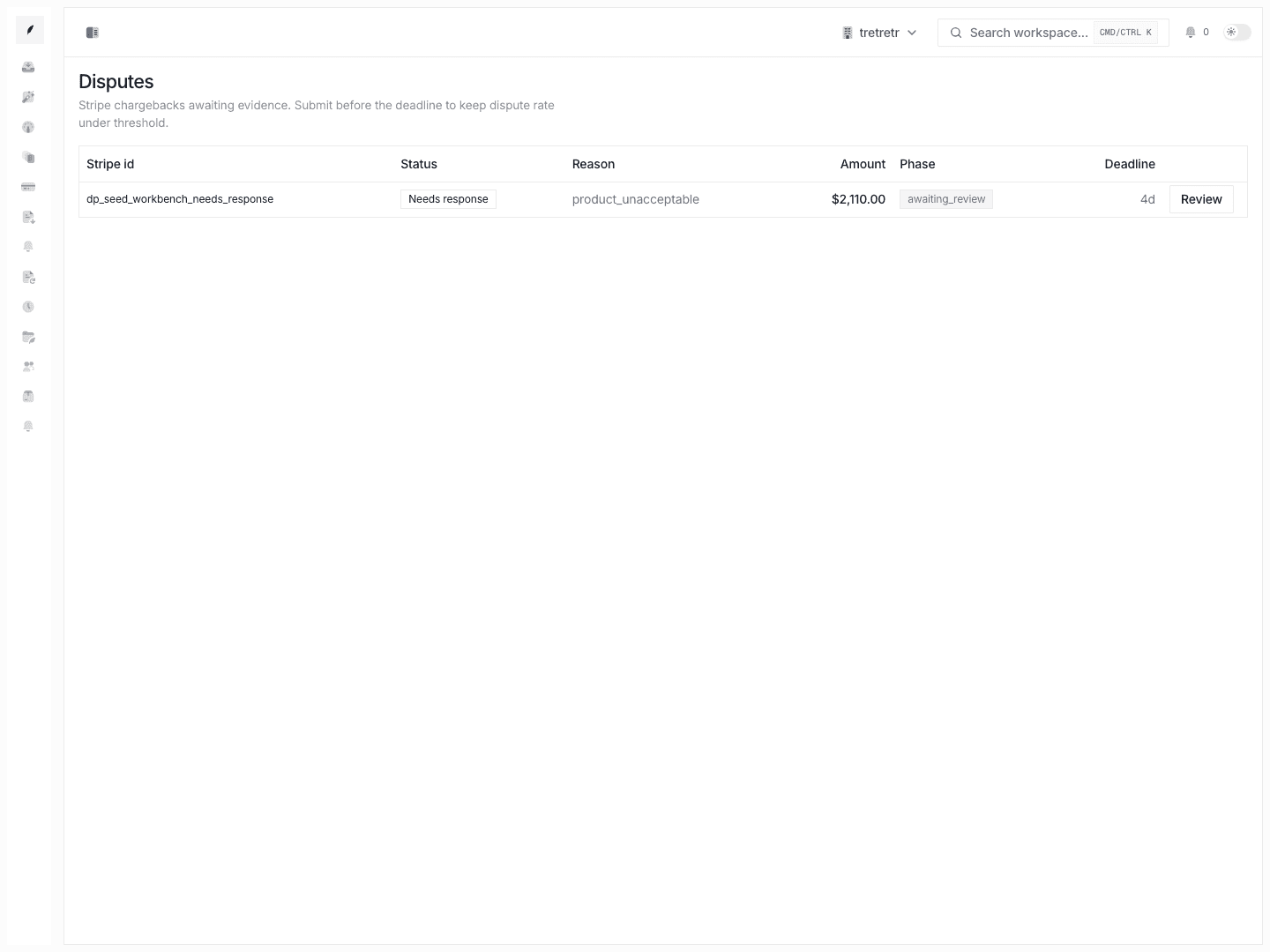
Review Disputes When Available
The disputes overview gives payment operators a place to confirm whether Stripe disputes need review. Treat it as a dispute-status workspace, not a full case-management system.
Keep Expectations Tight
These docs do not promise:
- partial-payment configuration from the settings page
- full dispute case management beyond the disputes overview
- automatic retry logic documented as a public workspace control
- broad multi-currency settlement controls
Keep payment setup in what your workspace uses: Stripe via Apps, or manual payment instructions via Settings → Payments.