Clients Workspace
Manage client records through a searchable directory, quick detail sheet, full profile, and enrichment-backed billing context.
The clients workspace is Corinthian’s central account record. It is where the team keeps billing identity, invoice history, ownership, portal access, notes, and enrichment context attached to the same client record before work moves into invoice sending or inbox follow-up.
What The Clients Workspace Includes
The clients workspace includes:
- a searchable Clients directory with archived-state and created-date filters
- a shared Create Client and Edit Client sheet for basic record creation
- a client import workspace for reviewing imported records before they join the directory
- a row-driven detail sheet with quick editing, invoice preview, portal toggle, and enrichment summary
- a dedicated full client profile with analytics, activity, invoices, ownership, billing preferences, contacts, portal controls, notes, and full enrichment data
- archive and unarchive flows for record retention, plus delete from the list row actions
How the workspace is layered
Corinthian organizes the clients experience as four connected pages instead of one form-heavy screen.
| Page | What it is for |
|---|---|
| Clients list | Find accounts, review balances and invoice counts, and open the next record quickly. |
| Create/Edit sheet | Capture the foundational identity and contact fields for a record. |
| Import workspace | Review imported client records before they become part of the active directory. |
| Detail sheet | Work a client inline from the list without leaving the directory. |
| Full profile | Go deeper on account ownership, billing preferences, activity, invoices, portal access, and enrichment detail. |
List workspace
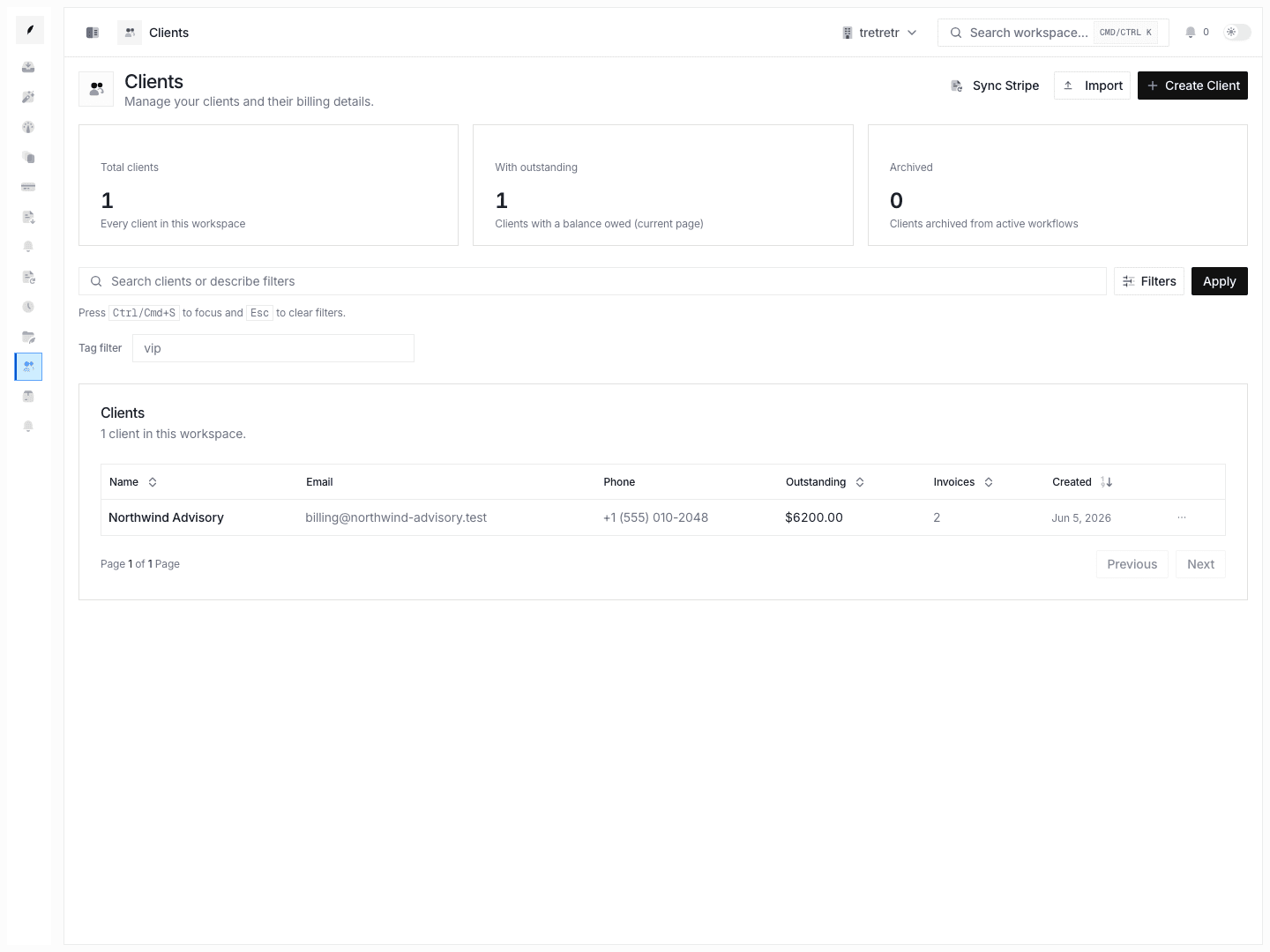
The Clients page is the directory layer:
- search covers name, email, phone, address, website, and notes
- filters cover archived state plus created-from and created-to dates
- the search bar also supports natural-language filter parsing, so teams can describe the slice they want instead of building every filter manually
- each row shows the client name, email, phone, outstanding balance, invoice count, created date, and row actions
The list keeps the selected clientId in the URL query string, so opening and closing the detail sheet is linkable and preserves the working context on the list page.
Create and edit flow
The shared client sheet handles the base create and edit flow.
- Create Client opens the sheet in create mode
- row-level Edit opens the same sheet in edit mode
- the sheet collects
name,email,phone,address,website,taxId, andnotes - Name is required; email and website are validated when present
The form is intentionally narrow. Corinthian expects deeper account maintenance to happen after creation from the detail sheet or the full profile.
Import workspace
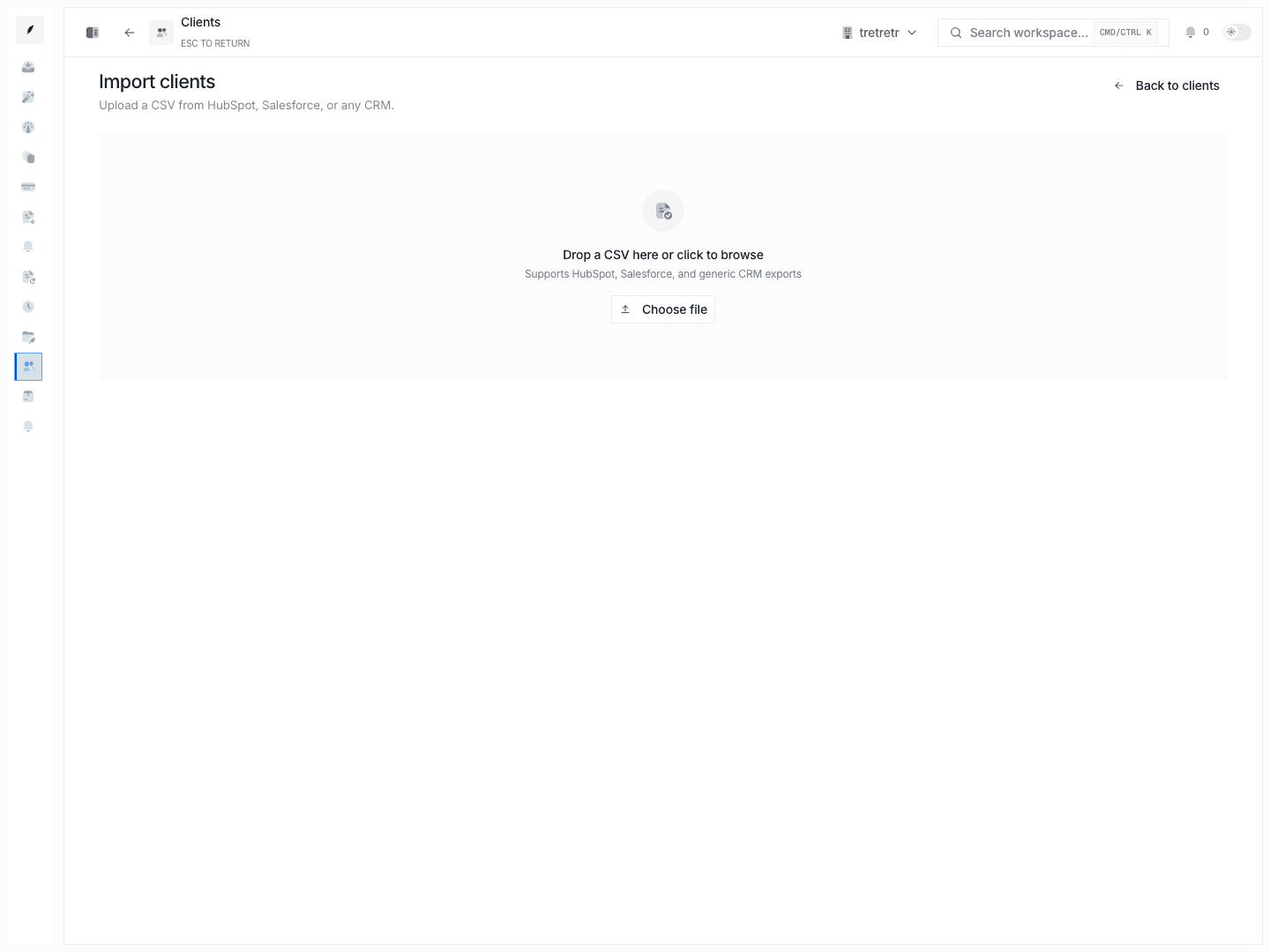
Use the client import workspace when a batch of client records needs review before the team starts billing or follow-up work from those accounts.
Working from the detail sheet
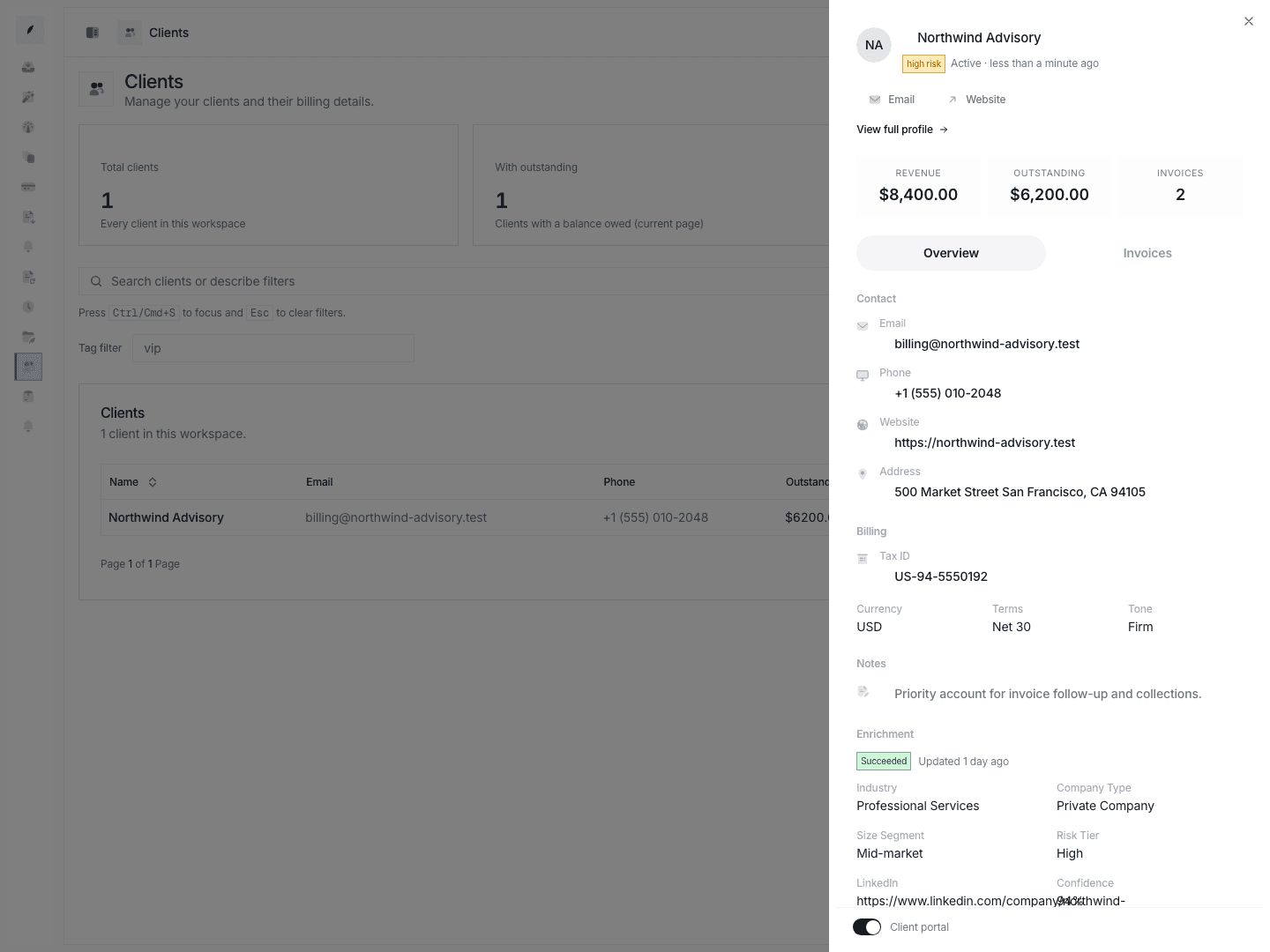
Clicking a row opens the detail sheet, which is the fastest way to maintain a client while staying inside the directory.
Overview tab
The default tab is designed for quick day-to-day maintenance:
- inline editing for
name,email,phone,website,address,taxId, andnotes - quick badges for archived status, risk tier, and credit hold
- summary stats for revenue, outstanding balance, and invoice count
- billing defaults such as currency, payment terms, and reminder tone
- portal access toggle
- enrichment status plus projected summary fields
Invoices tab
The second tab shows the latest client invoices and a quick path into invoice creation, so teams can move from account review into billing work without backing out of the record.
When to stay in the sheet
Use the detail sheet when you need to:
- fix contact information before sending an invoice
- check whether the client already has open exposure
- review enrichment status quickly
- archive or unarchive a record from list context
- jump from the directory into invoice work or the full profile
When to open the full profile
See also: Client Profile
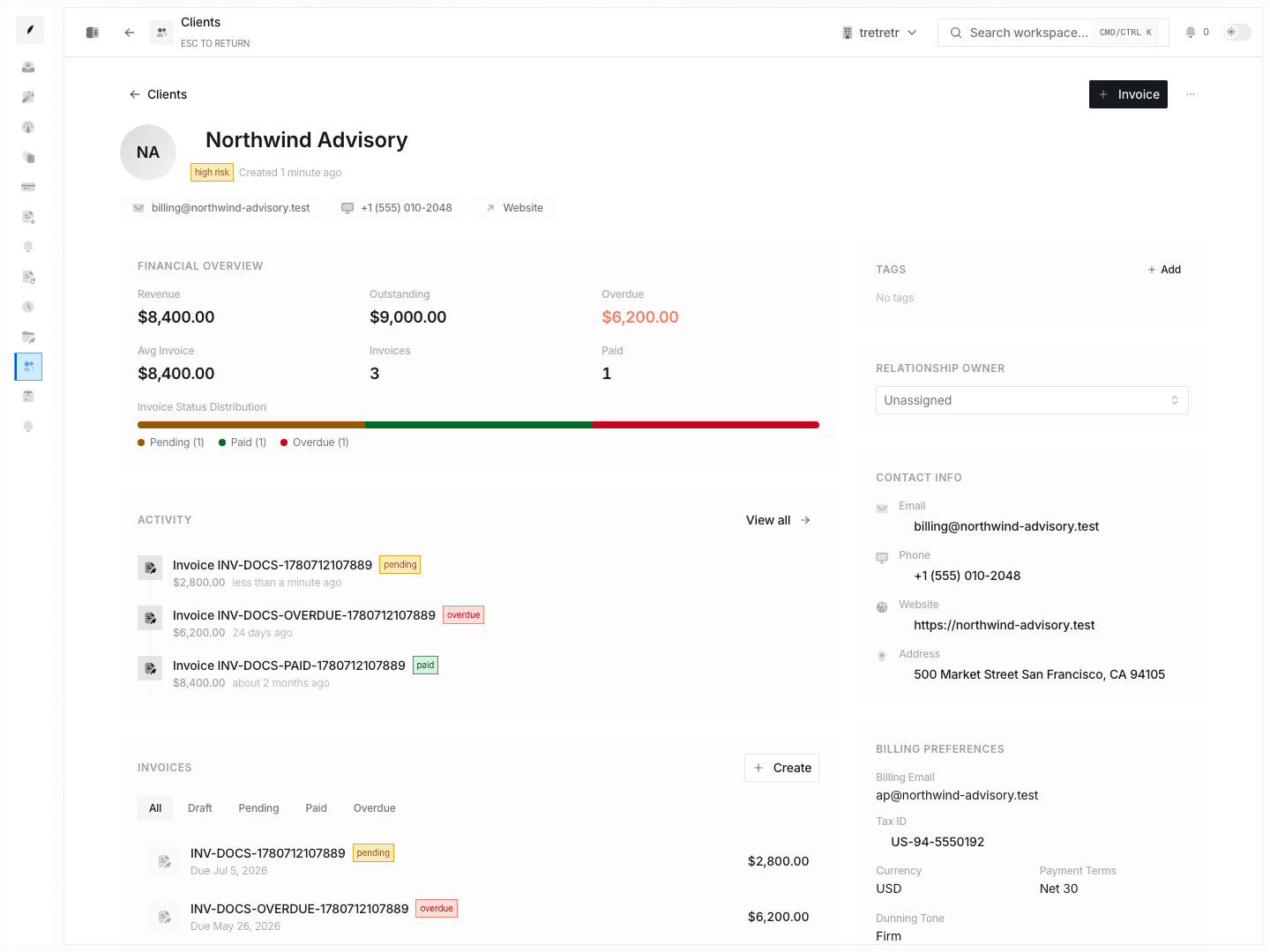
The full client profile page is the long-form workspace for account management.
What the full profile adds
Compared with the side sheet, the full profile adds:
- live financial analytics computed from the client's invoice history
- a recent activity timeline
- a dedicated invoice table
- relationship owner assignment from active organization members
- separate contact and billing preference sections
- billing and collections contact groups
- risk and credit summary fields
- full portal controls, including copyable portal URL and token regeneration
- a larger enrichment block with expanded detail accordions
This is the right page when the account needs deeper work, not just a quick correction.
Archive, unarchive, and delete
Corinthian distinguishes between hiding a client from active work and removing the record entirely.
- Archive keeps the client record but moves it out of the active set when you filter to active clients
- Unarchive restores the record to normal list workflows
- Delete is the destructive option from the list row action
Use archive when the team may still need invoice history, notes, or enrichment context later. Reserve delete for records that should truly be removed.
How enrichment fits into the client record
The clients workspace is also the primary place to review customer enrichment.
- create and update flows in the web app evaluate whether enrichment should run
- qualifying runs depend on the client having both a name and a website
- enrichment summary fields are visible in both the detail sheet and the full profile
- full enrichment detail, source intelligence, and run metadata live on the profile page
The current lifecycle and rules are documented in Client Enrichment.
Recommended operating model
- Create the client with the base identity and contact fields first.
- Use the list and filters to find the account before you create or chase invoices.
- Open the detail sheet for fast corrections and quick exposure review.
- Move to the full profile when the record needs owner assignment, portal work, risk review, or deeper invoice analysis.
- Review enrichment before first invoice delivery, large renewals, or collections escalation.
What to verify before leaving a client record
- billing email, phone, website, and address still point to the right contact path
- currency and payment terms match how the client should be invoiced
- the relationship owner and billing or collections contacts are current
- portal access is enabled or disabled intentionally
- enrichment status is understood:
succeeded,queued,running,failed,skipped, ornot started - archive versus delete reflects whether the team should retain the record