From Time Tracked to Invoice Sent
Track billable work in Tracker, review entries, and create invoice drafts.
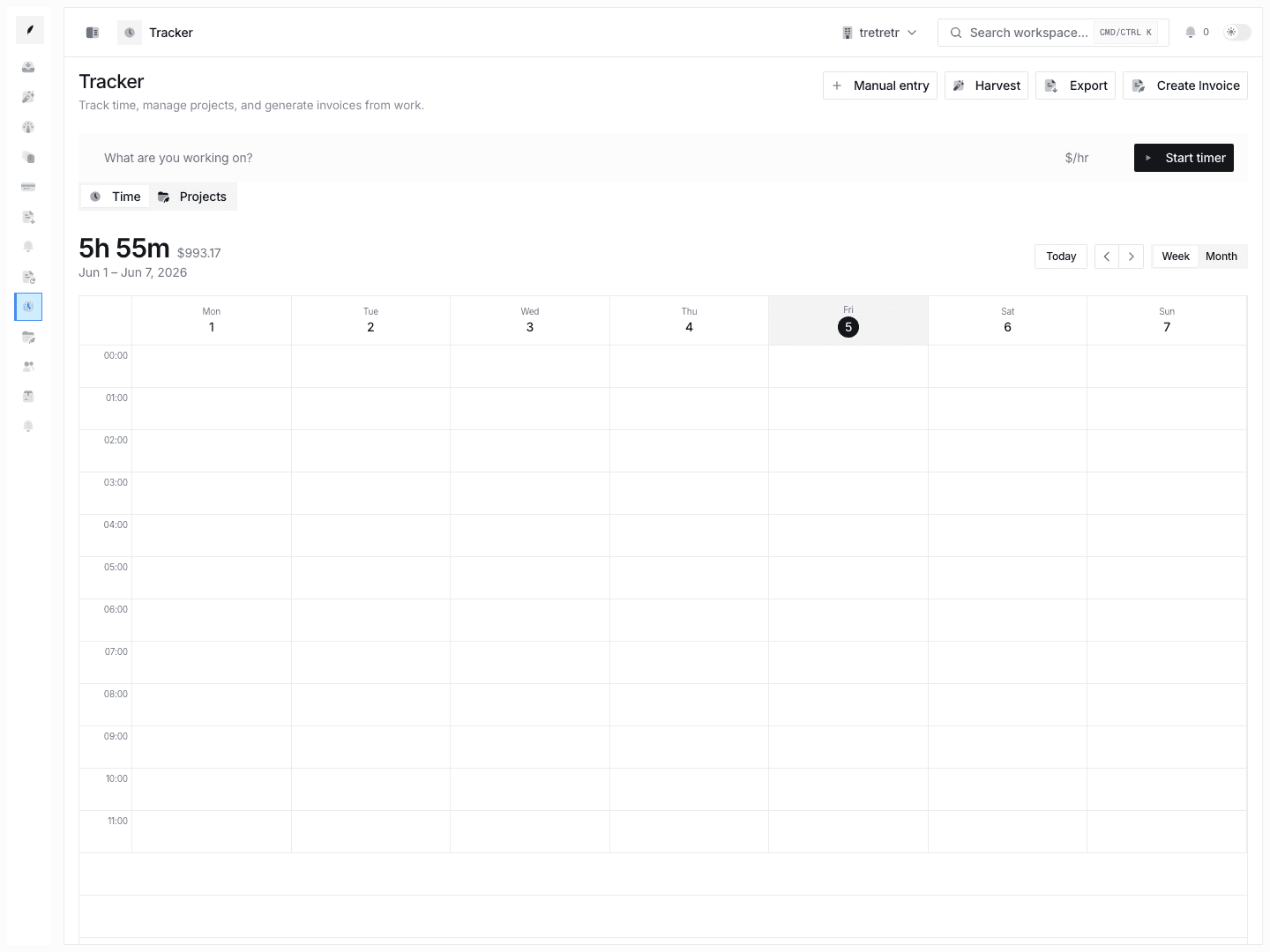
Corinthian's Tracker helps you record billable work and move reviewed entries into invoice drafts. This guide covers the current flow: record time, associate it with the right client or project context, review it, create an invoice, and send after final review.
Record Time
- Open Tracker.
- Start the timer for live work or add a quick entry for work that already happened.
- Add a clear description.
- Attach client, project, and billable context where available.
- Save the entry or stop the timer.
Use descriptions your client can understand later. Internal shorthand is easy to write during the workday, but invoice line items should be customer-facing.
Review Work Before Billing
Before creating an invoice:
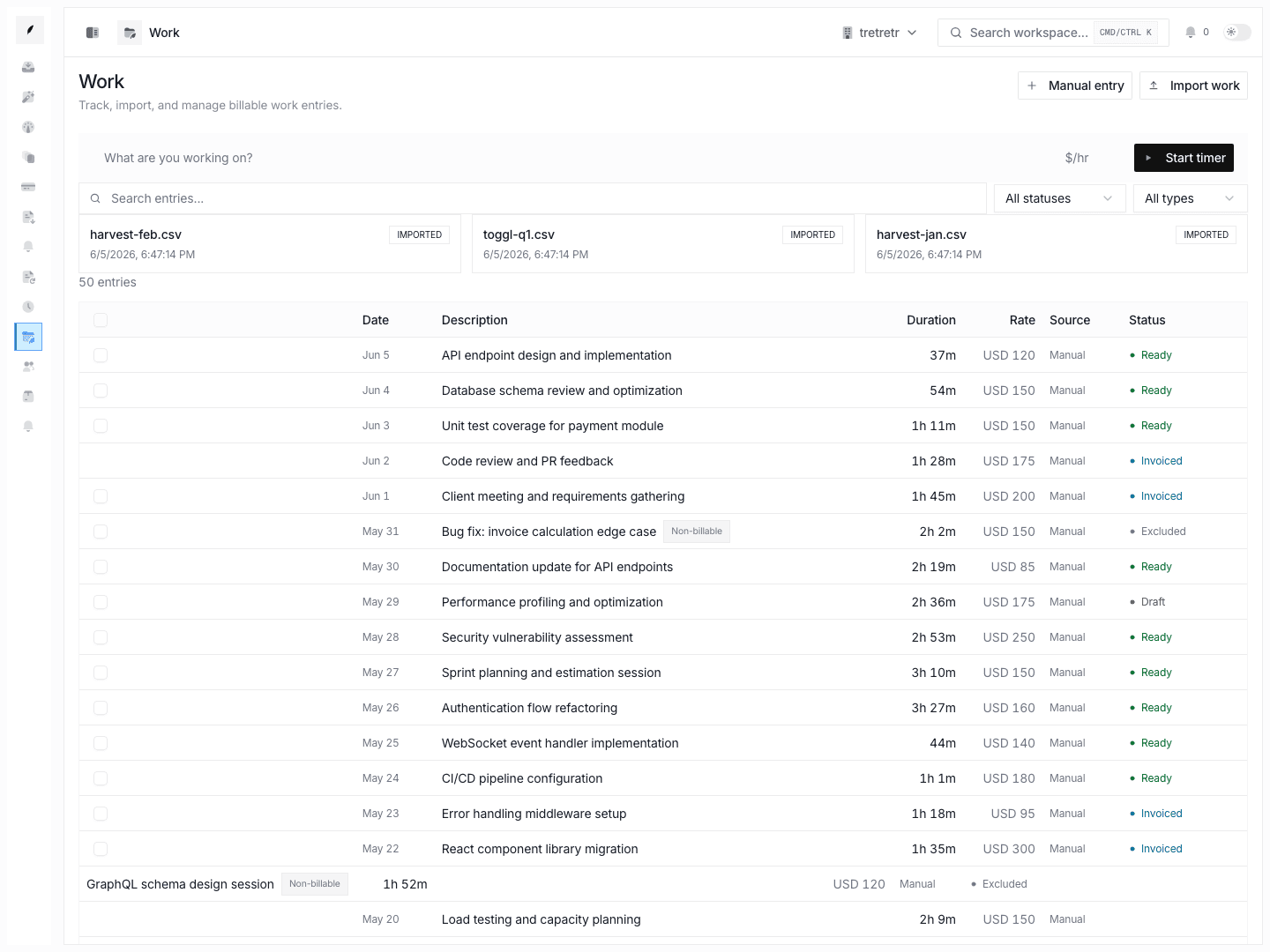
- confirm each entry belongs to the right client
- confirm billable entries are marked billable
- confirm the date and duration are correct
- clean up descriptions that will become line-item text
Entries without the right client or billable context may not be ready for invoice creation.
Create an Invoice Draft
- Open Tracker.
- Filter or review the entries you want to bill.
- Select the entries that should become invoice lines.
- Click Create Invoice.
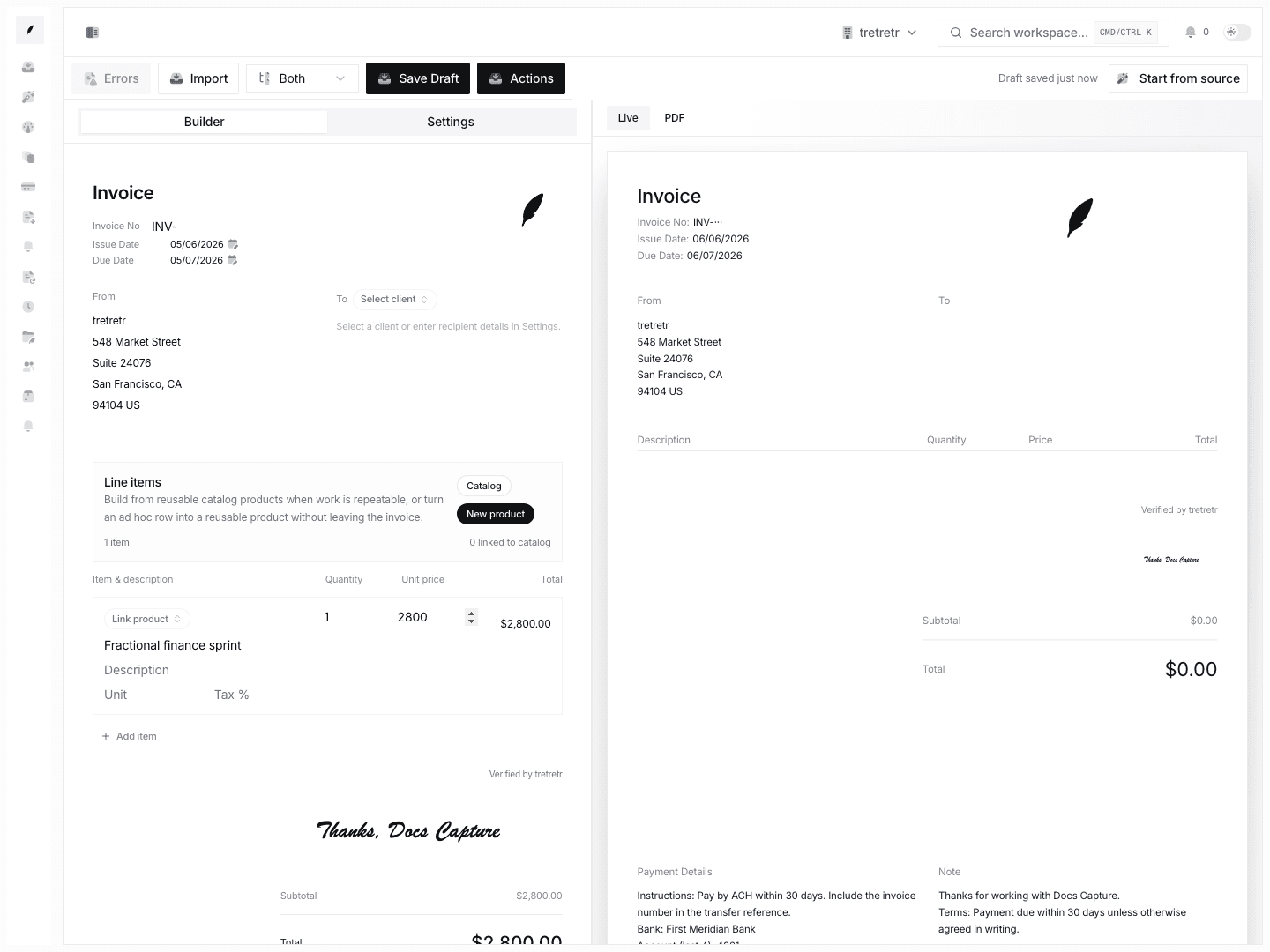
- Review the invoice draft.
The invoice draft is the final customer-facing review step. Edit descriptions, quantities, rates, taxes, notes, and terms there before sending.
Send the Invoice
When the draft is ready:
- Confirm the client and recipient.
- Review the invoice totals and terms.
- Add or edit the message if needed.
- Send the invoice.
After sending, use invoice status, inbox thread activity, and delivery tracking to follow the collection process.
Import Harvest Time
If your team uses Harvest, import time from the Tracker.
- Open Tracker.
- Click Harvest.
- Enter your Harvest Personal Access Token and Account ID from Harvest Settings → Developers.
- Connect and sync.
Harvest sync is one-way from Harvest into Corinthian. Edits in Corinthian do not push back to Harvest.
Export Time
Use Export CSV in Tracker to download time-entry data for review outside Corinthian. Apply filters before export if you only need a specific client, project, or period.
Current Limitations
This workflow does not document:
- a dedicated default-client setting
- a weekly summary or ready-to-invoice page
- automatic line grouping by project/date
- project budget alerts
- global rounding controls for tracked time
- workspace-level rate defaults
- browser-based Harvest authorization or client association settings pages
If those controls are not visible in the product, review and adjust work in Tracker and the invoice draft instead.