Settings General
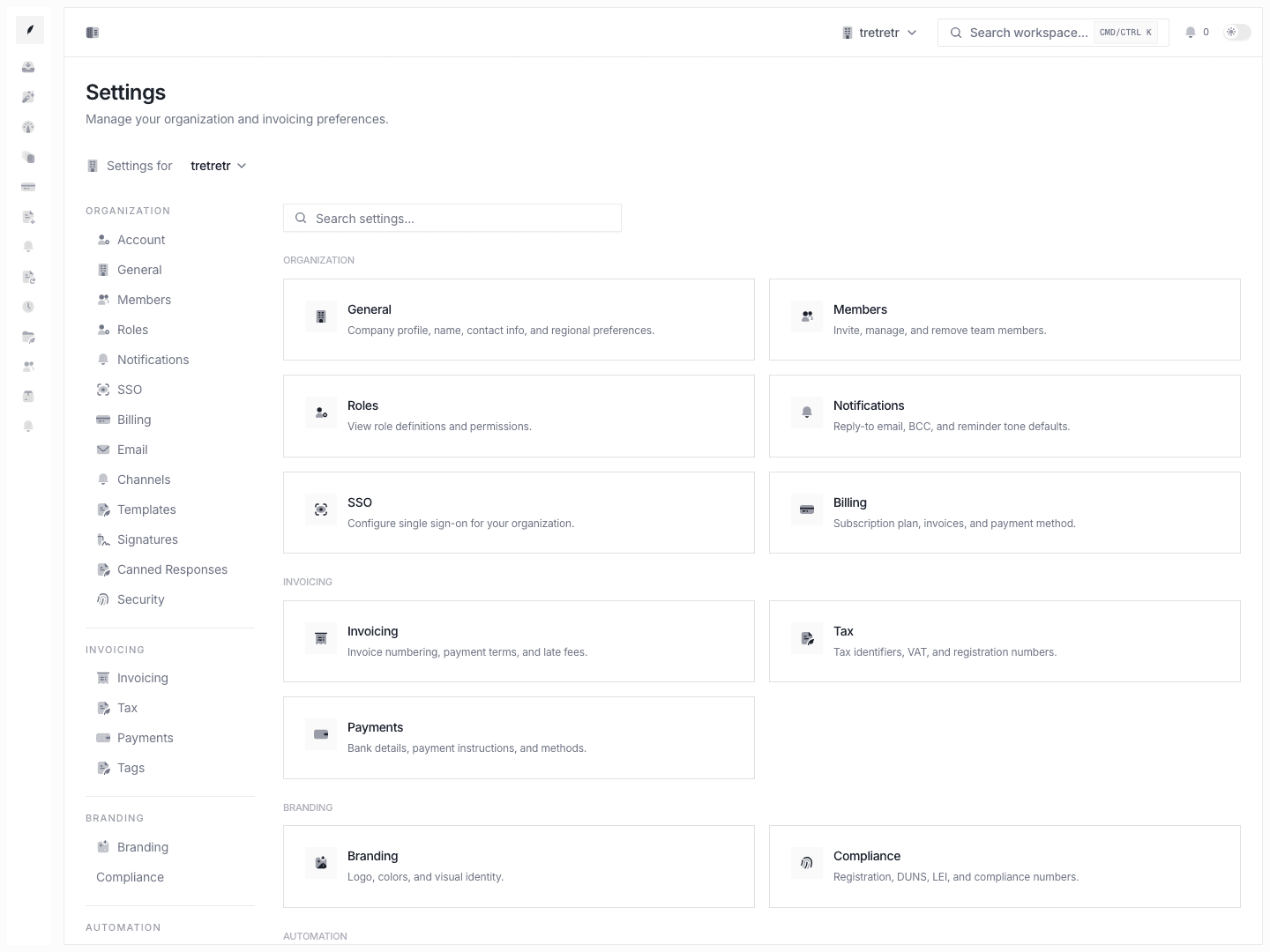
Manage organization identity, address, currency, and destructive organization-level changes.
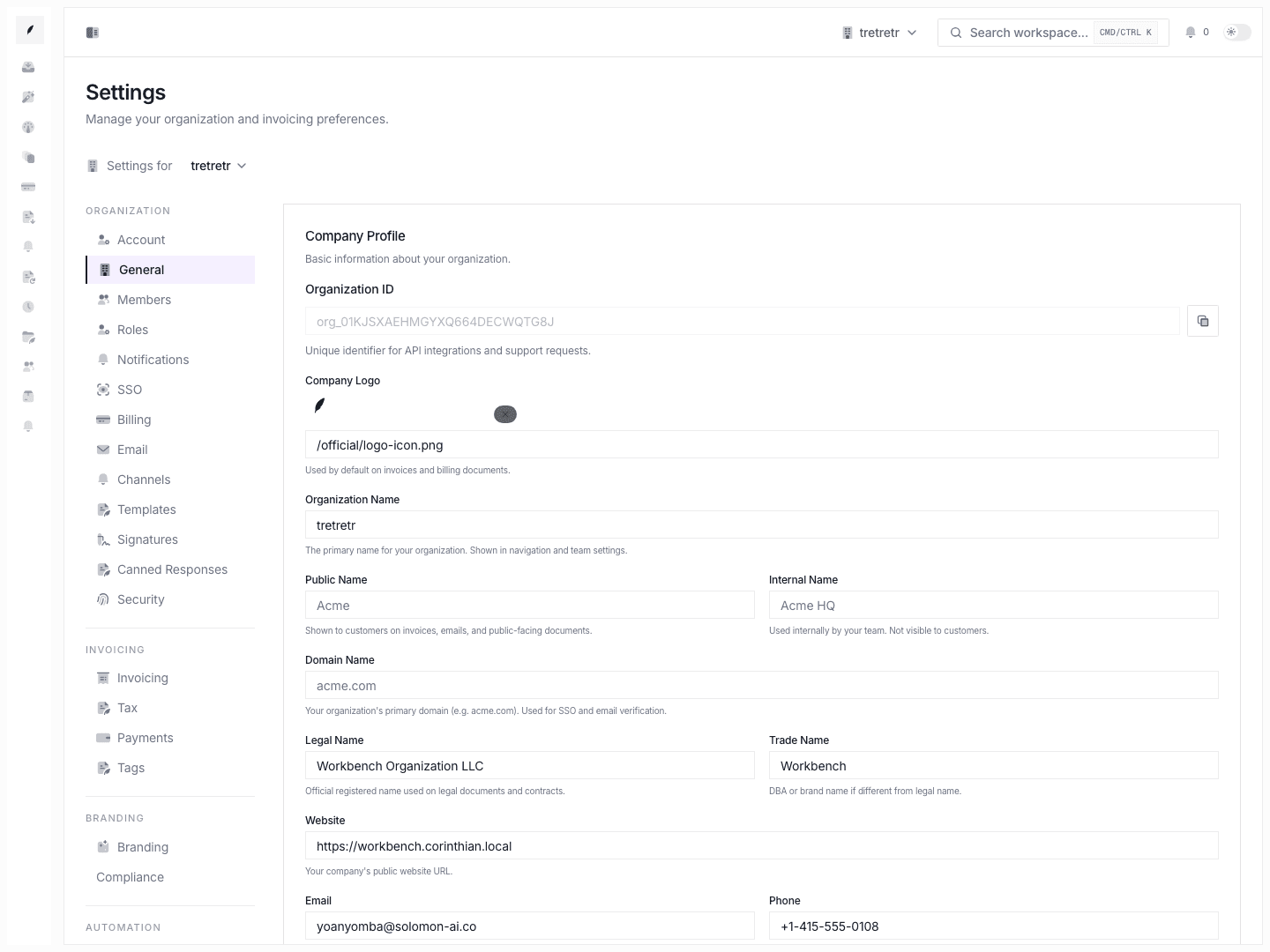
Settings → General is where you keep your organization profile accurate across invoices, email, and customer-facing presentation.
Typical Workflow
- Open Settings → General.
- Update the organization identity fields that changed.
- Save the form.
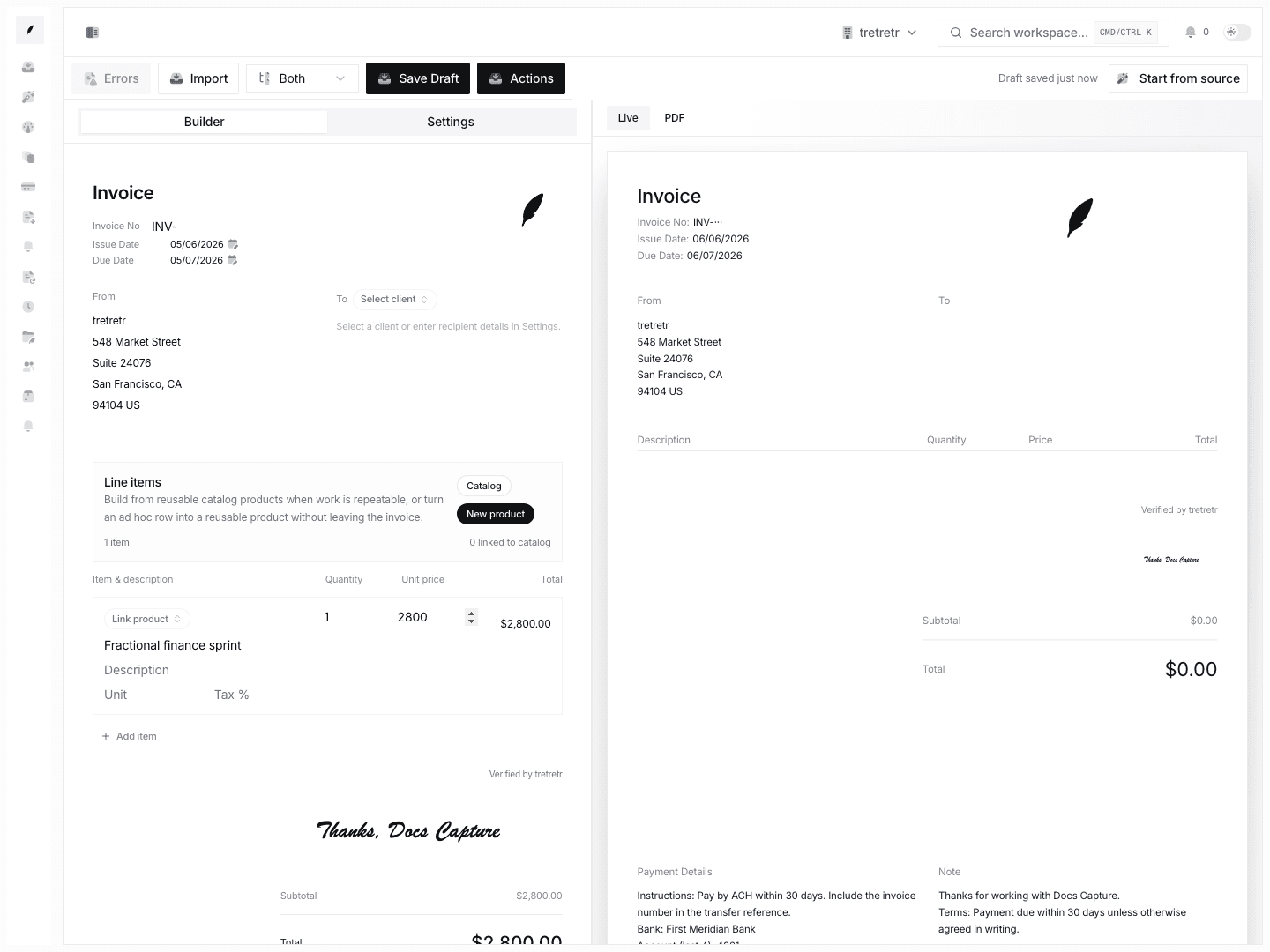
- Re-open a draft invoice or related customer-facing flow to confirm the values now render correctly.
After saving, invoice creation and outbound communication reflect the updated organization profile.
Organization name and slug
The general settings page manages several name fields:
| Field | Purpose | Where it appears |
|---|---|---|
| Organization name | Primary display name | Invoice headers, email sender name, portal branding |
| Public name | Customer-facing variant (if different from org name) | Invoice footers, portal title |
| Legal name | Registered business name | Invoice fine print, compliance documents |
| Trade name | DBA or brand name | Optional; used when legal and brand names differ |
| Slug | URL-friendly identifier | Portal URLs (/portal/{slug}), API references |
The slug auto-generates from the organization name on first setup.
Warning: Changing the slug invalidates bookmarked portal URLs. Coordinate with your clients before updating.
Default timezone and currency
These defaults cascade into several downstream features:
- Timezone — sets the default for new invoices, email send windows, and reporting date boundaries. Individual users can override with their personal Working Hours timezone.
- Currency — becomes the pre-selected currency for new invoices in the Invoice Builder. Each invoice can override this, but the default saves time for teams that bill primarily in one currency.
Tip: If your team bills in multiple currencies regularly, set the default to your highest-volume currency and override per-invoice for the rest.
Fiscal year configuration
Set your fiscal year start month to align reporting periods in Invoice Insights:
- Open the Fiscal year dropdown.
- Select the month your fiscal year begins (e.g., January for calendar year, April for Q2-start).
- Save.
Quarterly and annual reporting throughout the app adjusts to match this setting. Changing it recalculates historical period boundaries retroactively.
Date format preferences
Choose how dates render across the application:
| Format | Example |
|---|---|
MM/DD/YYYY | 03/27/2026 |
DD/MM/YYYY | 27/03/2026 |
YYYY-MM-DD | 2026-03-27 |
This setting applies to invoices, reports, and the customer portal. Emails use the selected format in any date references.
Organization logo
Upload your organization logo from the Logo section:
- Click Upload logo.
- Select a PNG or SVG file (recommended minimum 400x400px).
- Preview the logo in the card.
- Save.
The logo appears on invoices, the customer portal, and outbound emails (when enabled in Settings: Branding).
Tip: Use an SVG file for crisp rendering at all sizes. PNG works but may appear blurry on high-DPI screens if the source resolution is too low.
How general settings cascade
Changes propagate to invoices, emails, reports, and the portal. The organization name appears in invoice headers and email sender fields. Currency, timezone, and date format apply to new invoices and report exports. The logo renders in invoice templates and the portal header.
Existing invoices created before a settings change retain their original values. Only new invoices pick up updated defaults.
What you can configure
- logo URL
- organization, public, and internal names
- legal and trade names
- domain and website
- billing email and phone
- country, timezone, and default currency
- postal address
Destructive actions (danger zone)
The bottom of the general settings page contains two high-impact operations:
Transfer ownership
Transfer the organization owner role to another admin:
- Click Transfer ownership.
- Select the target admin from the dropdown.
- Confirm the transfer.
After transfer, you retain admin access but lose owner-level privileges.
Delete organization
- Click Delete organization.
- Review the impact summary.
- Type the organization name to confirm.
- Click Confirm deletion.
Warning: Organization deletion is permanent and destroys all invoices, clients, threads, templates, and workflows. Export your data before proceeding.
Troubleshooting
An invoice still shows old company details
Check whether the invoice was created before the settings change. Older records may still reflect earlier defaults.
I updated the logo, but nothing changed in preview
Validate the logo URL and re-open a fresh preview. Browser caching can delay updates; try a hard refresh.
The slug change broke client portal links
Send updated portal URLs to affected clients. Consider setting up a redirect from the old slug if your hosting supports it.