Bulk Operations
Select multiple records and apply the batch actions currently available in Corinthian.
Corinthian supports bulk workflows in the areas where the product exposes row selection and batch actions. The action set differs by workspace.
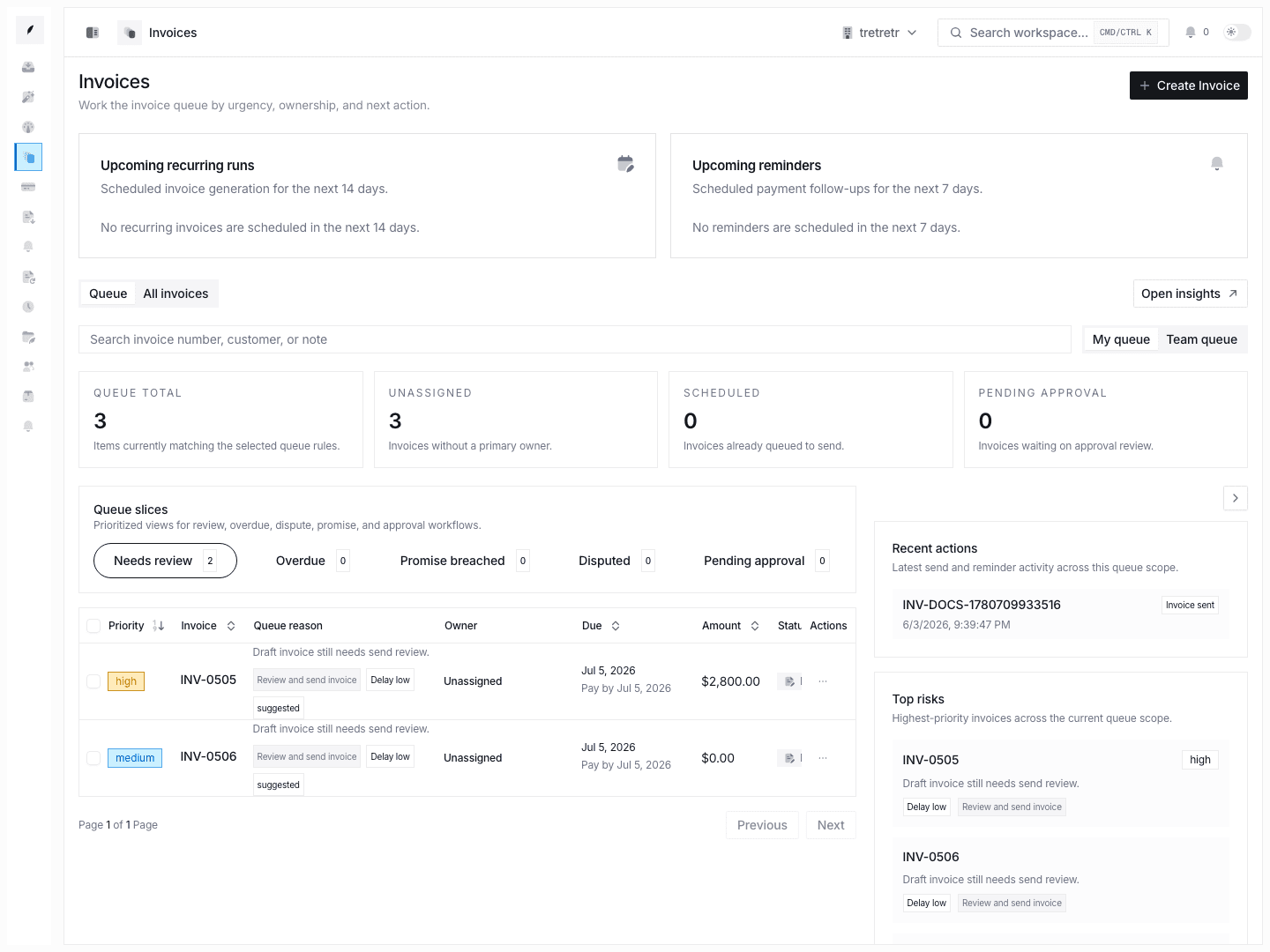
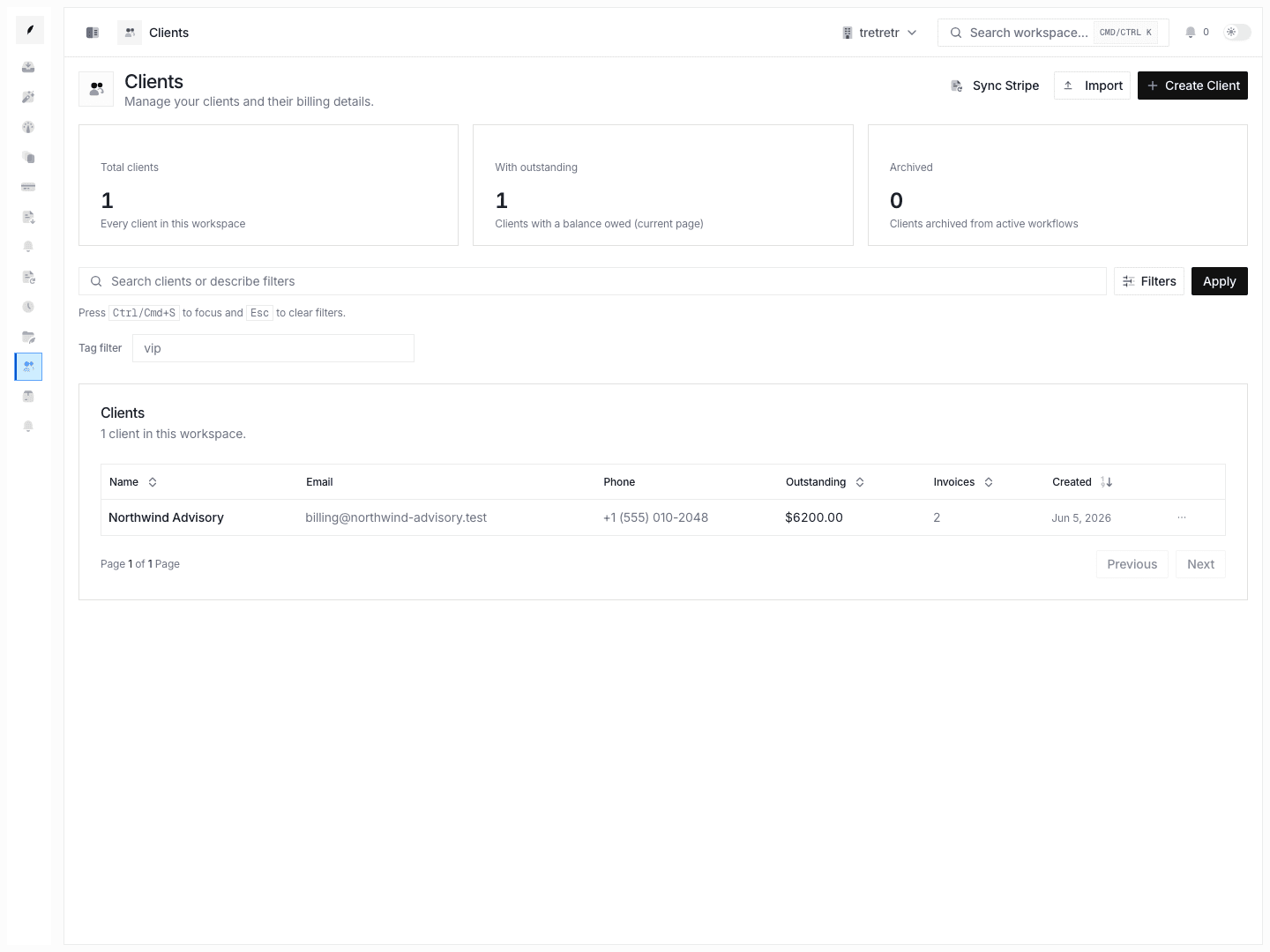
Selecting Rows
When a table exposes checkboxes, select one or more visible rows to open the available bulk-action toolbar. Use page filters first so the selected rows match the work you intend to process.
The current docs do not promise cross-page selection or range selection across every list. If a table only selects visible rows, review the selected count before running the action.
Bulk Invoice Actions
The invoices table supports a broad set of batch actions for selected invoices:
| Action | What It Does |
|---|---|
| Generate PDFs | Generates PDFs for selected invoices. Large selections may ask for confirmation or hit a batch cap. |
| Send | Opens the bulk send flow for selected invoices. |
| Schedule | Opens scheduling for selected invoices. |
| Apply Template | Applies an invoice template to selected invoices. |
| Duplicate | Creates copies of selected invoices. |
| Mark Paid | Marks selected invoices as paid. |
| Cancel | Changes selected invoices to canceled status. |
| Delete | Deletes selected invoices after confirmation. |
| Bulk Tag | Applies tags to selected invoices. |
Bulk send and destructive actions should be reviewed carefully before confirmation.
Bulk Thread Actions
The inbox bulk toolbar currently supports:
| Action | What It Does |
|---|---|
| Mark Done | Marks selected threads done. |
| Snooze | Snoozes selected threads until a preset or custom date. |
Assign and label actions may appear in the toolbar as disabled or coming soon controls. They are not currently available bulk thread actions.
Client Bulk Actions
Client records can be managed through the Clients workspace, the client detail sheet, the full profile, import workflows, and API endpoints. Do not rely on this guide for client merge, tier-change, or label bulk actions unless those controls are visible in the current Clients table.
CSV Export and Import
Export and import are handled by the relevant workspace:
- Use invoice export actions for invoice reporting and accounting workflows.
- Use client import/export workflows where available in the Clients workspace and importing guide.
- Use Work → Import for importing billable work entries from CSV.
Practical Workflow
- Filter the list to the exact records you want.
- Select the visible rows you intend to change.
- Confirm the toolbar shows the expected count.
- Run the specific action.
- Review the success or failure message before moving to the next batch.