Using Canned Responses Effectively
Create, organize, and use pre-written replies for common client situations.
Canned responses are reusable message snippets you insert manually while replying to an inbox thread. They save time on repeated billing communication while still letting you review and edit the final message before sending.
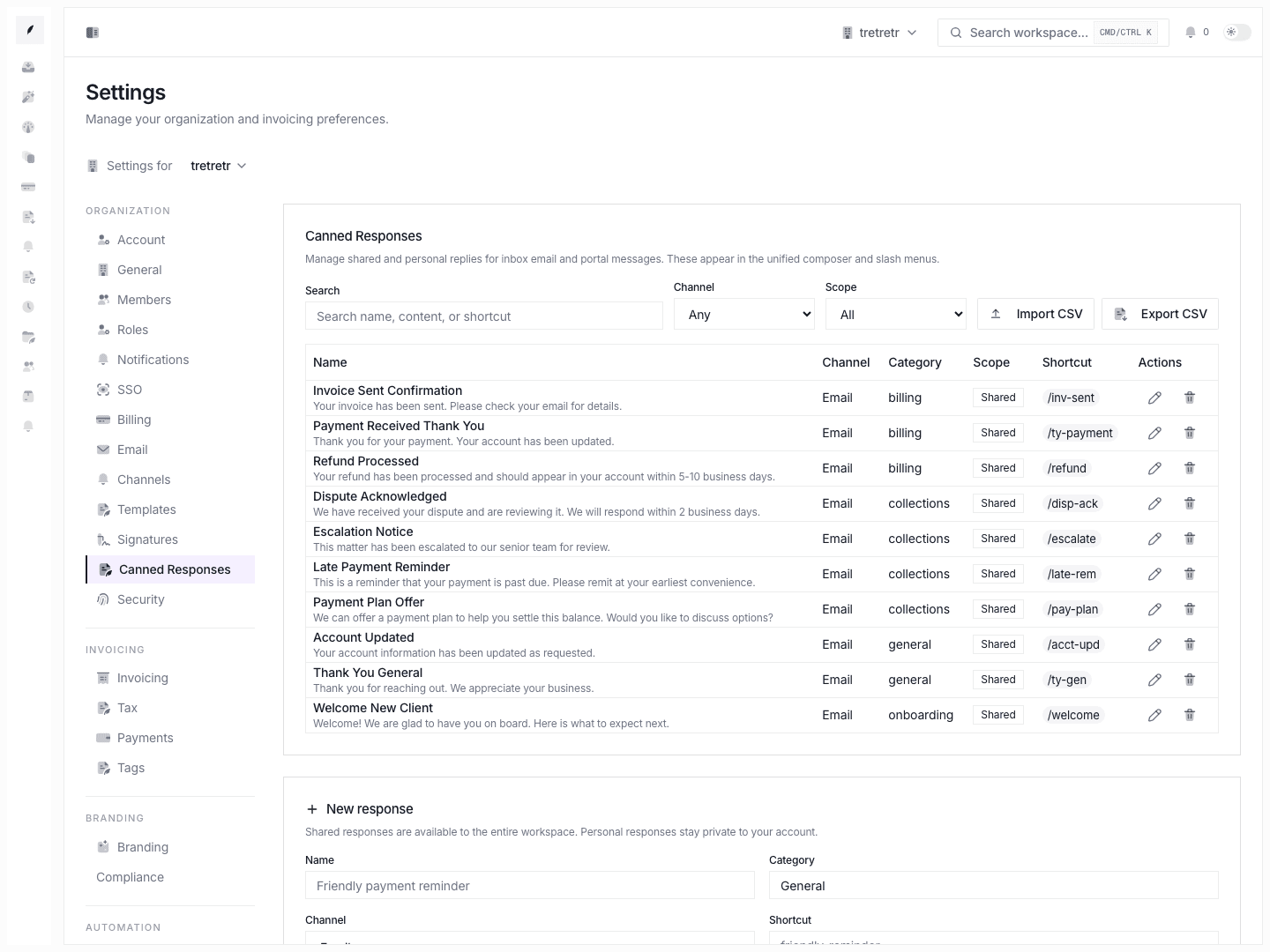
Create Your First Response
- Open Settings → Canned Responses.
- Click New Response.
- Fill in the name, category, channel, shortcut, content, and sharing setting.
- Save.
Use the content field for the exact message text you want inserted into the composer.
Organize by Category
Categories are freeform labels on each response. Choose names that match common workflows:
| Category | Example Responses |
|---|---|
| Payment | Payment received, payment reminder, manual payment instructions |
| Follow-up | Gentle reminder, second notice, final notice |
| Dispute | Acknowledgment, investigation update, resolution |
| Onboarding | Welcome, first invoice walkthrough |
There is no separate category-management page documented for the current product. Rename categories by editing the responses that use them.
Insert a Response
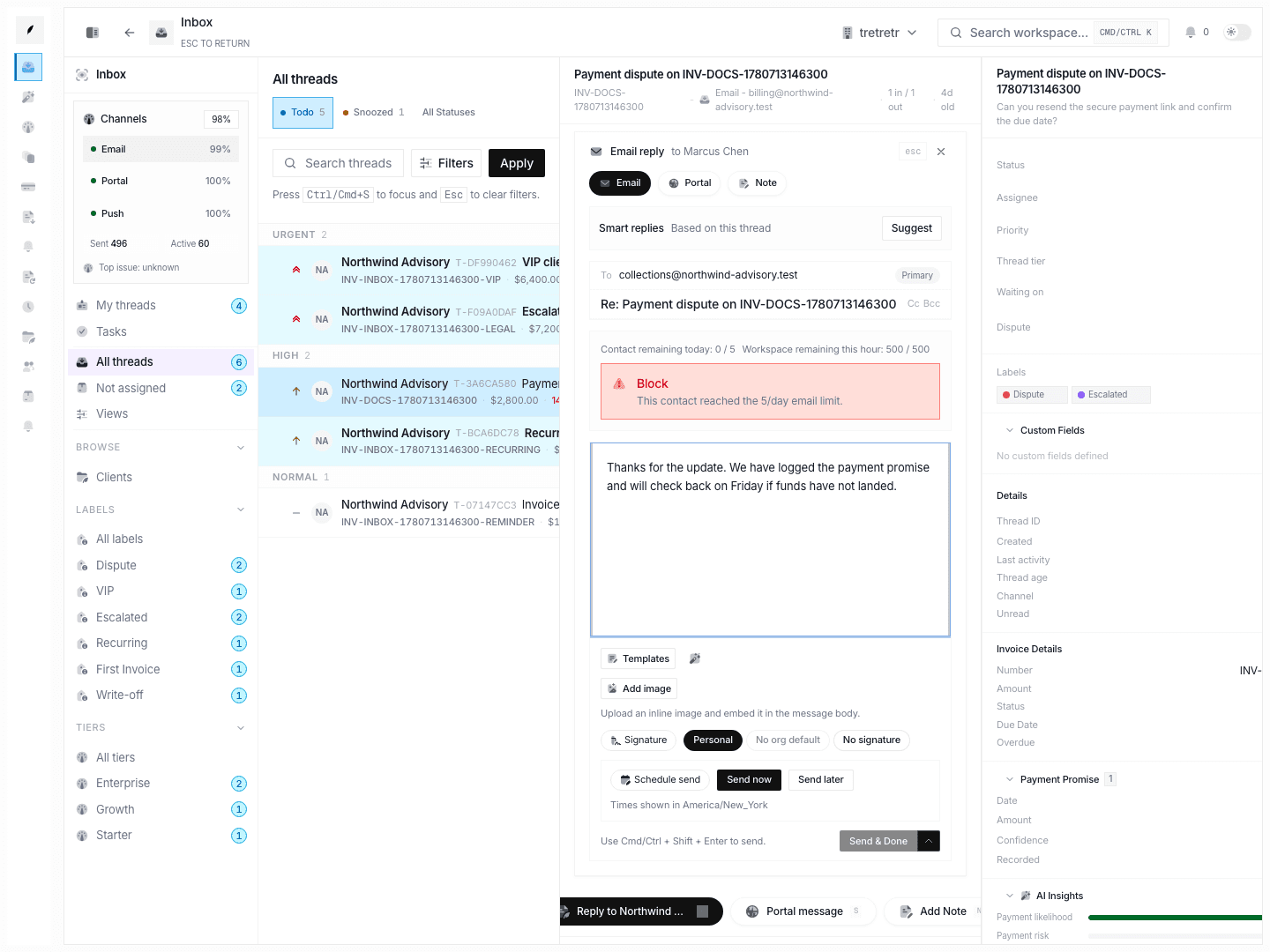
- Open an inbox thread.
- Start a reply.
- Use the composer slash menu or canned-response picker.
- Search for the response by name, category, or shortcut.
- Insert the response.
- Review the resolved text before sending.
Use Template Variables
Variables resolve when you insert the response into the composer. Supported tokens include:
| Token | Example Output |
|---|---|
{{clientName}} | Acme Corp |
{{customer.email}} | [email protected] |
{{invoiceNumber}} | INV-2026-0042 |
{{invoiceAmount}} | $5,500.00 |
{{dueDate}} | April 30, 2026 |
{{daysPastDue}} | 12 |
{{outstandingBalance}} | $2,750.00 |
{{portalLink}} | Customer-facing invoice link |
{{paymentLink}} | Customer-facing payment link |
{{companyName}} | Workspace name |
{{senderName}} | Current sender name |
If a token cannot resolve, it remains in the message so you can fill it manually.
Example Response
Hi {{clientName}},

I wanted to follow up on invoice {{invoiceNumber}} for {{invoiceAmount}}.
The current outstanding balance is {{outstandingBalance}}.

You can review the invoice here: {{portalLink}}

Let us know if anything is blocking payment.

Best,
{{senderName}}
Sharing Guidance
Use shared responses for standard team language. Use personal responses for snippets that are specific to your own workflow or tone.
Review shared responses periodically so payment terms, links, and support language stay current.