Canned Responses
Create reusable message snippets for fast, consistent replies in the invoice inbox.
Canned responses are saved message snippets that can be inserted into inbox replies. They help your team handle repeated billing situations without rewriting the same response each time.
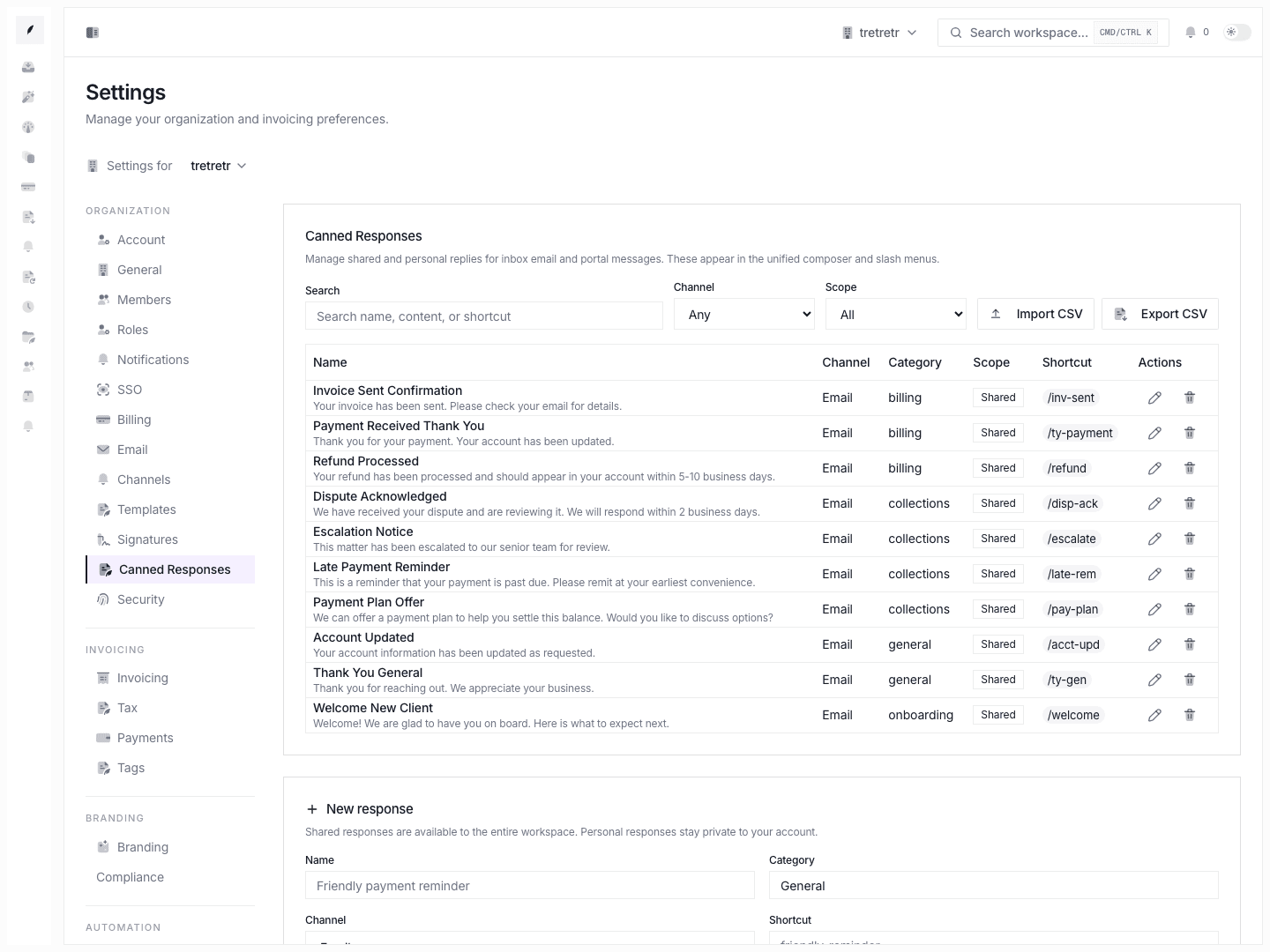
What You Can Configure
| Field | Purpose |
|---|---|
| Name | Short searchable name for the response. |
| Category | Freeform grouping label. |
| Channel | Channel context for the response. |
| Shortcut | Optional slash-style shortcut text. |
| Content | Message body. |
| Shared with team | Makes the response available to teammates. |
Create a Canned Response
- Open Settings → Canned Responses.
- Click New Response.
- Enter the name, category, channel, shortcut, content, and sharing preference.
- Save.
The response is available to insert from the inbox composer after it is saved.
Template Variables
Canned response content can include supported template tokens. Tokens resolve when the response is inserted into a composer that has the required thread, invoice, organization, or sender context.
Common supported tokens include:
| Token | Resolves To |
|---|---|
{{clientName}} | Client name from the thread. |
{{customer.name}} | Customer name from the thread. |
{{customer.email}} | Primary recipient email. |
{{invoiceNumber}} | Linked invoice number. |
{{invoice.number}} | Linked invoice number. |
{{invoiceAmount}} | Invoice amount. |
{{invoice.amount}} | Invoice amount. |
{{invoice.currency}} | Invoice currency. |
{{dueDate}} | Invoice due date. |
{{invoice.dueDate}} | Invoice due date. |
{{daysPastDue}} | Days past due. |
{{outstandingBalance}} | Outstanding balance. |
{{portalLink}} | Invoice portal link when available. |
{{paymentLink}} | Payment link when available. |
{{companyName}} | Workspace/company name. |
{{senderName}} | Sender name. |
{{sender.email}} | Sender email. |
If a token cannot be resolved, Corinthian leaves it in place so you can edit the message before sending.
Use a Response in the Composer
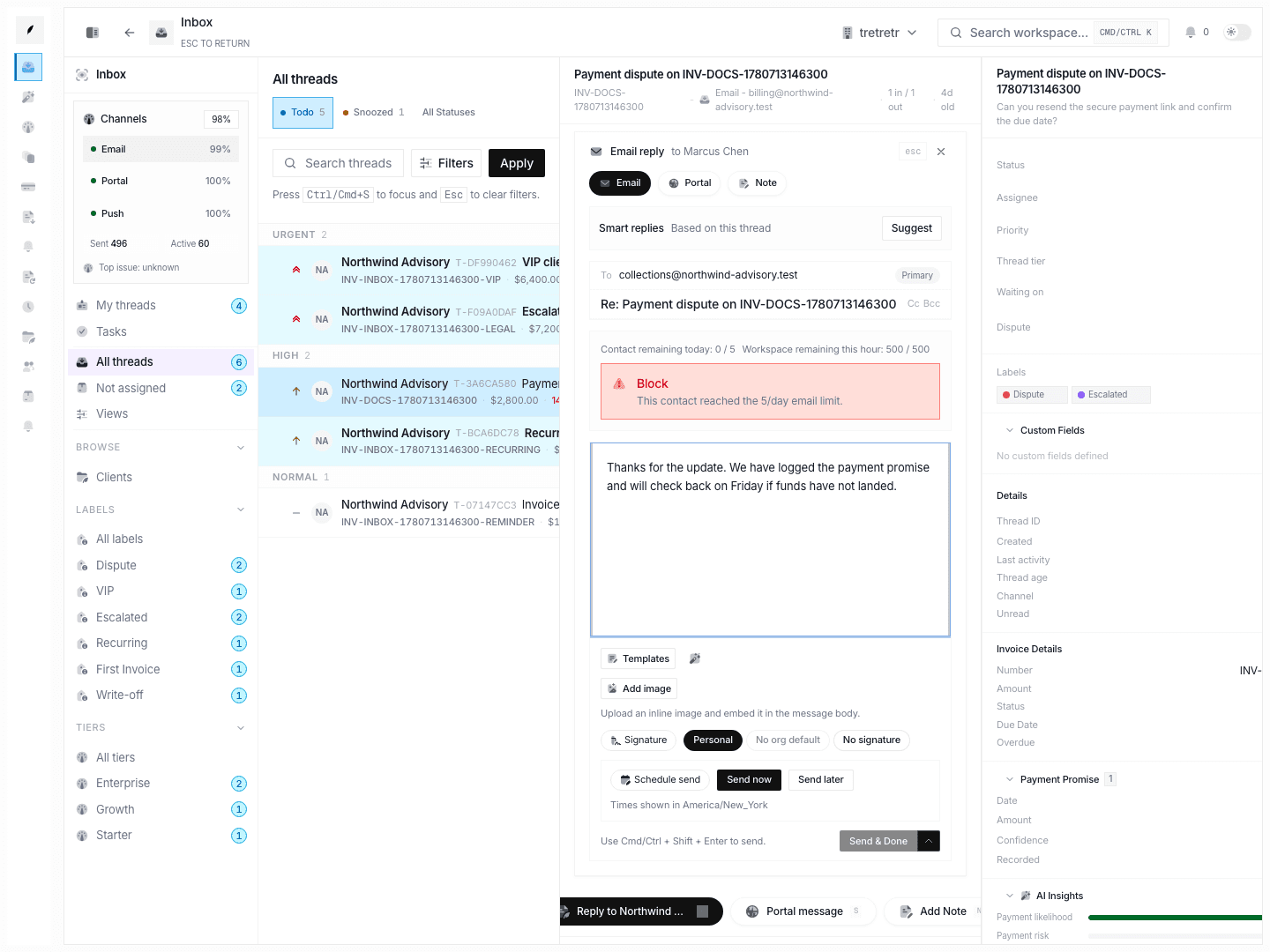
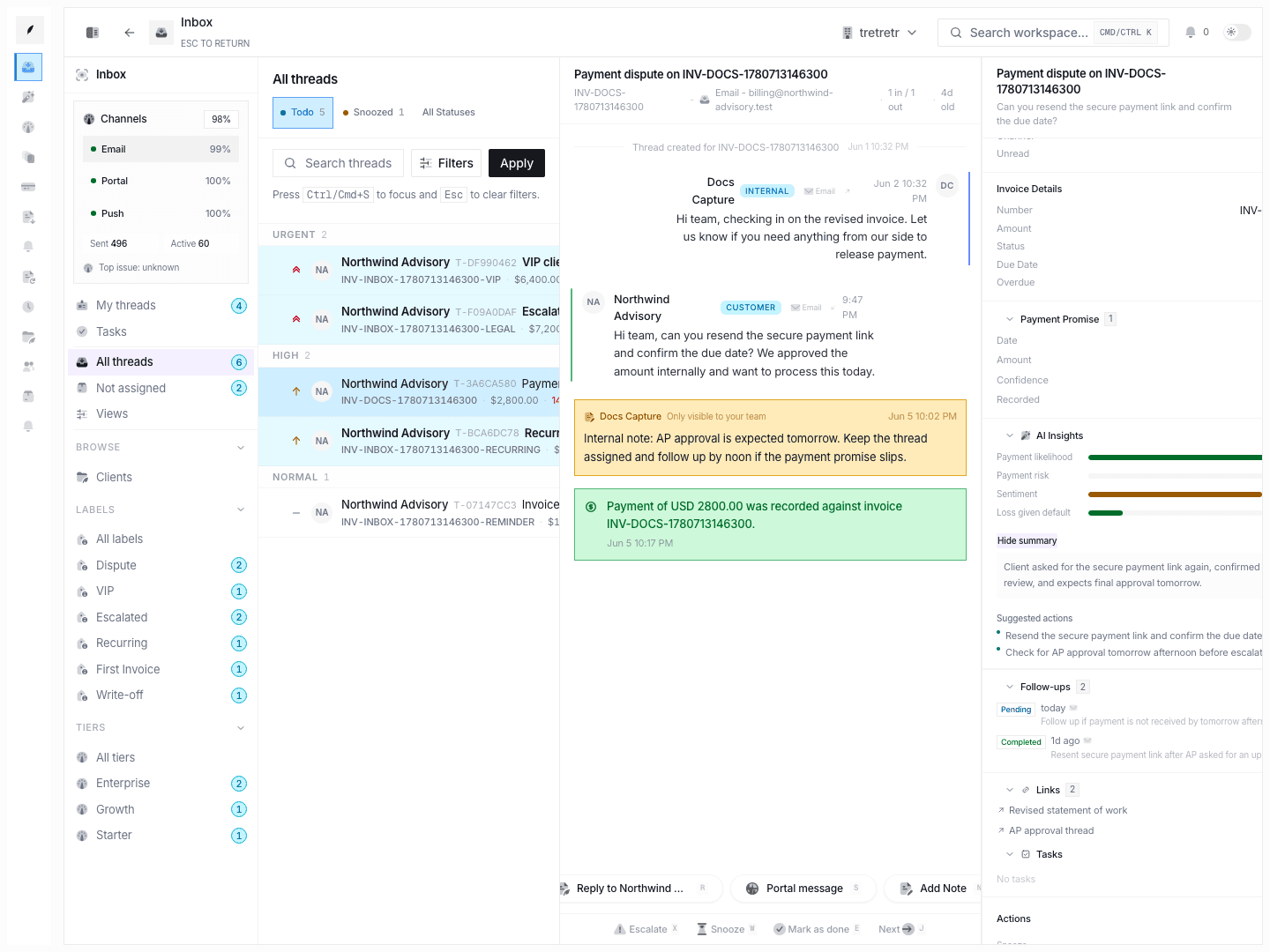
- Open an inbox thread.
- Start a reply.
- Use the composer slash menu or canned-response picker.
- Search for the response by name, category, or shortcut.
- Insert it, review the resolved text, and send when ready.
Canned responses are starting points. Always review the reply before sending it to a customer.
Personal vs. Shared Responses
| Visibility | Who Can Use It |
|---|---|
| Personal | Only the creator. |
| Shared | Team members with access to the canned-response library. |
Use shared responses for standard billing language and personal responses for individual phrasing preferences.
Organizing the Library
Categories are labels on responses, not a separate category-management page. Use consistent category names such as Payment, Follow-up, Dispute, or Onboarding so search and filters stay useful.
Troubleshooting
A token stayed as raw text
The current thread may not have the required context. For example, invoice tokens need a linked invoice. Edit the inserted response before sending.
A teammate cannot see a response
Check whether Shared with team is enabled.
A shortcut does not insert the response
Confirm the shortcut value is saved on the response and use the composer picker or slash command to find it.