Inbox My Threads
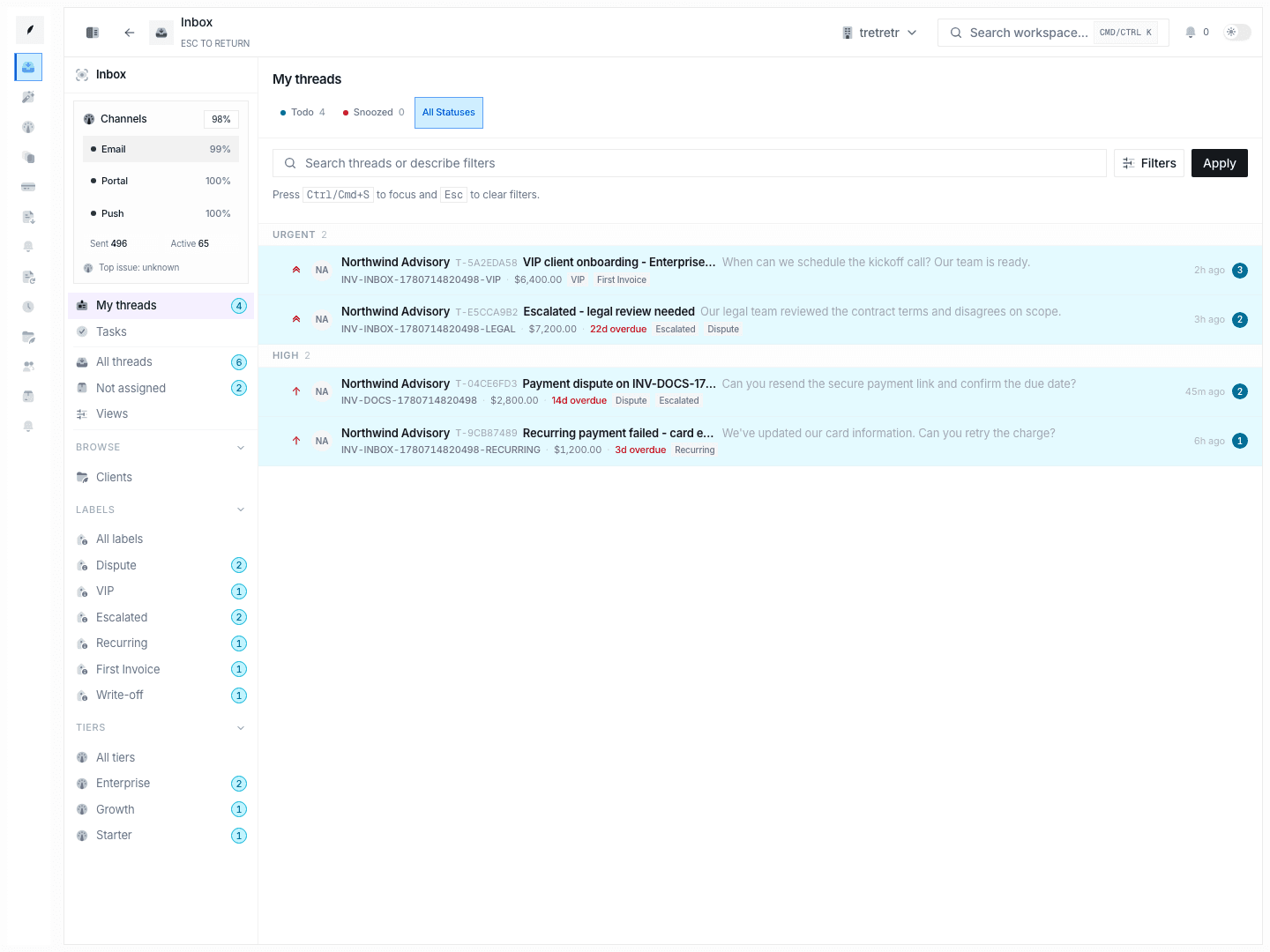
Work the queue already assigned to you without scanning the broader inbox first.
Use Inbox → My Threads when you want to focus only on threads you already own.
Typical Workflow
- Open Inbox → My Threads.
- Review your assigned workload.
- Open the highest-priority thread and work it end to end.
This queue helps you work assigned threads without the noise of intake or unassigned coverage.
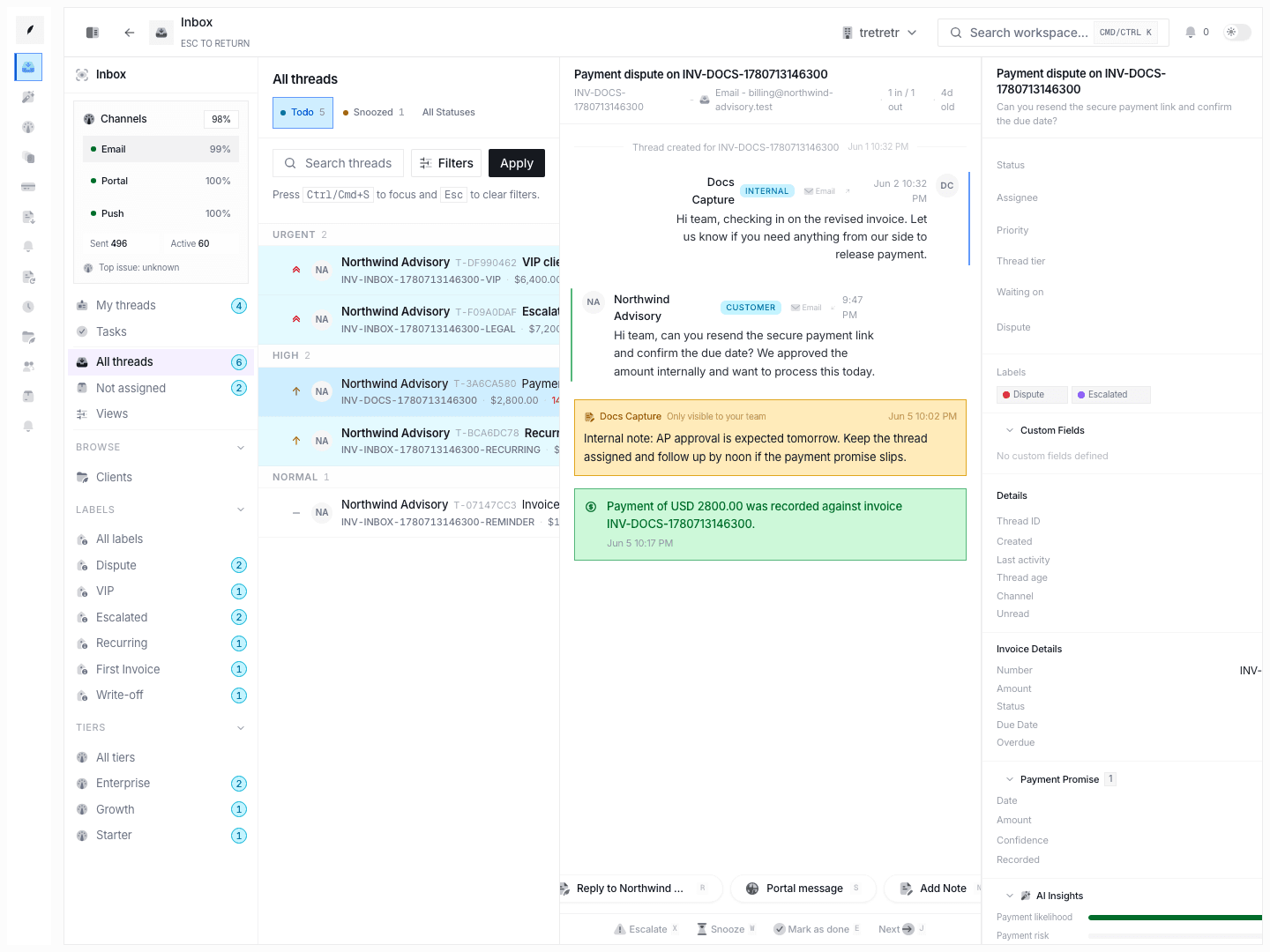
How "My Threads" differs from "All Threads"
| Aspect | My Threads | All Threads |
|---|---|---|
| Scope | Only threads assigned to you | Every thread visible to your role |
| Use case | Personal execution | Intake triage, team oversight |
| Noise level | Low — your queue only | Higher — includes unassigned and other members' work |
| Default sort | Priority, then due date | Newest first |
If you handle both intake and execution, switch between the two views as your role shifts during the day.
Filtering threads
Use the filter bar at the top of the thread list to narrow your view:
- Status — show only
open,snoozed, ordonethreads. - Priority — filter by
urgent,high,normal, orlow. - Label — select one or more labels such as
escalatedorpayment-expected.
Filters combine with search. Selecting status open and priority urgent returns only open threads that are also urgent.
Searching threads
The search box accepts free-text queries against thread subject, client name, and invoice number. Type at least three characters to trigger results. Search respects any active filters, so you can search within a filtered subset.
Status transitions
Every thread moves through a simple lifecycle:
- Open — active work needed. This is the default state for new and reassigned threads.
- Snoozed — paused until a chosen date or until the client replies, whichever comes first.
- Done — resolved. Done threads leave your active queue but remain searchable.
To change status, open the thread and use the status dropdown in the header, or use the keyboard shortcuts below.
Warning: Marking a thread done is reversible, but the thread will no longer appear in your default view. Use the
donestatus filter to find it again.
Bulk actions
Select multiple threads using the checkboxes on the left side of the list, then choose an action from the bulk toolbar:
- Mark done — resolve all selected threads at once.
- Snooze — pick a snooze date applied to every selected thread.
Bulk assign and bulk label controls are not currently available actions.
Keyboard shortcuts
| Shortcut | Action |
|---|---|
j / k | Move down / up in the thread list |
o or Enter | Open the selected thread |
e | Mark the current thread as done |
s | Snooze the current thread |
r | Reply to the current thread |
? | Show the full shortcut reference |
What This Queue Is For
- personal execution
- reducing queue noise
- validating your active assigned workload
State and permission behavior
- this view depends on assignment state, not just general visibility
- reassignment or unassignment moves work out of this view
Edge cases
- A thread assigned to you by automation appears here even if you have not opened it yet.
- If your account is deactivated and later reactivated, threads previously assigned to you reappear once assignment is restored.
- Snoozed threads return to the open state at the snooze expiry time. If that time falls outside your working hours, the thread still un-snoozes but notifications wait until your next working window.
Troubleshooting
A thread disappeared from My threads
Check whether it was unassigned, reassigned, or resolved out of your working set.
I expected more threads, but the list is short
Confirm your filters are not hiding threads. Reset all filters and check again.