Create Custom Roles and Assign Permissions
Use the roles settings page to create custom roles, define custom permissions, and edit what each non-built-in role can do.
Custom roles extend the built-in access model when the default roles are close but not enough for your workspace.
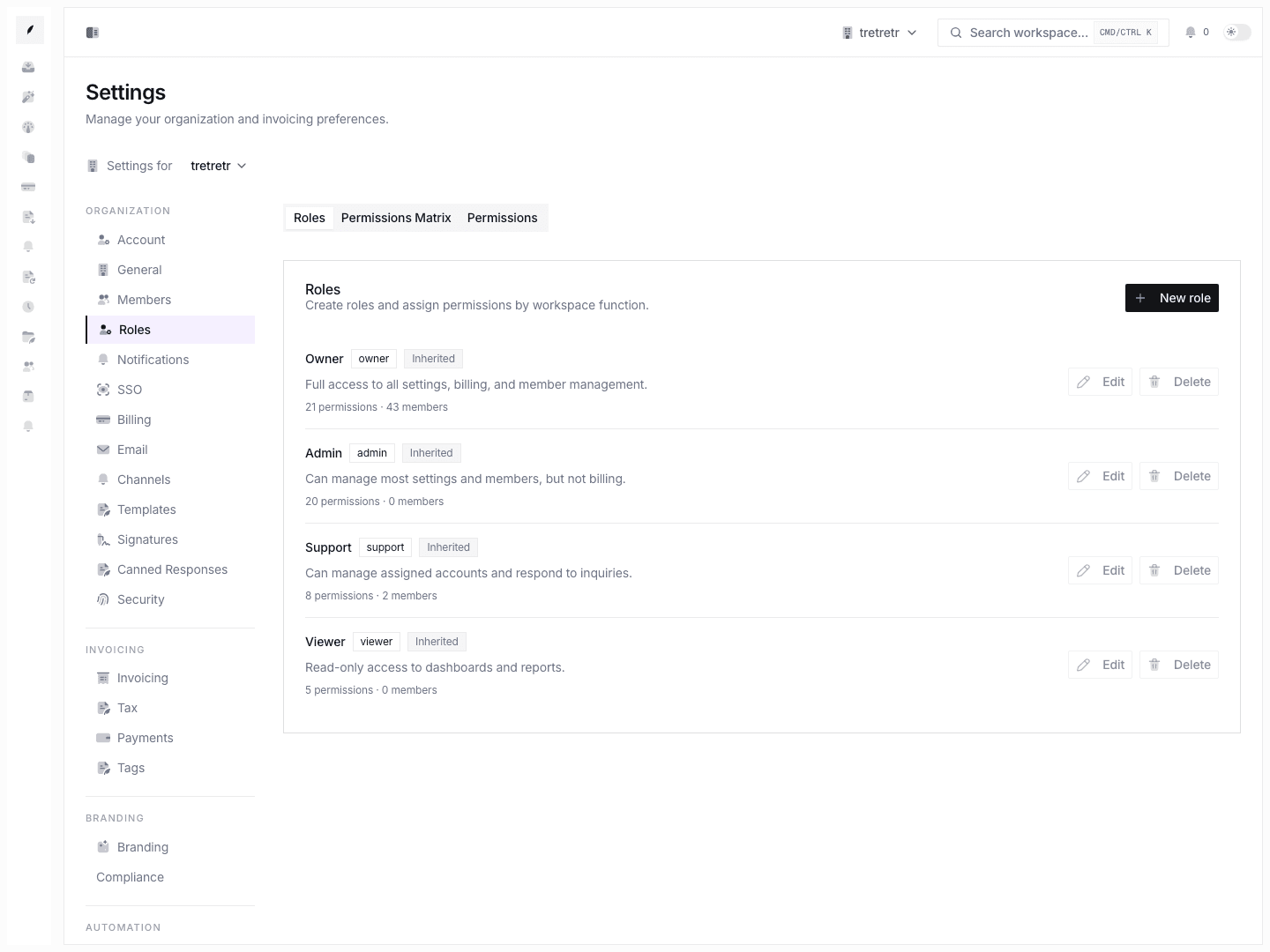
What this page manages
Settings → Roles gives you two related control areas:
- Roles that bundle permissions into named access levels
- Permissions that can be grouped and attached to roles
This is the place to shape access beyond the default owner, admin, support, and viewer paths.
1. Understand built-in versus custom first
The roles page shows both built-in and custom roles.
Built-in roles
Built-in roles are part of the default access model. They are protected.
Custom roles
Custom roles are where you can shape access for your own organization-specific needs.
Use a custom role when the standard built-in roles are either too broad or too narrow.
2. Create a custom role
Click Create role.
Create the role with:
- a clear name
- a stable slug
- a description that explains who should receive it
Keep the name human-readable and the slug simple so it stays maintainable.
3. Edit the role and assign permissions
Open any role card to edit it.
This is where you assign the permission set that defines what the role can do.
Use the role description to document the business purpose, not just the technical permission list.
4. Create custom permissions only when role composition needs it
Use Create permission when the existing grouped permission catalog does not cover a real workspace need.
Create custom permissions sparingly. The more bespoke permissions you add, the harder the roles page becomes to reason about later.
5. Know the built-in protection rules
Built-in access objects are protected.
- built-in roles cannot be deleted
- built-in role slugs cannot be changed
- built-in permissions cannot be deleted
Document custom roles as additions to the system, not replacements for the protected built-ins.
6. Treat read access and mutation access separately
The roles overview can be visible more broadly than the mutation paths themselves.
The important rule is:
- creating, editing, or deleting role and permission data requires the right management permission
That means docs should not imply everyone who can see the page can successfully change it.
7. Verify the role before assigning it widely
After creating or editing a custom role:
- reopen the role card and confirm the saved description and permission set
- assign it to a limited test member first
- verify the member gets the access you intended and nothing extra
Do not roll a new custom role to many users before testing it on one real account.
What to verify before rollout
- the role name and slug are stable enough to keep
- the description explains who should get the role
- the permission set is narrower than admin when that was the goal
- built-in roles were not being treated as editable in unsupported ways