Configure Payment and Tax Settings
Set the bank instructions, payment reference details, VAT behavior, and default tax rate that appear in invoice operations.
Configure these settings before invoices go out so payment instructions and tax defaults are clear from the start.
Know what this page is for
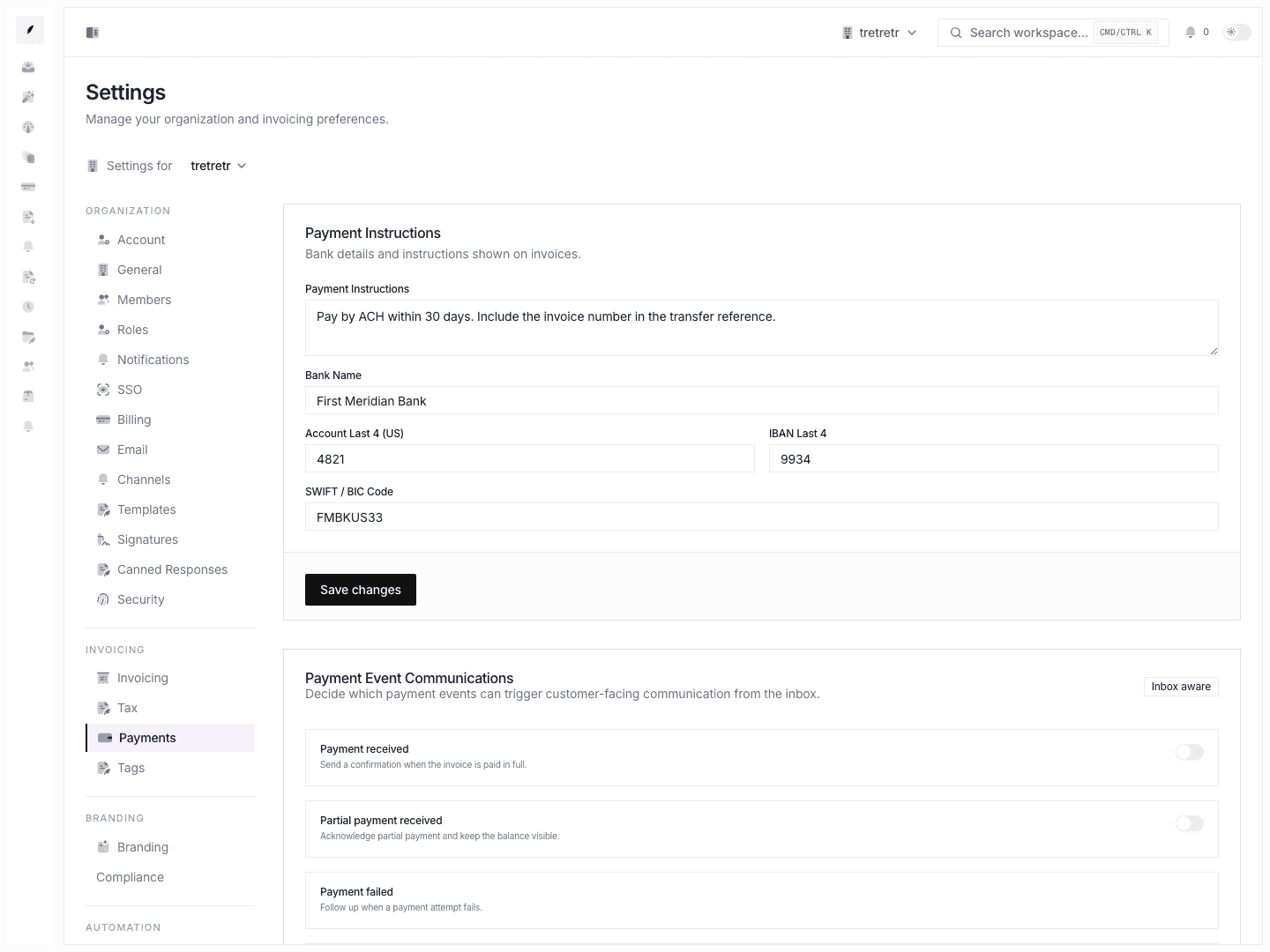
Settings → Payments is for invoice-visible payment instructions and bank reference details.
It is not the same thing as a hosted payment-provider connection flow.
Use it to control the instructions customers see when they need to pay by transfer or reference manual settlement details from the invoice itself.
1. Fill in the payment instructions customers should follow
Go to Settings → Payments and start with Payment Instructions.
This is the place for:
- ACH or wire instructions
- reference requirements such as including the invoice number
- short payment guidance for payers
Keep it clear enough that a customer can pay without extra back-and-forth.
2. Add the reference fields the team wants displayed
The form supports:
- Bank Name
- Account Last 4 (US)
- IBAN Last 4
- SWIFT / BIC Code
Only add the fields that are part of your collections process. The page stores compact reference details, not full sensitive account records.
3. Configure the tax defaults separately
Go to Settings → Tax after the payment instructions are in place.
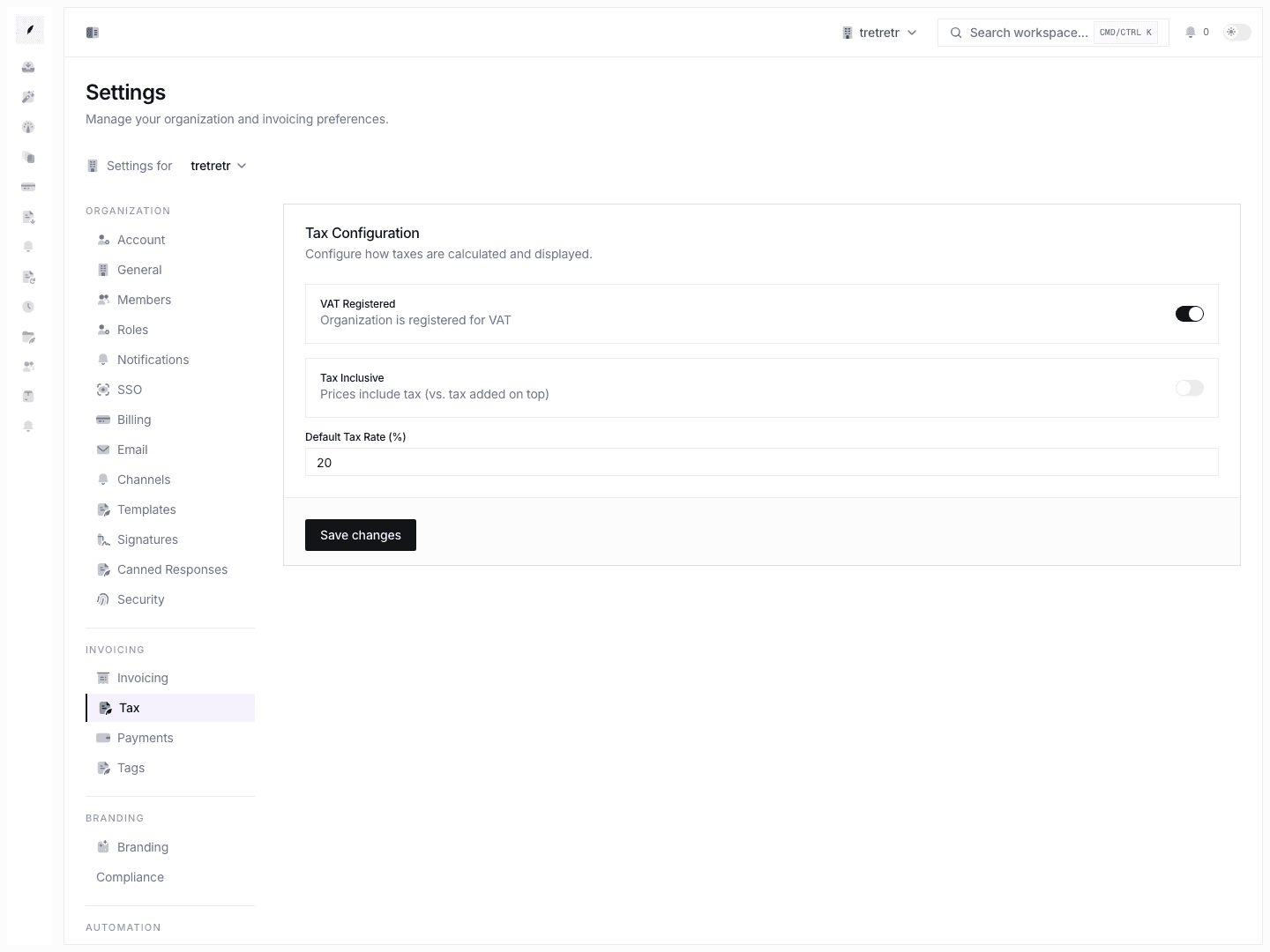
This page controls:
- whether the organization is VAT Registered
- whether prices are Tax Inclusive
- the Default Tax Rate (%)
These defaults shape how the workspace talks about tax and what new invoice flows can inherit.
4. Decide whether your pricing is tax-inclusive or tax-exclusive
This setting changes the meaning of the numbers the team works with.
- use Tax Inclusive when listed prices already contain tax
- leave it off when tax is meant to be added on top
Make sure finance and operations agree on this before invoices are created from the wrong assumption.
5. Test with a real invoice preview
After saving payments and tax settings:
- Open an invoice draft or create a new one.
- Confirm the payment instructions read correctly.
- Confirm tax defaults reflect the intended VAT and rate behavior.
- Verify the invoice language matches how the team expects customers to pay.
Important scope note
If you are documenting online card acceptance or hosted checkout behavior, that is a different workflow from these settings.
These settings cover invoice payment instructions and tax defaults. Use the separate payment-acceptance workflow when the goal is to collect through a payment provider.
What to verify before rollout
- payment instructions are precise and current
- bank reference fields are the ones the team wants shown
- VAT registration state is correct
- tax-inclusive versus tax-exclusive behavior matches finance policy
- invoice previews reflect the saved defaults
Related pages
Configure Invoice Defaults and Reminders
Set the invoice prefix, payment terms, default copy, delivery behavior, and reminder cadence that shape new invoice work in Corinthian.
Connect Workspace Email
Enable Corinthian email, return inbound replies to the inbox, verify a sending domain, and configure alternate and BCC mailboxes.