Getting Started
Set up your Corinthian workspace and send your first invoice.
This guide walks through the main product areas in the order most teams use them so you can move from sign-up to a sendable invoice quickly.
Before You Start
Have these ready:
- your workspace name and primary billing contact details
- a logo and brand color if you want branded invoices immediately
- one real client record to invoice
- bank transfer details if you plan to add manual payment instructions
1. Create Your Workspace
- Sign in or create an account at conduitt.io.
- Finish the initial workspace setup flow.
- Land in the dashboard and confirm you can open the left navigation.
2. Configure Core Workspace Settings
Start in Settings and work through the core setup pages that affect every new invoice:
- Open Settings → General and confirm the workspace name, contact details, and organization profile.
- Open Settings → Branding to upload a logo and set the primary brand color used in invoice presentation.
- Open Settings → Invoicing to set invoice prefixes, default terms, delivery defaults, and other invoice-wide behavior.
- Open Settings → Reminders to choose the reminder cadence that new invoices inherit.
- Open Settings → Tax if your workspace needs a default tax rate.
- Open Settings → Payments to enter manual payment instructions and bank reference fields.
3. Add a Client
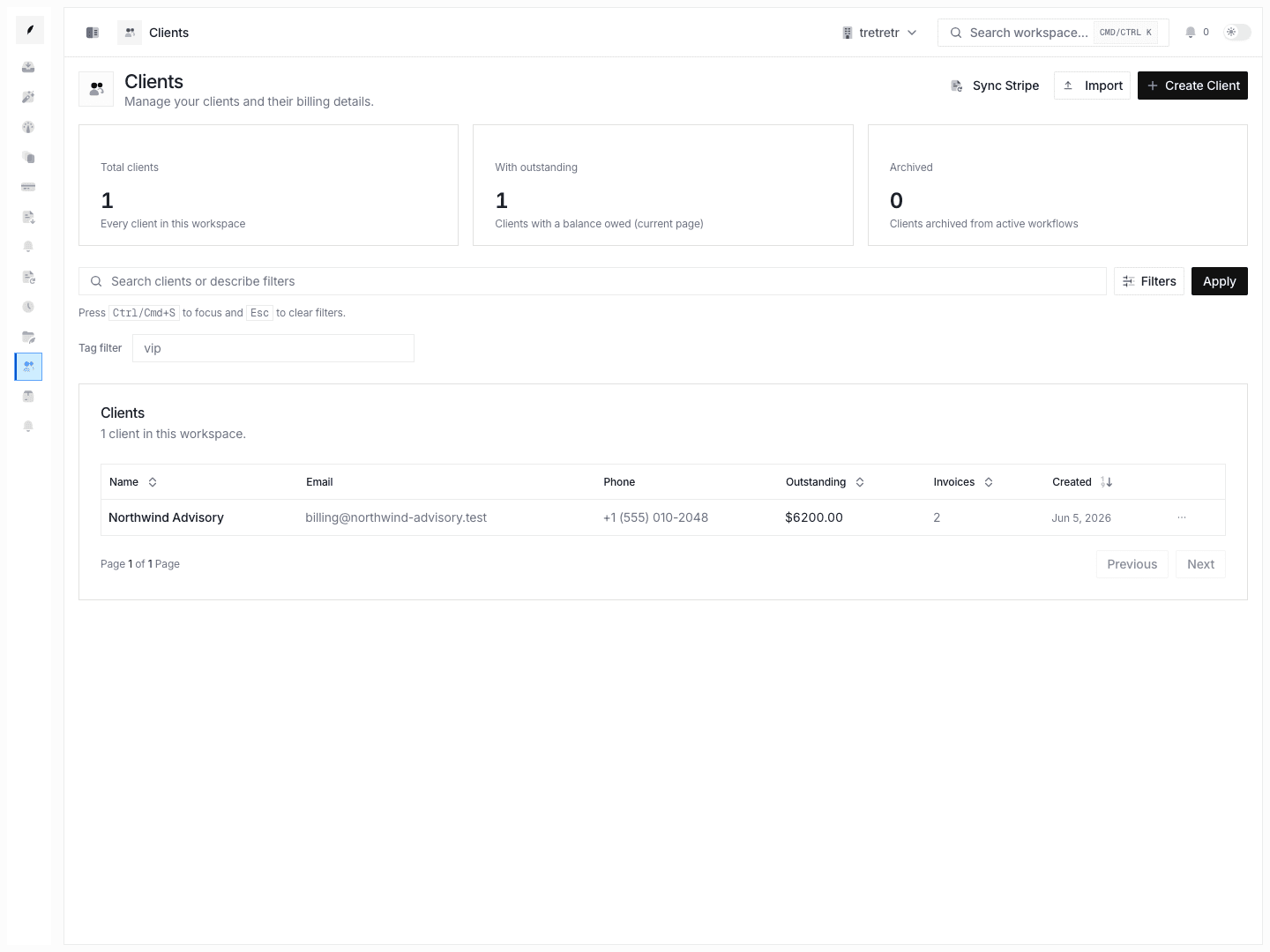
- Open Clients.
- Click the create action to add a new client record.
- Enter the client name and the billing email you want invoices delivered to.
- Save the record.
- If you need more context before billing, open the client detail page and fill in address, notes, tax ID, website, and any enrichment data you rely on.
4. Create a Draft Invoice
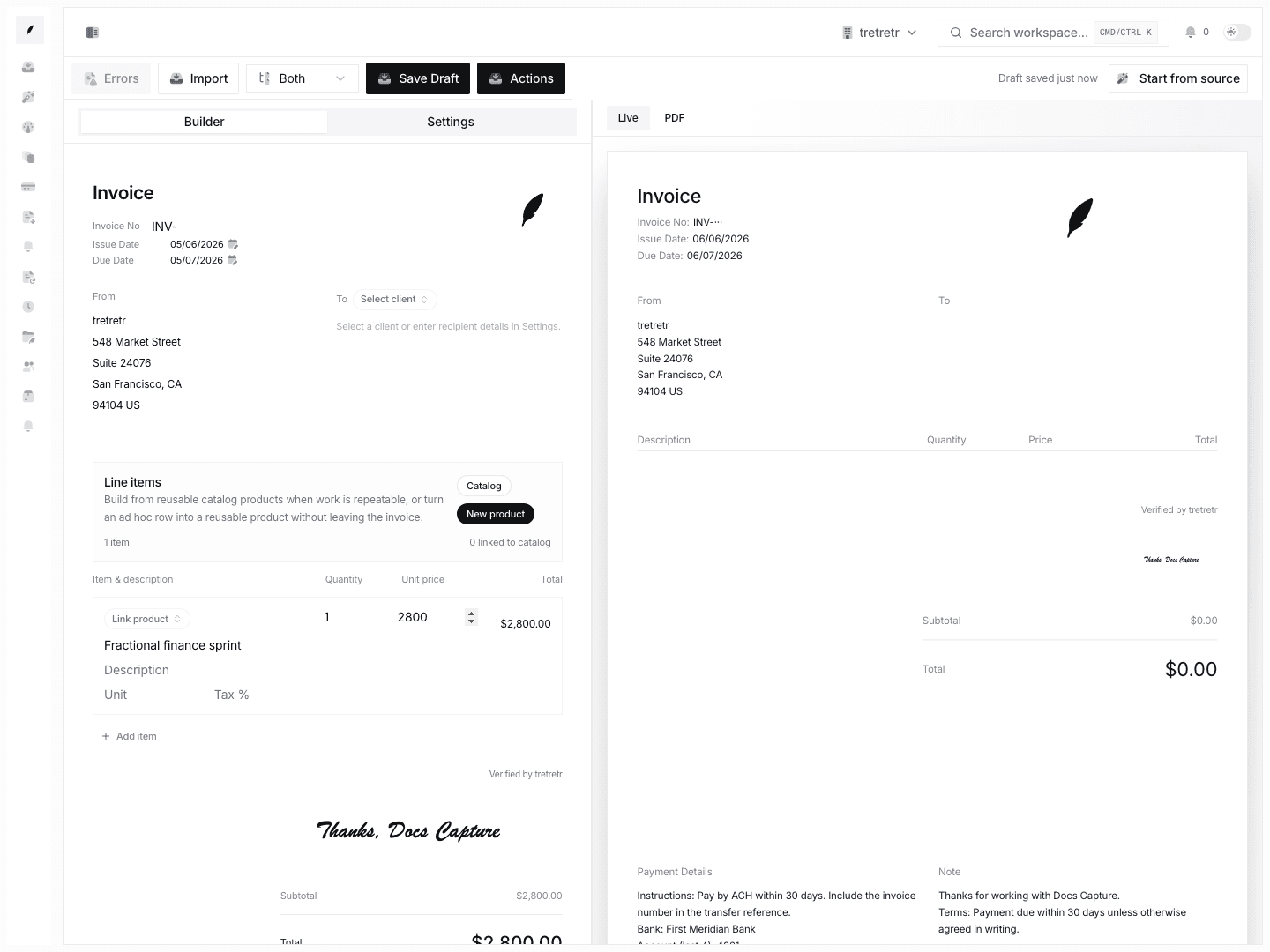
- Open Create invoice.
- Select the client you just created.
- Add the line items, quantity, unit price, due date, notes, and payment details you want on the invoice.
- Use the preview area to verify the totals and client-facing presentation.
- Save the invoice as a draft if you want to review it later, or continue to send if it is ready.
5. Connect Delivery Channels
Corinthian can work without every delivery integration connected, but these setup steps make the system more useful:
- Open Settings → Email to configure the workspace sender identity and domain verification flow.
- Open Settings → Channels to inspect email, portal, and push channel health and run test sends where supported.
- Open Apps if you want to connect Stripe or review available integrations.
6. Invite Your Team
- Open Settings → Members to invite teammates.
- Open Settings → Roles if you need custom permissions before broad rollout.
- Open Settings → Notifications and Account Preferences so owners and responders receive the right alerts.
7. Work the Result
Once invoices are live, the normal operating loop is:
- watch Invoices for status changes
- use Inbox for replies, tasks, and follow-up coordination
- adjust Reminders, Templates, and Channels as you learn what the workspace needs
Common Mistakes
Looking for old navigation labels
The app uses Clients, not Customers. It uses Apps for Stripe connection state, not Settings → Payments.
Expecting public API keys from the settings page
Settings → Developer is for OAuth applications. If you need API keys, use the API-key management flow documented in the API section.
Expecting self-serve imports for every billing object
The self-serve import flow is for work entries under Work → Import. Client and invoice migrations are not currently documented as self-serve workflows.