Settings Reminders
Set the first, second, and final overdue reminder offsets for invoice follow-up.
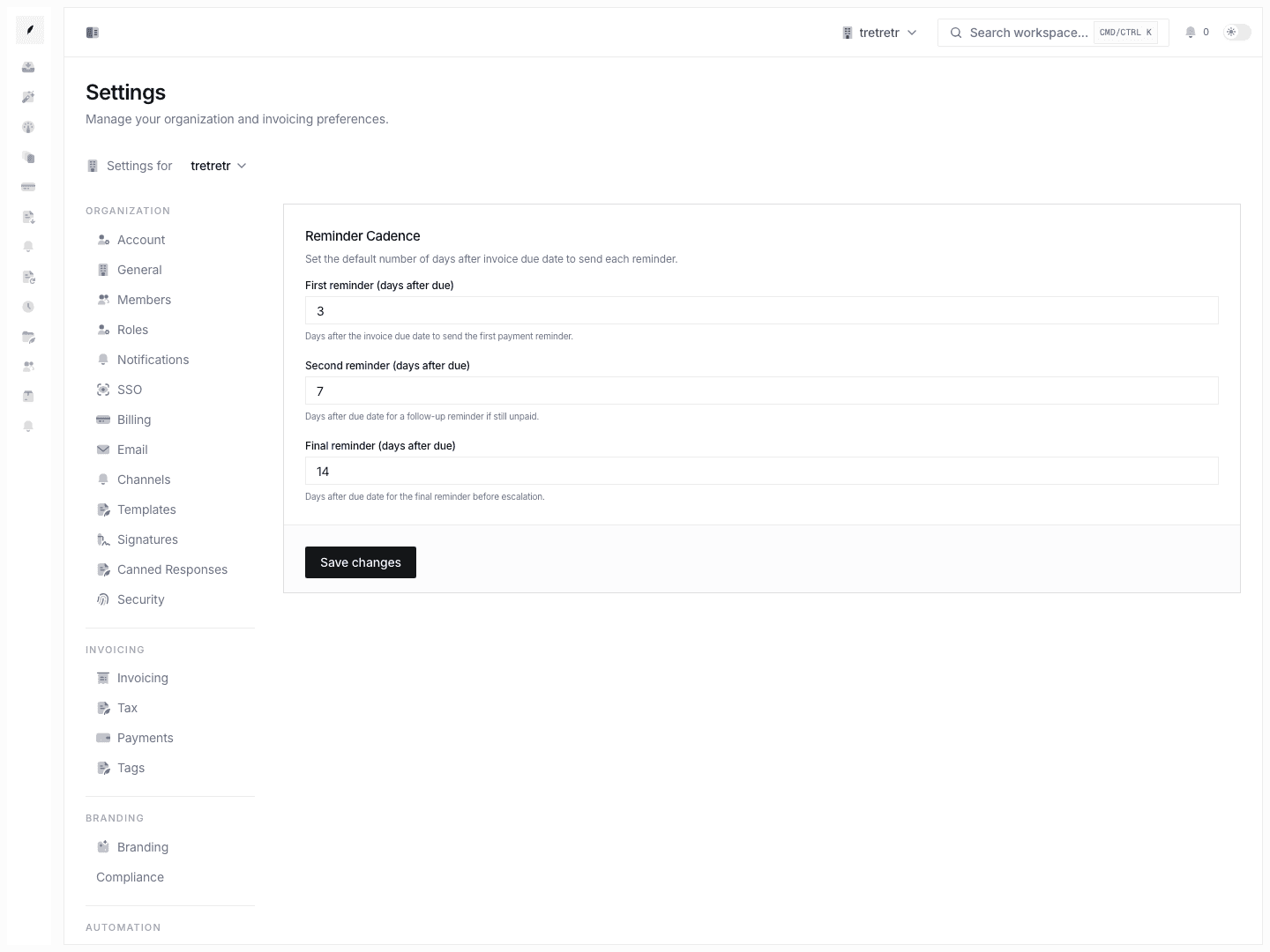
Settings → Reminders controls the workspace default cadence for overdue invoice reminders. The page defines how many days after the invoice due date Corinthian should send the first, second, and final reminder.
Typical Workflow
- Open Settings → Reminders.
- Set First reminder (days after due).
- Set Second reminder (days after due).
- Set Final reminder (days after due).
- Click Save changes.
After saving, the workspace uses those overdue offsets as its default reminder cadence.
What You Can Configure
| Field | What it controls |
|---|---|
| First reminder (days after due) | How many days after the due date the first payment reminder should send. |
| Second reminder (days after due) | How many days after the due date the follow-up reminder should send if the invoice is still unpaid. |
| Final reminder (days after due) | How many days after the due date the final reminder should send before escalation. |
Each value is a whole number of days after the due date. The current settings form does not accept negative values for reminders before the due date.
How It Works With Invoicing Settings
Reminder cadence and invoice automation are related but configured separately:
- Settings → Reminders controls the day offsets.
- Settings → Invoicing controls whether overdue invoice reminders are enabled as part of invoice defaults.
- Settings → Notifications controls notification routing and the default reminder tone used by workspace notification settings.
Check all three areas when reminder timing, automation, or notification behavior does not match expectations.
Current Limits
The current Settings Reminders page does not expose per-step template selection, reminder offsets before the due date, client-specific reminder opt-outs, one-off invoice reminder overrides, dispute-based pause rules, or manual controls for skipping or changing a scheduled reminder on this settings page.
Troubleshooting
Reminders are not going out
Confirm the cadence in Settings → Reminders, then confirm overdue invoice reminders are enabled in Settings → Invoicing. Both areas affect automated follow-up.
The team wants different timing for one invoice
This page defines workspace defaults. Use invoice-specific reminder policy controls where they are available in the invoice workflow.
The cadence saved but the page still looks unchanged
Refresh the page and check the three fields again. If the old values return, try saving once more and confirm you have permission to update workspace settings.