Connect Workspace Email
Enable Corinthian email, return inbound replies to the inbox, verify a sending domain, and configure alternate and BCC mailboxes.
Workspace email setup lets Corinthian send customer messages and return replies to the correct invoice threads.
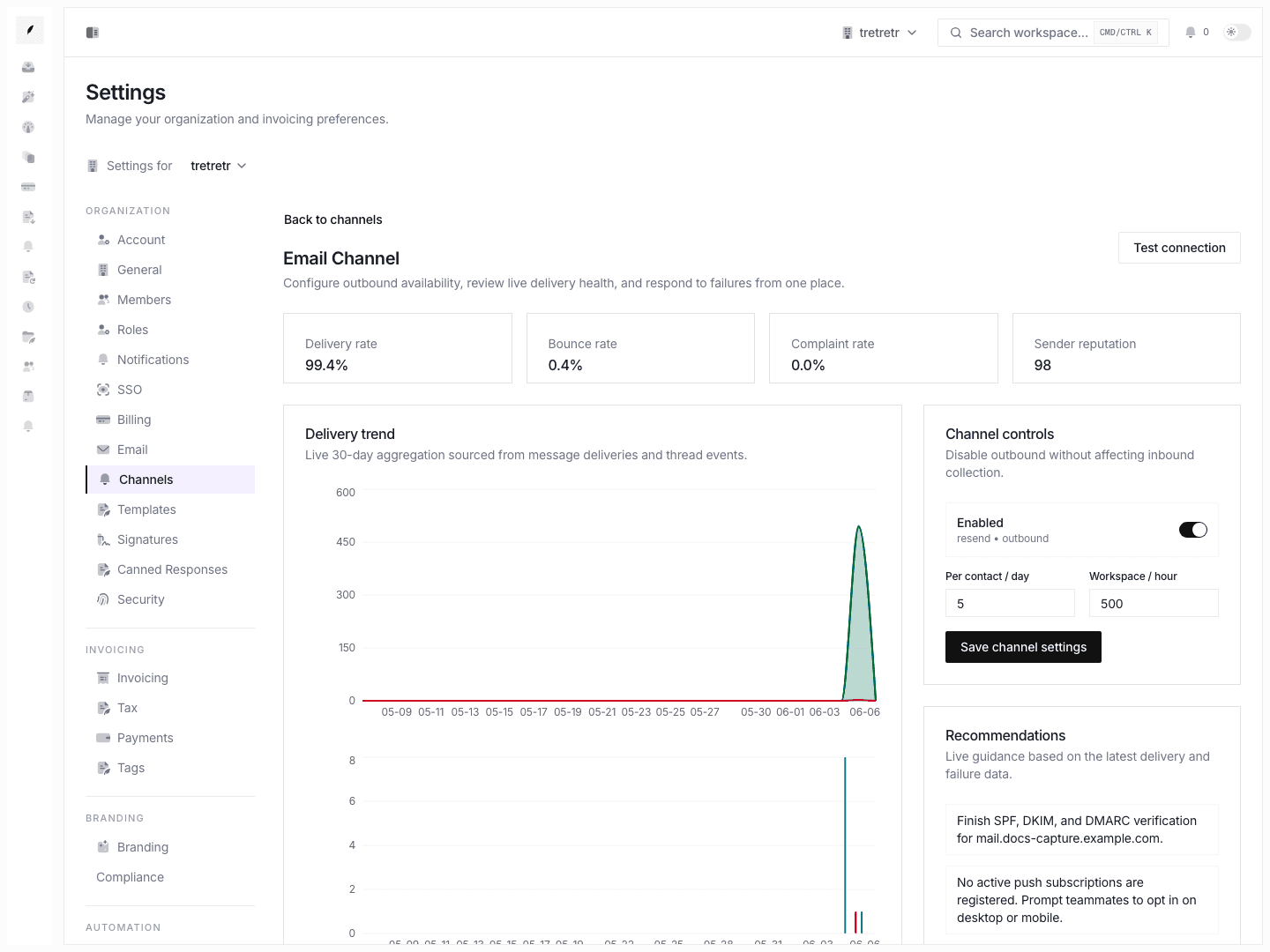
The supported setup here is domain-based email configuration. It is not a Gmail or Outlook mailbox OAuth connection flow.
Before you start
Have these ready:
- a domain you control for outbound email
- someone who can add DNS records
- the sender address and display name customers should see
- any additional reply-capable or archive mailboxes the team needs
1. Open Settings → Email
Go to Settings → Email.
This page controls the shared workspace email setup:
- enable or disable workspace email
- the workspace-specific inbound forwarding address
- the customer-facing from address and display name
- sending-domain verification
- alternate reply-capable addresses
- BCC recipients for outbound mail
2. Turn on workspace email
Use Enable email to activate sending and receiving for the workspace.
Once enabled, Corinthian shows a workspace-specific inbound forwarding address. This address is the destination you forward inbound mail to so replies can flow back into the correct invoice timeline.
When to copy the inbound forwarding address
Copy the forwarding address when you:
- set up a shared billing mailbox
- forward aliases into Corinthian
- want customer replies from outbound thread email to land back in the inbox
Replies to outbound emails are automatically routed back through this path.
3. Set the sender identity customers will see
Use the Customer Service Email card to set:
- From Address
- Display Name
These values shape the sender identity on outbound customer email. Use a stable billing or support address rather than an individual employee mailbox.
4. Add a sending domain and generate DNS records
In Sending Domain Verification, enter the domain you want Corinthian to send from and save the form.
After you save, Corinthian stores the sending domain and shows the DNS records required for verification.
What to do with the DNS records
- Copy each record value into your DNS provider.
- Wait for the DNS change to propagate.
- Return to Corinthian and click Verify DNS.
The page shows whether each record is already verified or still pending.
5. Add alternate and BCC mailboxes
Use the lower cards to keep shared mailbox behavior explicit.
Alternate Email Addresses
Add addresses here when replies may come from more than one shared mailbox and the team still wants them treated as part of the workspace email setup.
BCC Email Addresses
Add addresses here when every outbound email should also be copied elsewhere, such as:
- an archive mailbox
- a shared finance inbox
- a compliance or records mailbox
6. Align related notification defaults when needed
Email setup is the main page for sender identity and domain verification, but some org-wide email defaults also live in Settings → Notifications.
Review that page when you also need to confirm:
- the reply-to email
- the archive BCC email
- the default reminder tone
7. Test from the real thread flow
After setup, verify the path from the real thread workflow:
- Open an invoice thread in the inbox.
- Send a reply from the thread composer.
- Confirm the email used the expected sender identity.
- Reply back from the customer side or a test mailbox.
- Confirm the response lands back in the same thread.
This is the real proof that sending, threading, and reply routing are all wired correctly.
What to verify before rollout
- workspace email is enabled intentionally
- the from address and display name are correct
- the sending domain is present and verified or clearly pending
- alternate and BCC addresses reflect the mail routing plan
- a real inbox reply round-trip works end to end
Related pages
Configure Payment and Tax Settings
Set the bank instructions, payment reference details, VAT behavior, and default tax rate that appear in invoice operations.
Create and Manage Clients
Create client records, update account details, use full profiles, and manage archive or delete actions with confidence.