Working the Invoice Inbox
A step-by-step operating guide for triaging invoice threads, responding to customers, and keeping next actions attached to the invoice.
The invoice inbox is built for AR work, not just reading email. It keeps ownership, communication, and payment follow-up in the same shared thread history.
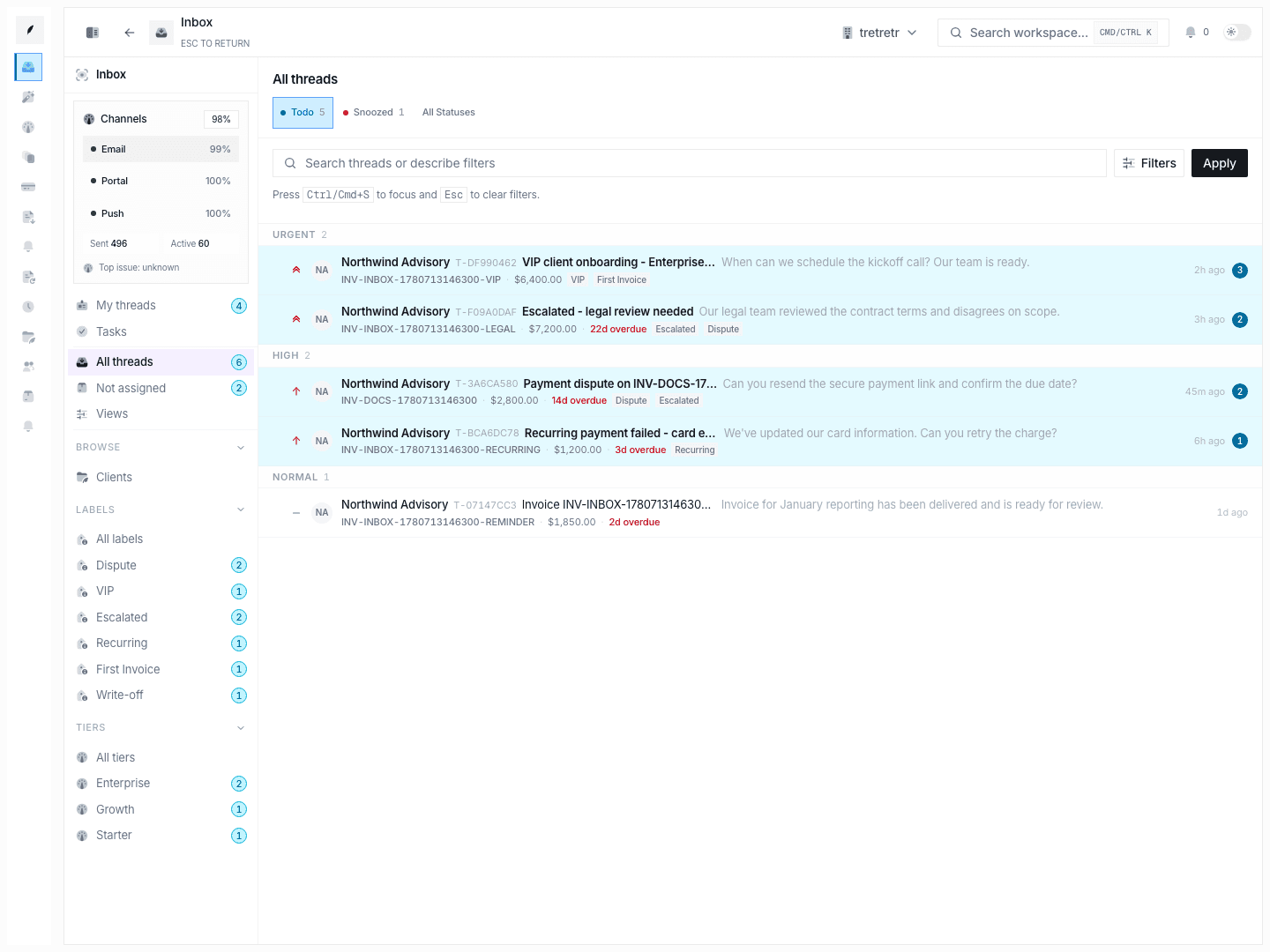
1. Start in the right queue
Pick the queue based on what kind of work you are doing:
- All threads for the broadest queue visible to you
- My threads for work already assigned to you
- Not assigned for handoffs and coverage gaps
- Tasks for thread-linked action items that need separate tracking
All threads is not yet a fully shared organization queue, so use it as the broadest accessible queue for your account.
If you need to regroup work before opening threads, browse by:
- Client when you are working an account
- Label when you are handling a theme such as disputes or escalations
- Tier when you are working by service level or operating segment
2. Narrow the list before you open threads
Use the queue controls to reduce noise:
- switch between Todo, Snoozed, and broader status views
- filter by priority
- filter by one or more labels
- search by client name, invoice number, or subject
The inbox search flow also supports natural-language filter input, which helps when you want to describe the work you need instead of building filters manually.
3. Read the full thread before acting
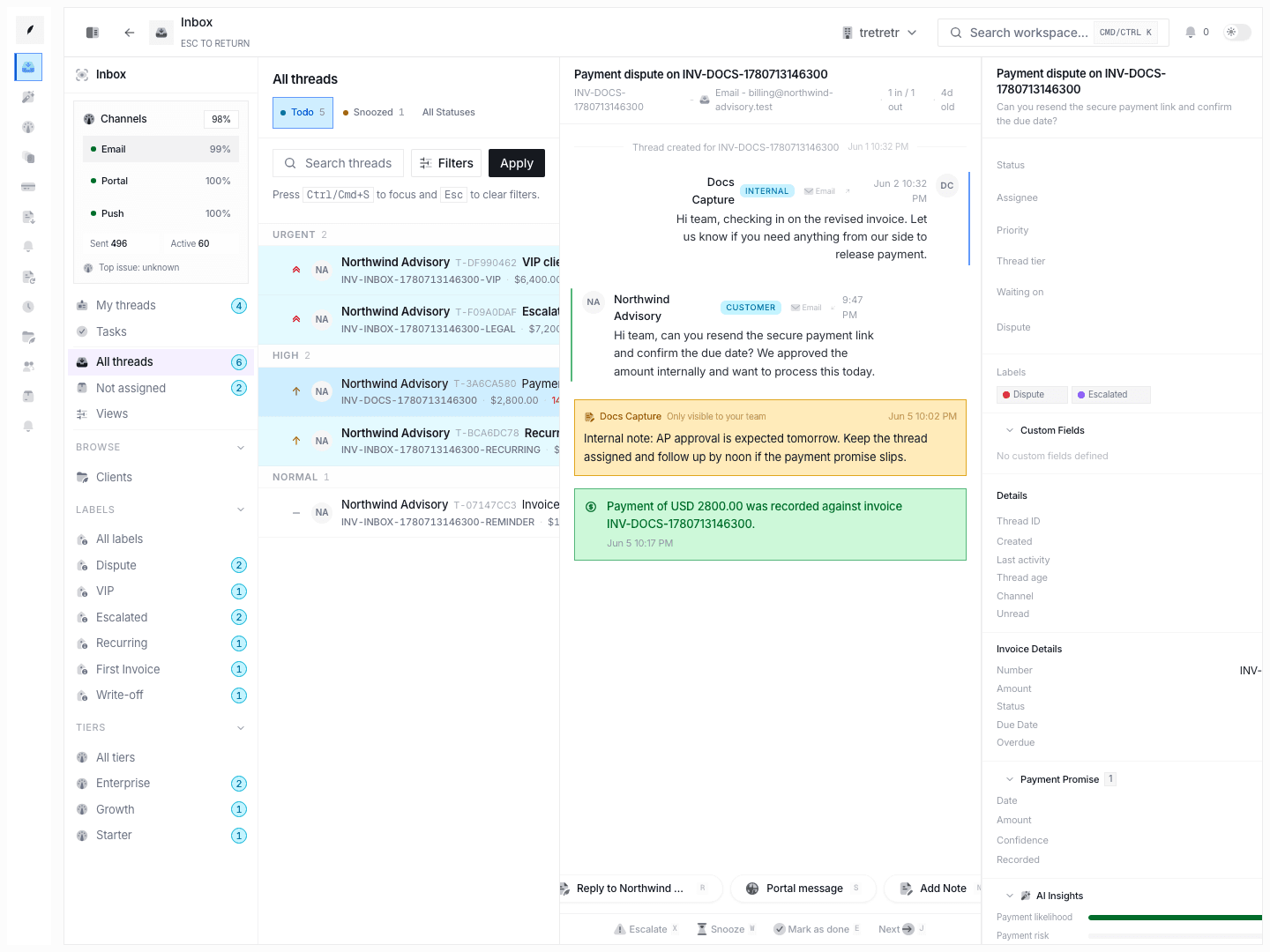
When you open a thread, Corinthian:
- preserves your queue context in the left rail
- marks the thread read
- loads the full timeline
- starts listening for live updates
Read the timeline top to bottom before you respond. The thread can contain:
- inbound customer messages
- outbound replies
- internal notes
- system events such as reminders
- payment events
That matters because the next action is often already implied by a prior promise, dispute, or teammate note.
4. Choose the right response mode
Use Reply when the customer needs a direct response. Use Add Note when the update is only for your team.
The bottom action bar is optimized for queue handling:
- Escalate adds escalation context to the thread
- Snooze defers the thread until a future time
- Mark as done resolves the thread from the queue
- Next moves you through the current working set without going back to the list first
5. Keep the sidebar current
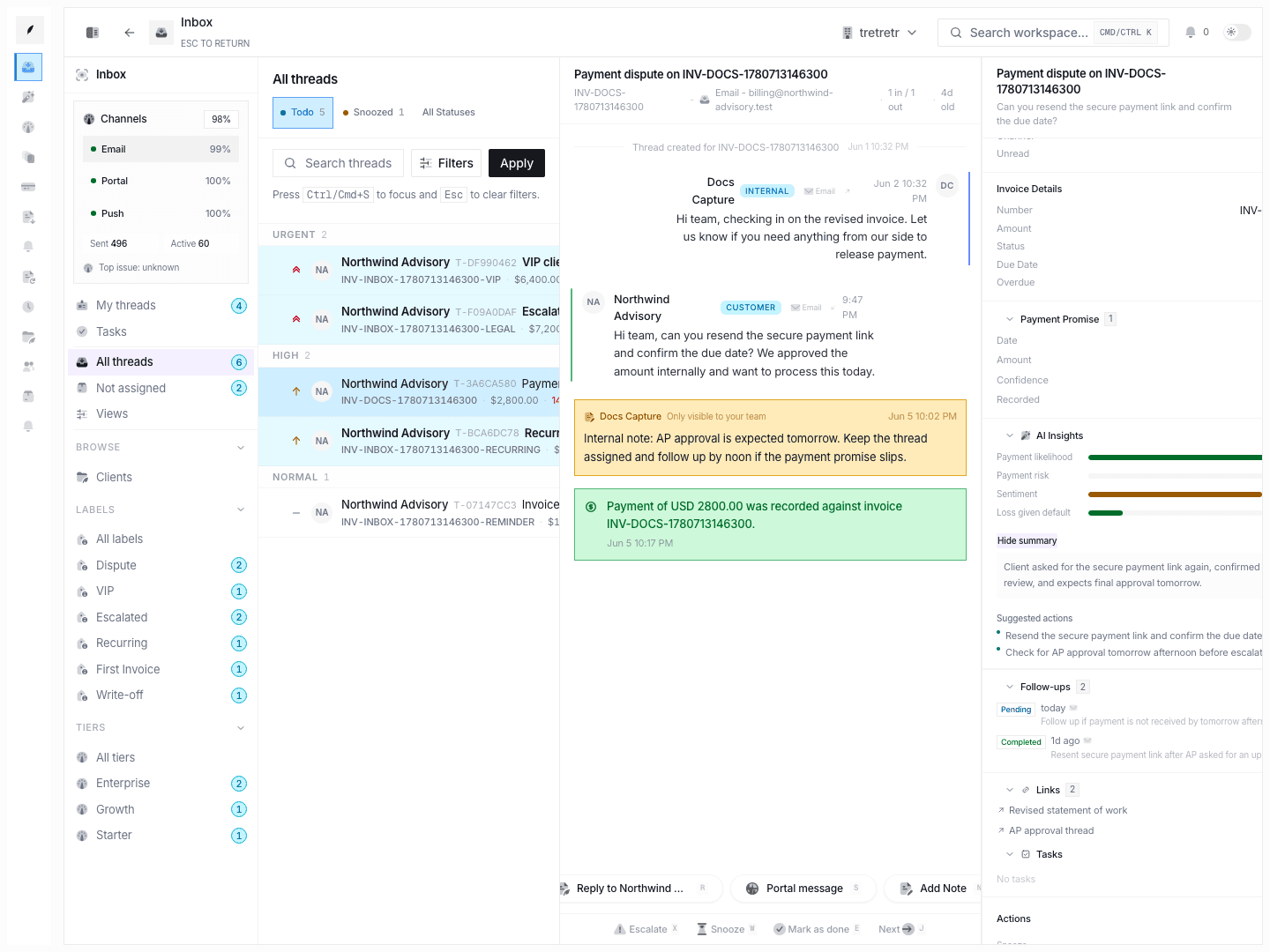
The sidebar is where a thread becomes an operating record instead of a message log.
Update ownership and urgency
Set or verify:
- status
- assignee
- priority
- thread tier
- waiting-on party
- dispute status
Capture the next likely payment outcome
Use the payment promise section whenever the customer gives a date or amount. Record:
- promised payment date
- promised amount
- confidence level
If the thread has AI context available, review the risk and payment signals before you decide whether to escalate, snooze, or close.
Keep the next action attached to the thread
Use the lower sidebar sections to maintain:
- Follow-ups for scheduled check-ins
- Tasks for teammate work that deserves its own completion state
- Links for evidence, supporting docs, or external references
6. Use tasks and follow-ups differently
Use a follow-up when the thread itself needs to come back at a specific time.
Examples:
- "Follow up Friday if payment has not arrived."
- "Send another note after the customer reviews internally."
Use a task when there is a discrete work item that should be tracked as open or done.
Examples:
- "Collect dispute evidence from account management."
- "Confirm whether a partial payment cleared."
- "Review contract terms before replying."
The thread sidebar is where tasks are created and maintained. The global Tasks view is where the team reviews those items across threads.
7. Know what Corinthian updates automatically
The inbox has automatic behavior that affects queue handling:
- Opening a thread marks it read.
- New inbound message-like events increase unread count.
- Inbound replies automatically reopen
doneorsnoozedthreads back totodo. - Outbound email replies are queued for delivery from the inbox and kept in the same email thread.
- Status, priority, assignment, and label changes are stored as transition records.
Because inbound replies can reactivate old work, a closed thread is only really closed until the customer speaks again.
8. Resolve the thread intentionally
Before you mark a thread done, confirm:
- the latest customer message has a documented response or decision
- the invoice state still matches reality
- promise data is current
- follow-ups or tasks cover any remaining work
- the right teammate owns whatever happens next
If the work should return later, snooze it instead of forcing it done.
9. Use shortcuts when working high volume
| Shortcut | Action |
|---|---|
R | Toggle reply |
N | Toggle note |
E | Mark done |
W | Snooze |
X | Escalate |
J | Next thread |
K | Previous thread |
Esc | Close composer or return to list |
10. Recommended daily loop
- Clear Not assigned first so nothing sits between owners.
- Work urgent and high priority threads before normal follow-up.
- Read the timeline before sending anything.
- Update ownership and payment context before moving on.
- Schedule the next action as a follow-up or task before leaving the thread.
- Use Tasks to review follow-up work that was created from threads earlier in the day.