Manage Workspace and Personal Notifications
Learn the difference between org-wide notification defaults and personal notification preferences so reply handling, archive copies, and user alerts stay intentional.
This page separates workspace-level email defaults from each user’s own notification delivery behavior.
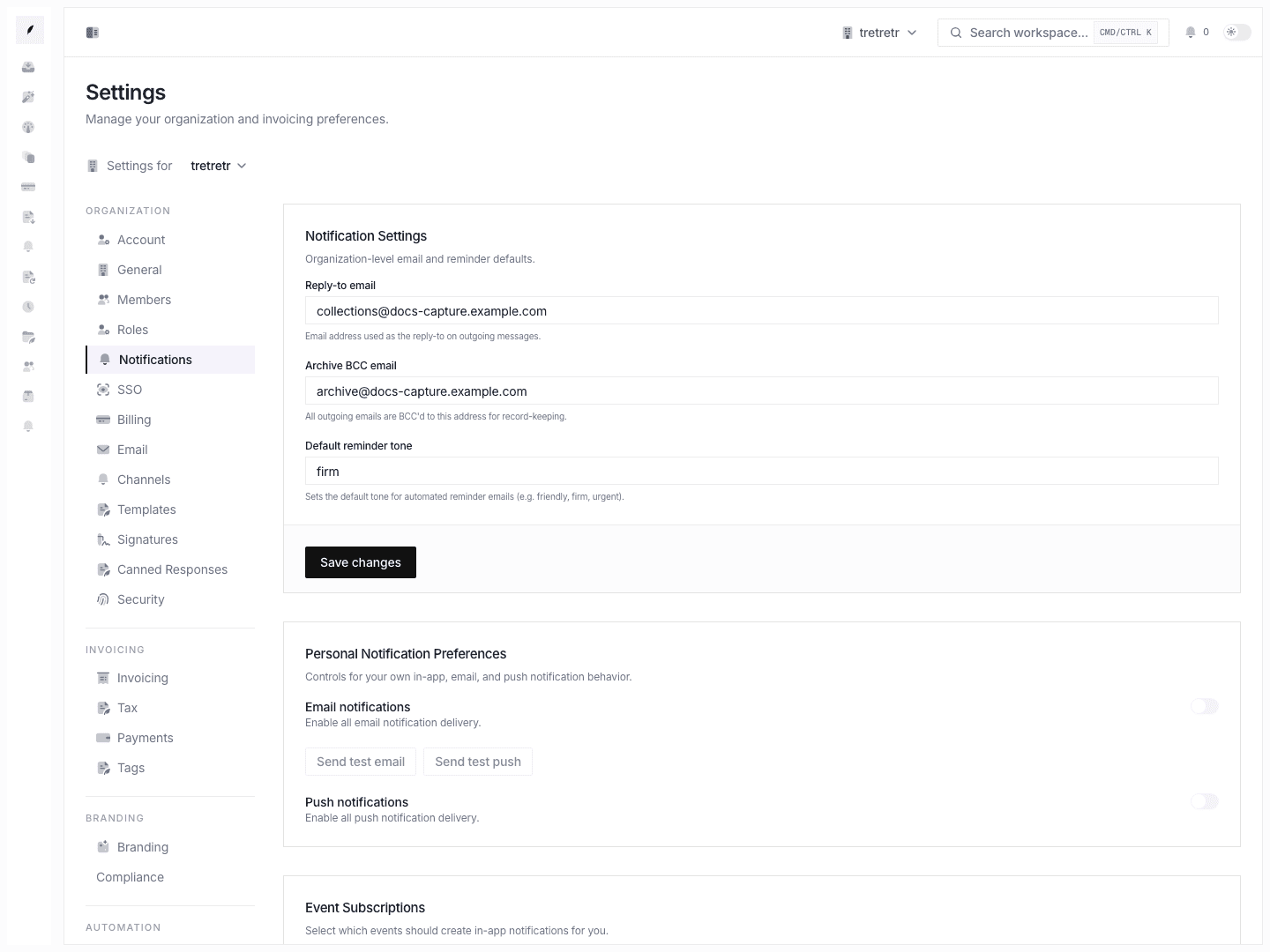
Understand the split before changing anything
Settings → Notifications contains two different systems on one page:
- the organization-level form for shared email and reminder defaults
- the personal section for the current user’s own email, push, and in-app notification behavior
Do not treat them as the same kind of setting.
1. Set the workspace defaults first
The top form controls the shared defaults for the organization:
- Reply-to email
- Archive BCC email
- Default reminder tone
When each field matters
- Reply-to email shapes the reply header on outgoing messages
- Archive BCC email sends a blind copy of outbound email to a records mailbox
- Default reminder tone sets the baseline tone for reminder copy
These are workspace decisions, not personal preferences.
2. Keep org-wide email defaults aligned with the real mail plan
Before saving the org form, confirm:
- the reply-to mailbox is monitored
- the archive BCC mailbox is intentional and compliant with how the team stores records
- the reminder tone matches the escalation policy
If the workspace also uses shared sending identity, review Connect Workspace Email at the same time.
3. Configure your own delivery preferences separately
The personal section below the org form controls what the current user receives.
Use it to manage:
- whether email notifications are enabled for you
- whether push notifications are enabled for you
- which events create in-app subscriptions
- the fine-grained email delivery rules
- the fine-grained push delivery rules
This section only changes the current user’s experience.
4. Choose event subscriptions intentionally
In Event Subscriptions, turn on the events that should create in-app notifications for you.
This is the best place to reduce noise for teammates who do not need every alert while still keeping high-accountability users subscribed to the events that matter.
5. Tune email and push rules by channel
The lower cards split channel rules into:
- Email Delivery Rules
- Push Delivery Rules
Use these cards when the channel matters as much as the event itself. For example, a user may want important alerts by email but not by push.
6. Verify with one org check and one personal check
Run both checks after saving:
- Confirm the org-wide fields still show the saved values after reload.
- Toggle one personal rule and confirm it stays set for the current user.
Treat org defaults and personal preferences as two separate verification steps.
Current limitations to keep in mind
- The page mixes shared defaults and personal preferences, so teammates can easily edit the wrong section if docs are vague.
- Org-wide settings clearly persist, but you should still verify the downstream email flow when reply handling or archive copies matter.
- Personal notification controls belong to each user and should not be documented as workspace-wide behavior.
What to verify before rollout
- the workspace reply-to and archive BCC addresses are correct
- the reminder tone matches finance policy
- each user has the right event subscriptions for their role
- email and push delivery are only enabled where they are wanted