Time Tracker
Track billable hours, manage projects, import Harvest time, export CSVs, and convert work into invoices.
The Tracker records billable work and gives your team a place to review time entries, manage projects, import Harvest time, export CSV data, and create invoices from tracked work.
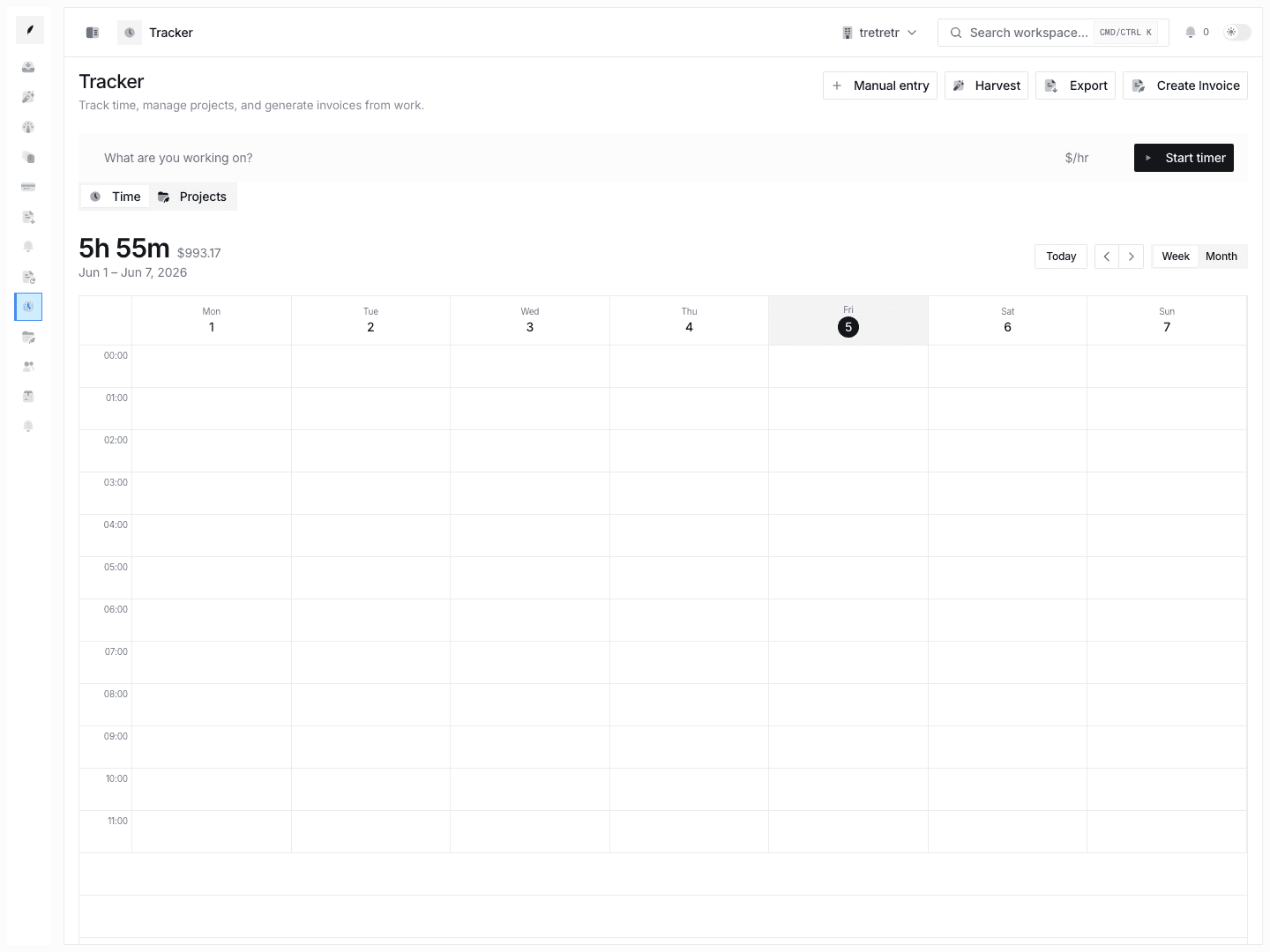
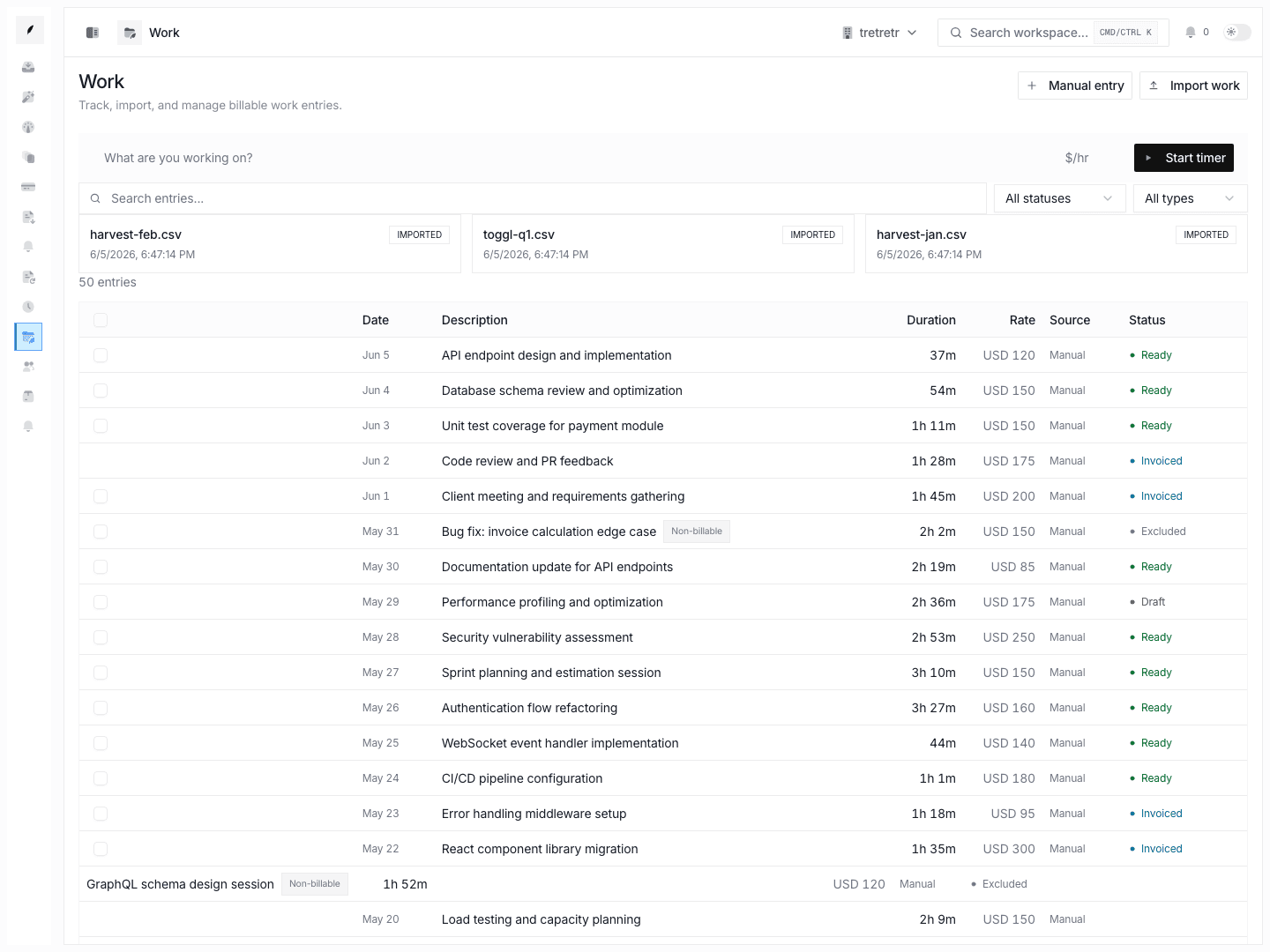
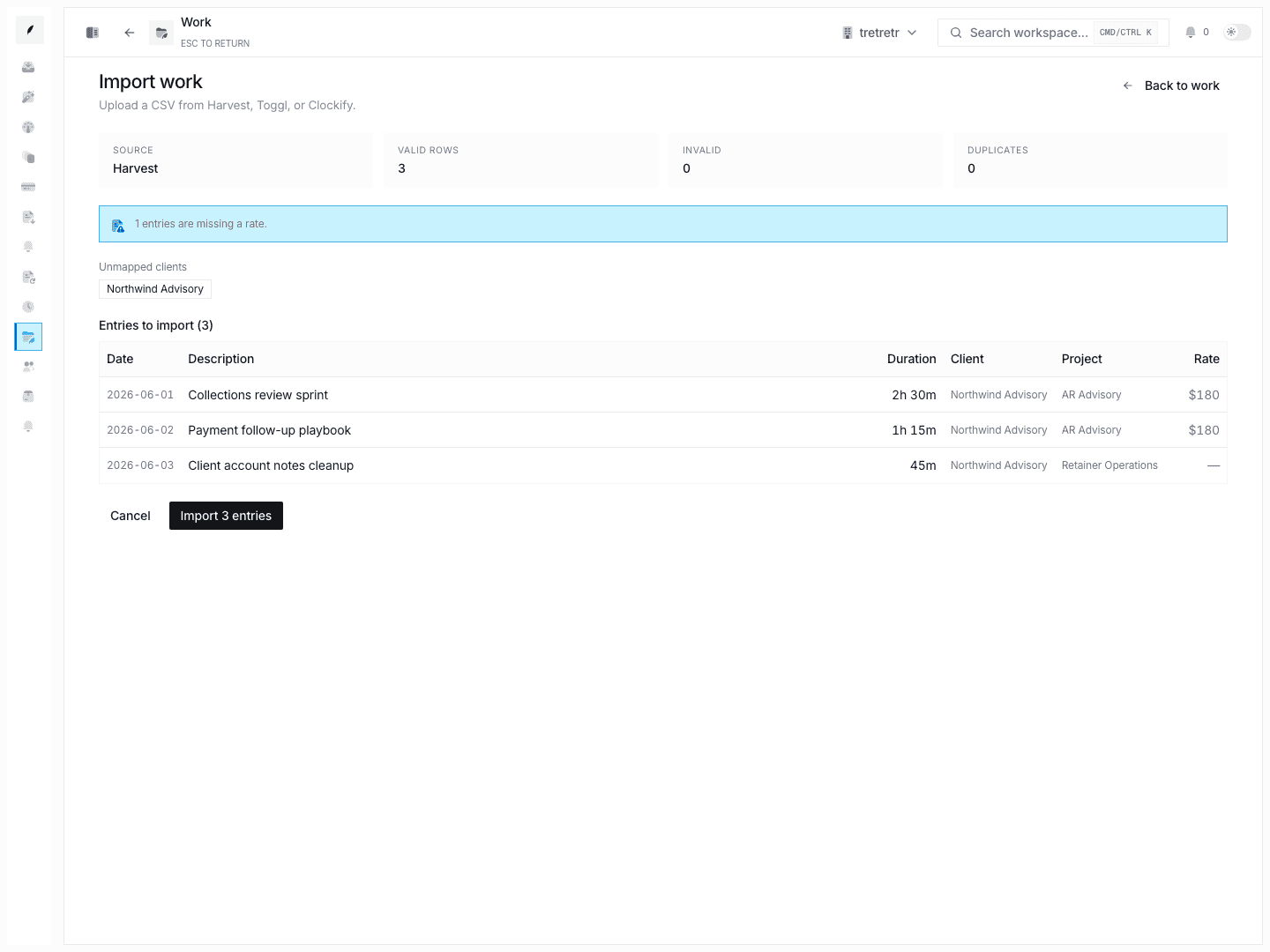
Tracker Layout
The Tracker has two main tabs:
| Tab | What It Helps You Do |
|---|---|
| Time | Review time entries in the calendar, start or stop the timer, add quick entries, import or sync Harvest data, export CSVs, and create invoices. |
| Projects | Search projects, review the project table, and create new projects. |
The timer stays visible on the Tracker page so you can keep an active work session in view while reviewing time.
Recording Time
Use the timer for live work and quick entry for work you need to add after the fact.
- Open Tracker.
- Start the timer or add a quick entry.
- Attach the work to the relevant client or project when available.
- Save or stop the entry when the work is complete.
Billable entries can later be selected for invoice creation.
Projects
Projects group related time entries and make it easier to keep work organized by client or engagement.
- Open Tracker → Projects.
- Click New project.
- Fill in the project details shown in the form.
- Save.
Use project search and filters to keep the table focused when the workspace has many active projects.
Creating Invoices from Time
Use Create Invoice from the Time tab when tracked work is ready to bill. Corinthian opens the invoice creation flow with the selected work context so you can review line items before saving or sending the invoice.
Always review the invoice draft before sending. Time entries and invoice defaults can change independently, so the invoice is the final source of truth for what the customer receives.
Harvest Import and Sync
Teams already using Harvest can connect Harvest from the Tracker. The current connection flow asks for a Harvest Personal Access Token and Account ID from Harvest Settings → Developers.
After Harvest is connected:
- Corinthian can import Harvest time entries.
- Sync settings control how often Corinthian checks for updates.
- Imported entries follow the same billing review flow as native time entries.
- Sync is one-way; entries created in Corinthian are not pushed back to Harvest.
CSV Export
Use Export CSV from the Time tab to export tracked work for accounting, payroll, or client review. Apply filters first if you only want a subset of entries.
Tracker Display Settings
The Tracker settings menu controls local tracker display preferences:
| Setting | What It Controls |
|---|---|
| 24-hour format | Whether times display in 24-hour format. |
| Week starts Monday | Whether the calendar week starts on Monday. |
Workspace invoicing settings are separate from Tracker display settings.
Current Limitations
The current Tracker docs do not claim:
- a weekly bulk-entry grid
- project budget alerts
- a dedicated client-profile Time tab
- global time rounding rules in Settings
- workspace-level rate defaults
- browser-based Harvest authorization
If those controls are not visible in the product, they are not part of the current documented workflow.
Troubleshooting
Harvest will not connect
Confirm the Personal Access Token and Account ID are copied from Harvest exactly. If the connection still fails, generate a new Harvest token and try again.
Time entries are not ready to invoice
Check that the entries have the right client context and are intended to be billable. Review the invoice draft before sending so the customer-facing line items are correct.
The calendar layout is not what I expect
Open the Tracker settings menu and check the 24-hour and week-start preferences.