Time Tracking
Track billable time in Tracker and convert reviewed work into invoices.
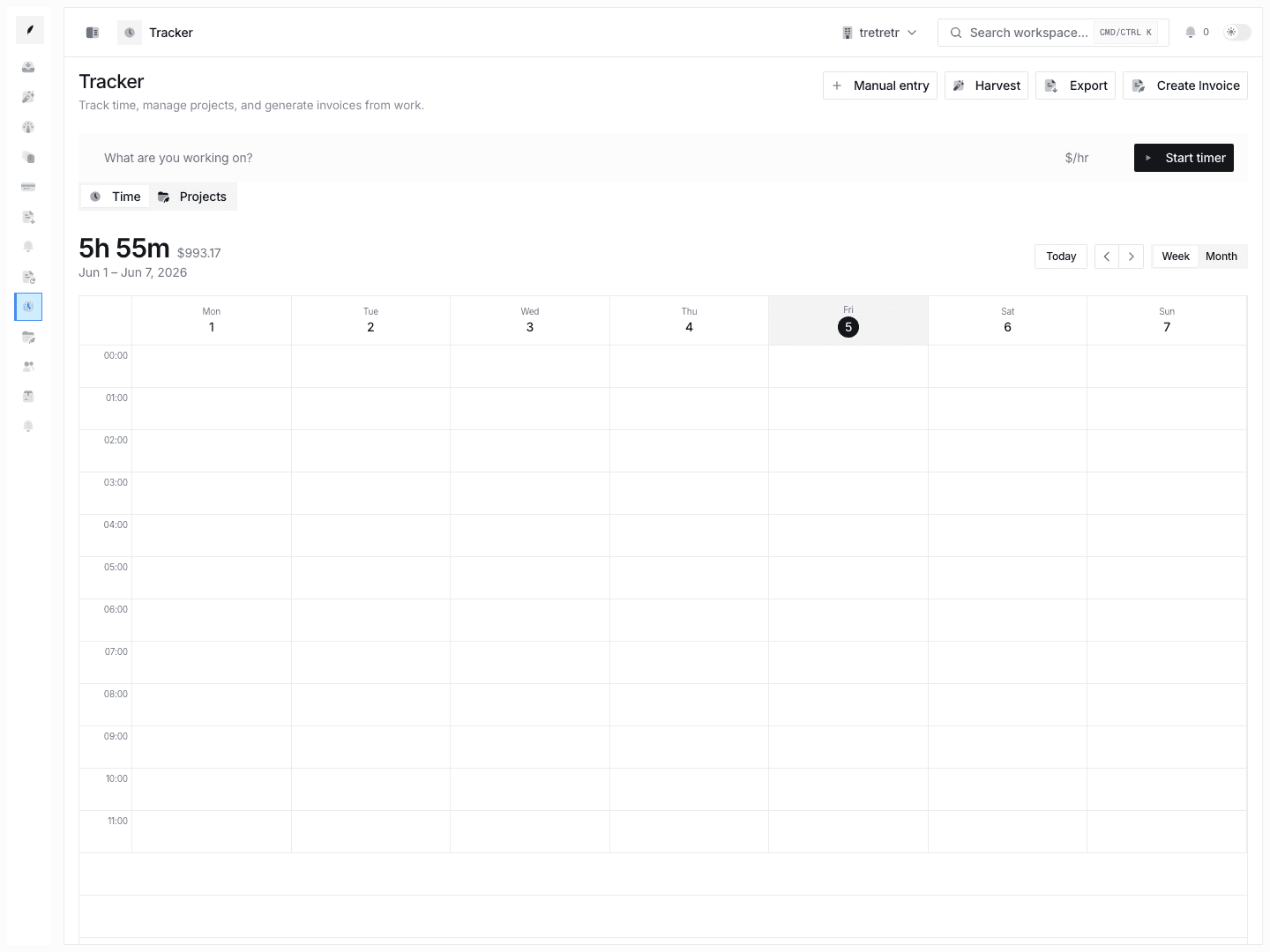
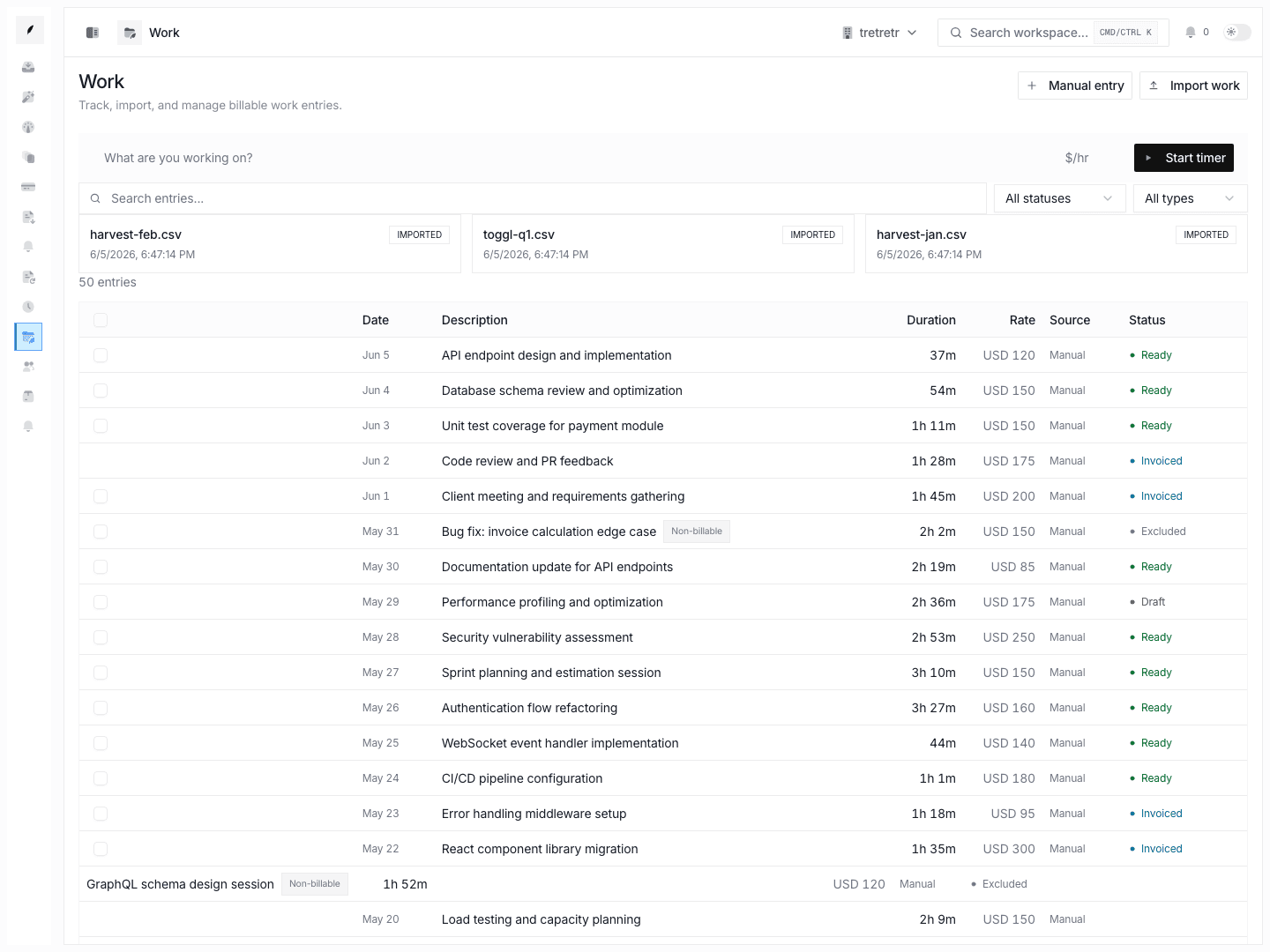
Corinthian's Tracker helps you capture billable work, associate it with clients and projects, review it in the calendar, and turn approved work into invoice line items.
Record Time
- Open Tracker.
- Start the timer for live work or add a quick entry for work that already happened.
- Add the description, client, project, and billable context available in the form.
- Save the entry or stop the timer when the work is complete.
The Tracker calendar gives you a visual way to review entries before they become invoice line items.
Manage Projects
Projects help organize work across clients and engagements.
- Open Tracker → Projects.
- Click New project.
- Fill in the project form.
- Save.
Use project search and filtering to keep the project table focused.
Convert Time to Invoices
Use Create Invoice from the Tracker when selected work is ready to bill.
- Review the time entries.
- Select the entries that should become invoice line items.
- Click Create Invoice.
- Review the generated invoice draft.
- Save or send the invoice when the customer-facing details are correct.
The invoice draft is the final review point. Adjust descriptions, quantities, rates, and taxes there before sending.
Harvest Import
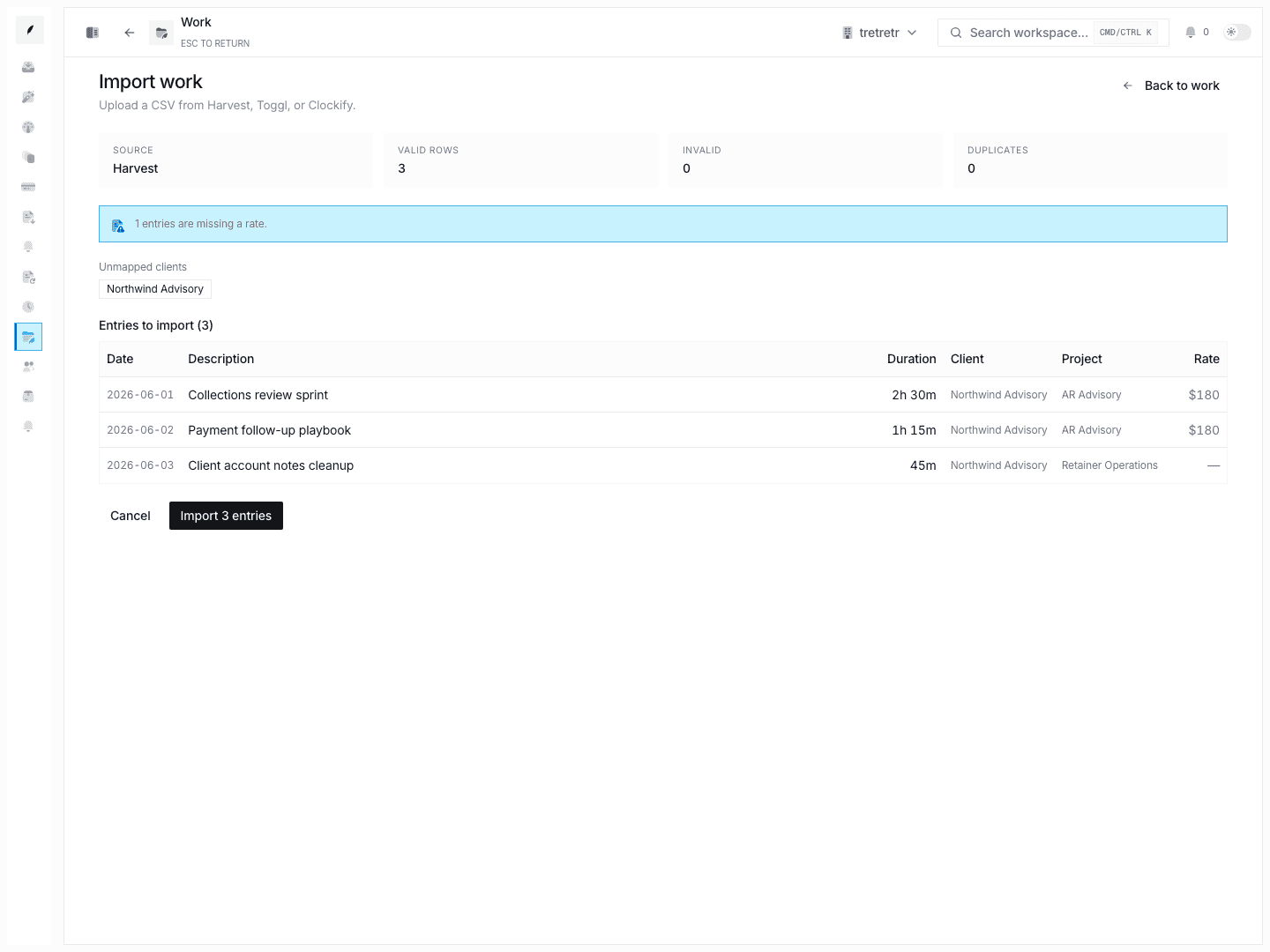
Harvest import is available from the Tracker. The current connection flow uses a Harvest Personal Access Token and Account ID, not an OAuth redirect.
- Open Tracker.
- Click Harvest.
- Enter the Harvest Personal Access Token and Account ID from Harvest Settings → Developers.
- Connect and run sync.
Harvest sync is one-way from Harvest into Corinthian.
CSV Export
Use Export CSV in Tracker to download time-entry data for review outside Corinthian. Apply filters first when you only need a specific client, project, or period.
Display Preferences
The Tracker settings menu controls local display choices:
- 24-hour time format
- week starts Monday
Default hourly rates, time rounding rules, weekly reporting links, project budget alerts, and client-profile Time tabs are not documented as current product controls.
Troubleshooting
Time entries are not appearing on an invoice
Check the client and billable context on the entry, then rebuild or review the invoice draft.
Harvest entries are missing
Confirm the Harvest token and Account ID, then run sync again. If the imported data still looks incomplete, verify the date range and project selection in Harvest.
Exported totals look different from an invoice
The CSV export is a time-entry export. The invoice draft can still be edited before sending, so invoice totals should be treated as the customer-facing source of truth.