Account Working Hours
Set your personal working schedule and timezone.
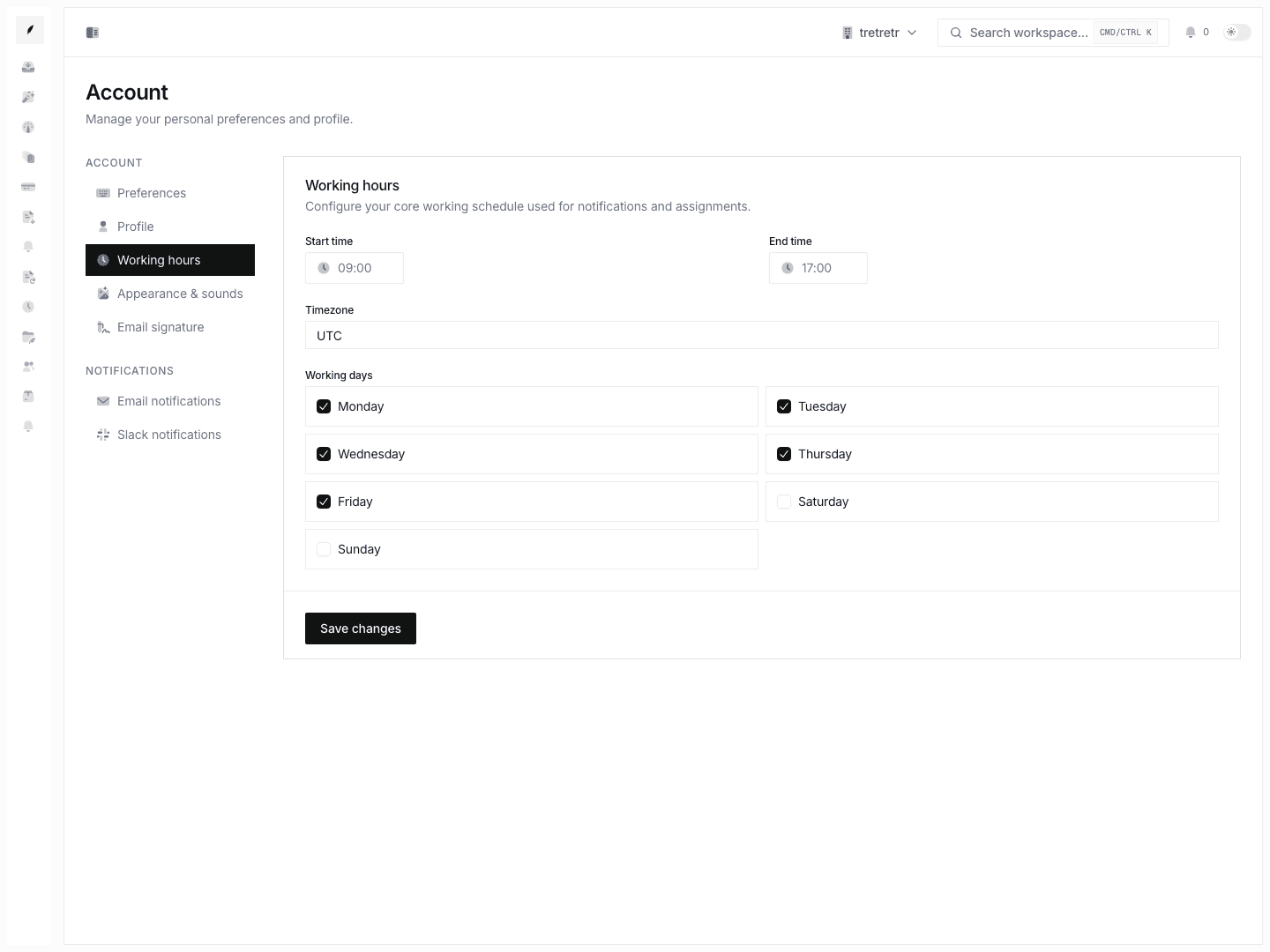
Account → Working Hours is where you define the schedule Corinthian should treat as your normal personal working window.
What You Can Configure
- start time
- end time
- timezone
- working days
This is a personal schedule, not the organization's shared business-hours schedule.
Update Your Schedule
- Open Account → Working Hours.
- Set your start time and end time.
- Choose the timezone for the schedule.
- Select the days you normally work.
- Save the form.
Use 24-hour HH:MM time format.
Personal vs. Organization Hours
| Setting | Scope | Where It Lives |
|---|---|---|
| Personal working hours | Your account only | Account → Working Hours |
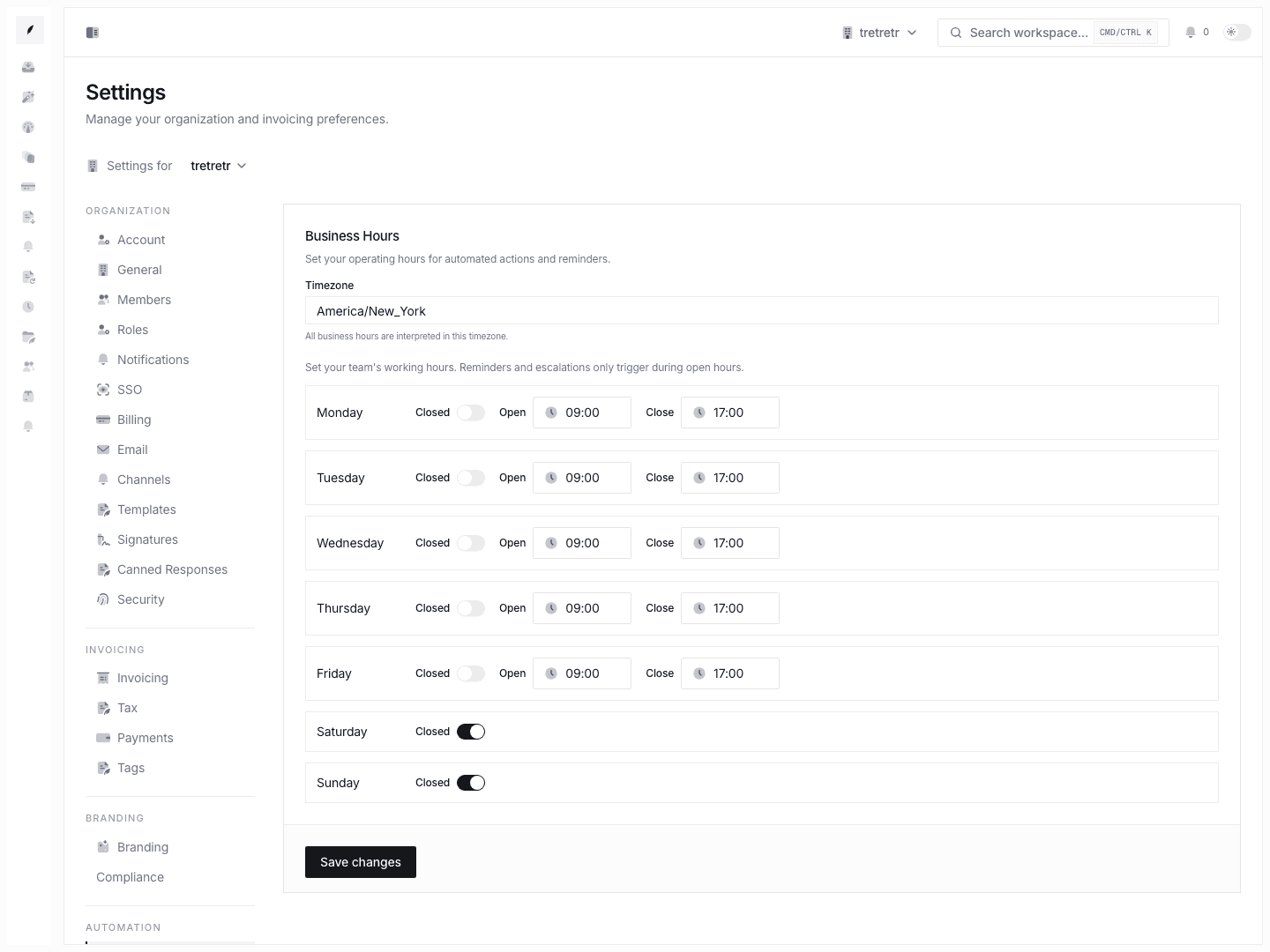
| Organization business hours | Workspace-level schedule | Settings → Business Hours |
Use organization business hours for shared business timing. Use personal working hours for your own availability metadata.
What Is Not Included
The current Account Working Hours page does not document out-of-office mode, SLA-clock calculations, auto-assignment skipping, or multi-block daily schedules.
Troubleshooting
My changes did not affect the whole team
That is expected. Organization-level scheduling belongs in Settings Business Hours.
The form will not save my time
Use 24-hour HH:MM format and make sure the timezone field is filled in.