Email Deliverability
Set up workspace email sending, DNS verification, and delivery monitoring for reliable invoice communication.
By default, Corinthian can send customer-facing billing email through the workspace email channel. A verified sending domain improves trust and gives customers a sender identity they recognize.
This workflow is configured in Settings → Email. Corinthian does not currently expose a public REST API for creating or verifying email domains.
Why Custom Domains Matter
A verified domain helps recipient mail servers identify legitimate mail from your organization.
- SPF records authorize the provider to send mail for your domain.
- DKIM records cryptographically sign outbound messages.
- DMARC records describe how receiving servers should handle messages that fail authentication.
- Sender identity stays consistent with your customer-facing billing workflow.
Add Your Sending Domain
- Open Settings → Email.
- Enable workspace email if it is not already enabled.
- Enter the customer-service sender name, customer-service email, and sending domain.
- Save the form.
When the sending domain changes, Corinthian registers it with the email provider and stores the DNS records returned by the provider. Those records appear in the Sending Domain Verification card.
Add DNS Records
Copy each DNS record from Settings → Email into your DNS provider. The exact record names and values are generated for your domain, so use the values shown in Corinthian rather than the examples below.
Common places to add records:
- Cloudflare: DNS → Records → Add record
- Route 53: Hosted zones → your domain → Create record
- GoDaddy: DNS Management → Add
- Namecheap: Advanced DNS → Add new record
DKIM
DKIM signs outgoing email so receiving mail servers can verify the message was not altered after Corinthian sent it.
SPF
SPF tells receiving mail servers which services may send email on behalf of your domain. If your domain already has an SPF record, update the existing record instead of creating a second SPF record.
DMARC
DMARC tells receiving mail servers how to evaluate mail that fails SPF or DKIM. Start with the provider-generated value, then tighten policy only after you have verified normal delivery.
Verify the Domain
After adding the DNS records:
- Return to Settings → Email.
- Click Verify in the sending-domain card.
- Review the updated verification state and any records that still need attention.
DNS propagation can take time. If a record does not verify immediately, wait and verify again after your DNS provider has published the change.
Monitor Delivery Health
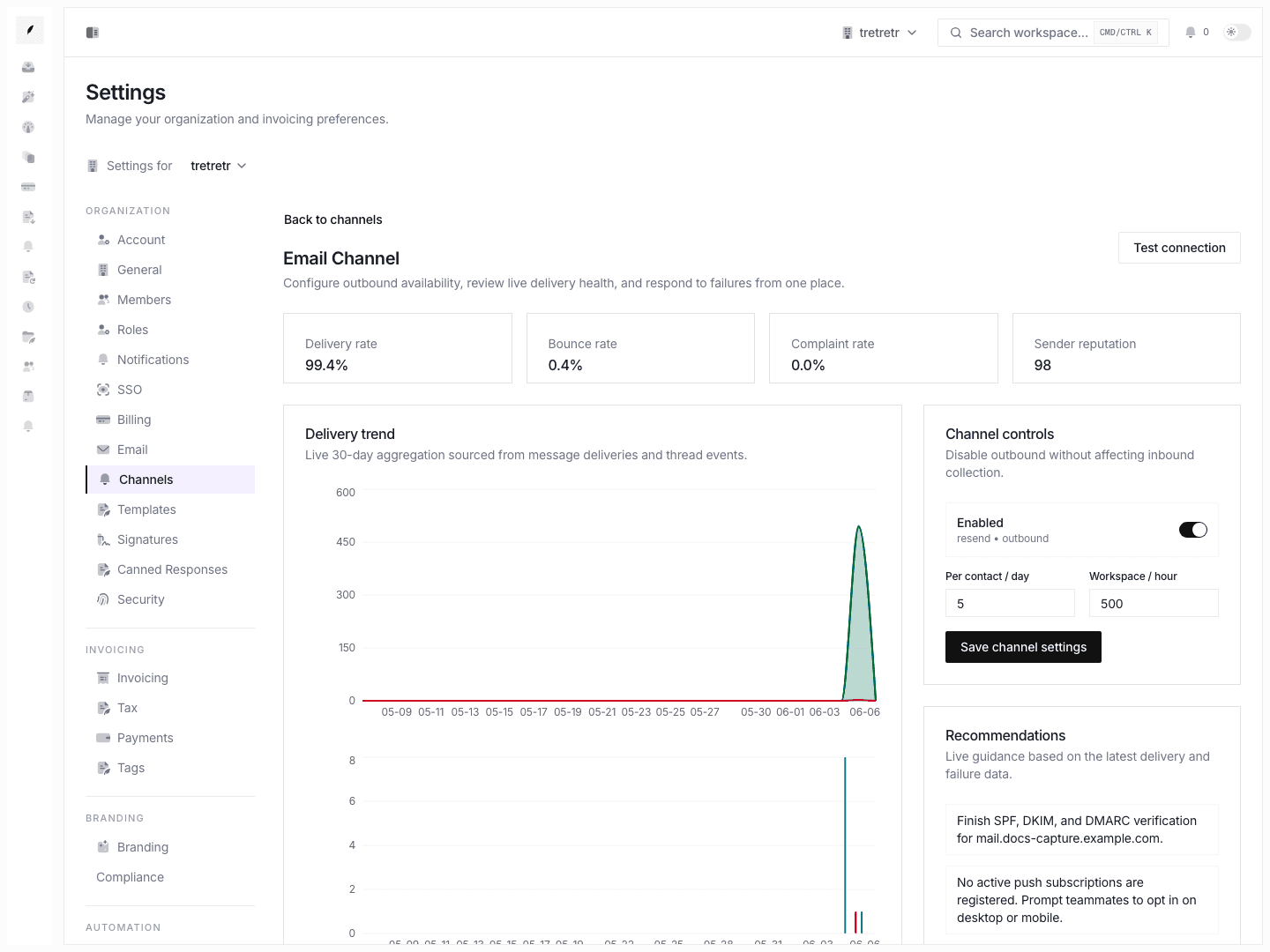
Use Settings → Channels to review delivery health for configured channels. Email health uses delivery records and provider webhook events to show delivered, opened, clicked, bounced, failed, complained, and unsubscribed activity where those events are available.
For message-level troubleshooting, open the related inbox thread and inspect the conversation timeline. Delivery events recorded by the provider appear alongside the billing conversation when the delivery is linked to a thread.
Handle Bounces
Corinthian tracks hard and soft bounces from provider webhook events.
Hard Bounces
A hard bounce means the recipient address or domain is invalid, or the receiving server permanently rejected the message. Corinthian records the bounce, suppresses the recipient address, and creates a deliverability alert so the team can correct the contact.
Soft Bounces
A soft bounce is a temporary delivery failure. Corinthian retries soft bounces up to three times over a 72-hour window. If all retries fail, the address is suppressed and a deliverability alert is recorded.
Troubleshooting
DNS records do not verify
Confirm the record type, host/name, and value exactly match the records shown in Corinthian. DNS providers often append the root domain automatically, so check whether the host should be entered as the full name or only the prefix.
Mail still lands in spam after verification
Domain verification proves authorization, but sender reputation still builds over time. Keep bounce rates low, avoid sudden high-volume sends, and make sure billing email uses accurate sender names and subject lines.
A customer stopped receiving email
Check the suppression list in Settings → Compliance, then inspect the related inbox thread for bounce, failure, unsubscribe, or complaint events.