Stripe App Setup
Connect Stripe through the Apps workspace and verify the integration state that Corinthian exposes today.
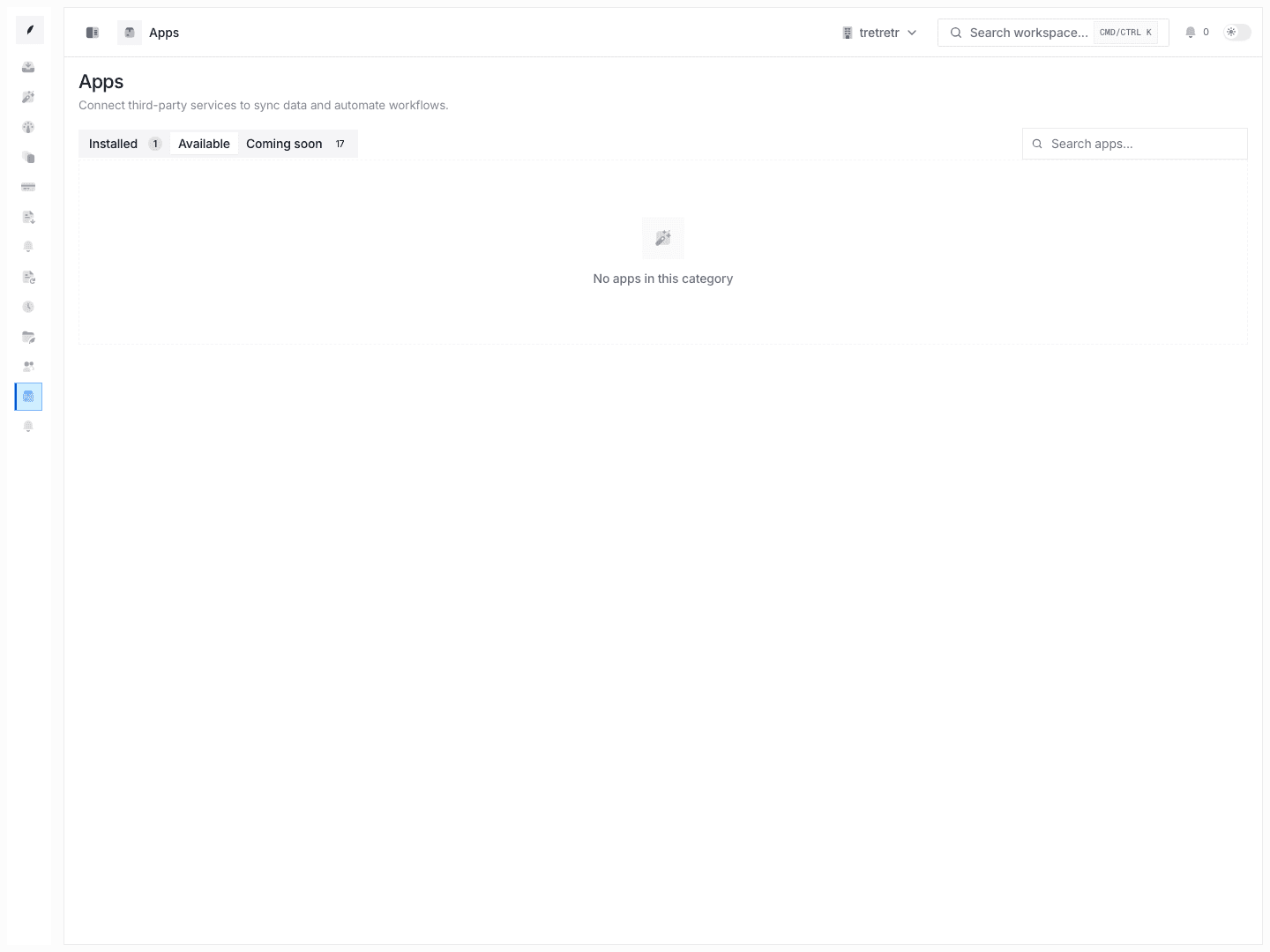
Stripe connects from the Apps workspace.
1. Open Apps
Go to Apps and find the Stripe card in the installed or available app lists.
2. Complete the Connection Flow
Connect the workspace to Stripe using the app flow presented in the UI.
3. Verify the Result
After connect, confirm:
- the app shows the expected connected state
- the workspace is in the environment you expect
- any import or refresh actions exposed by the Stripe app are available
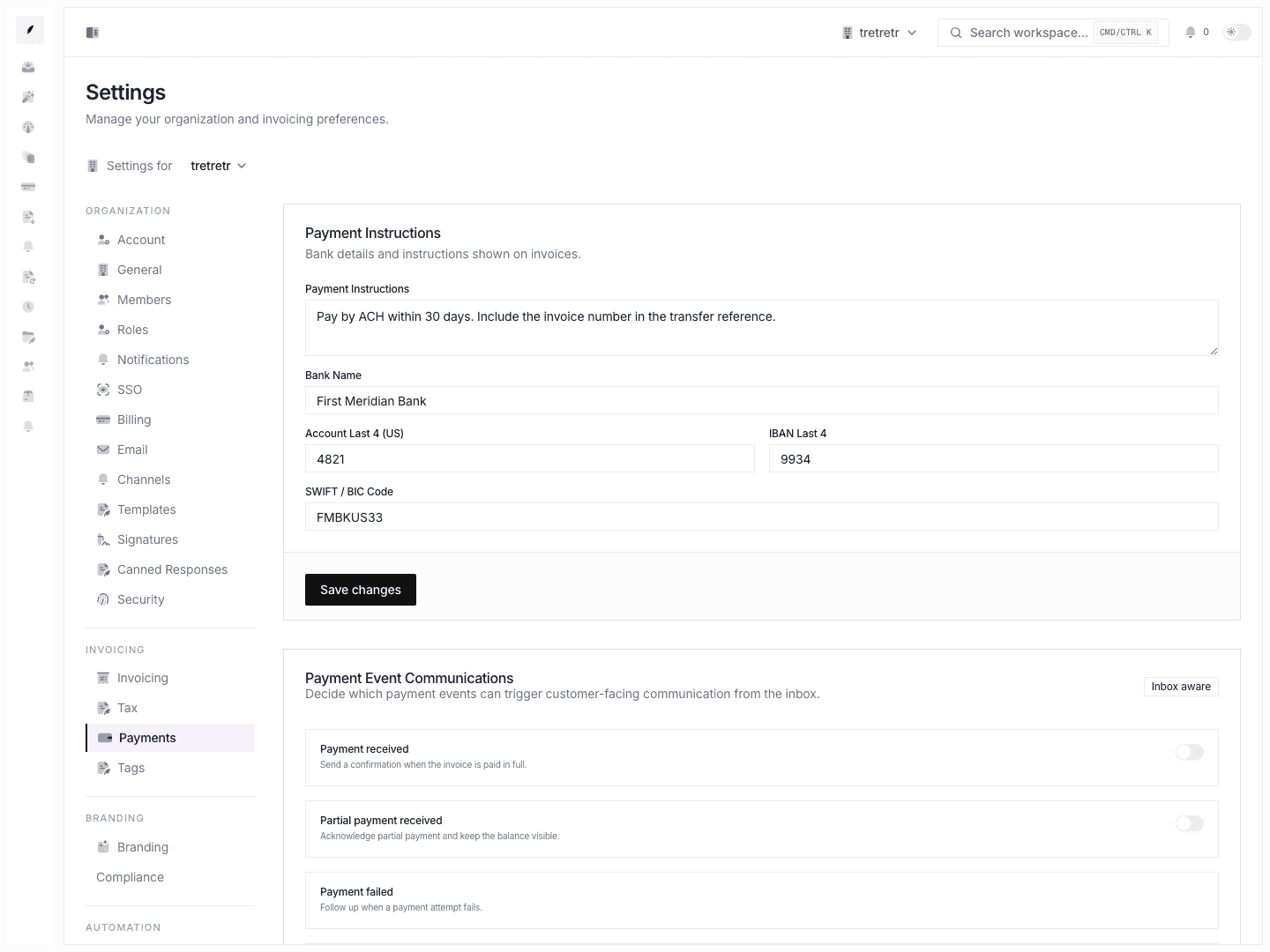
4. Update Invoice Payment Context
If your team also uses manual bank instructions, keep Settings → Payments aligned with the way invoices should read. Stripe connection and invoice instructions are related, but they are not managed on the same page.