Work Entries
Track, import, review, and convert billable work into invoice drafts.
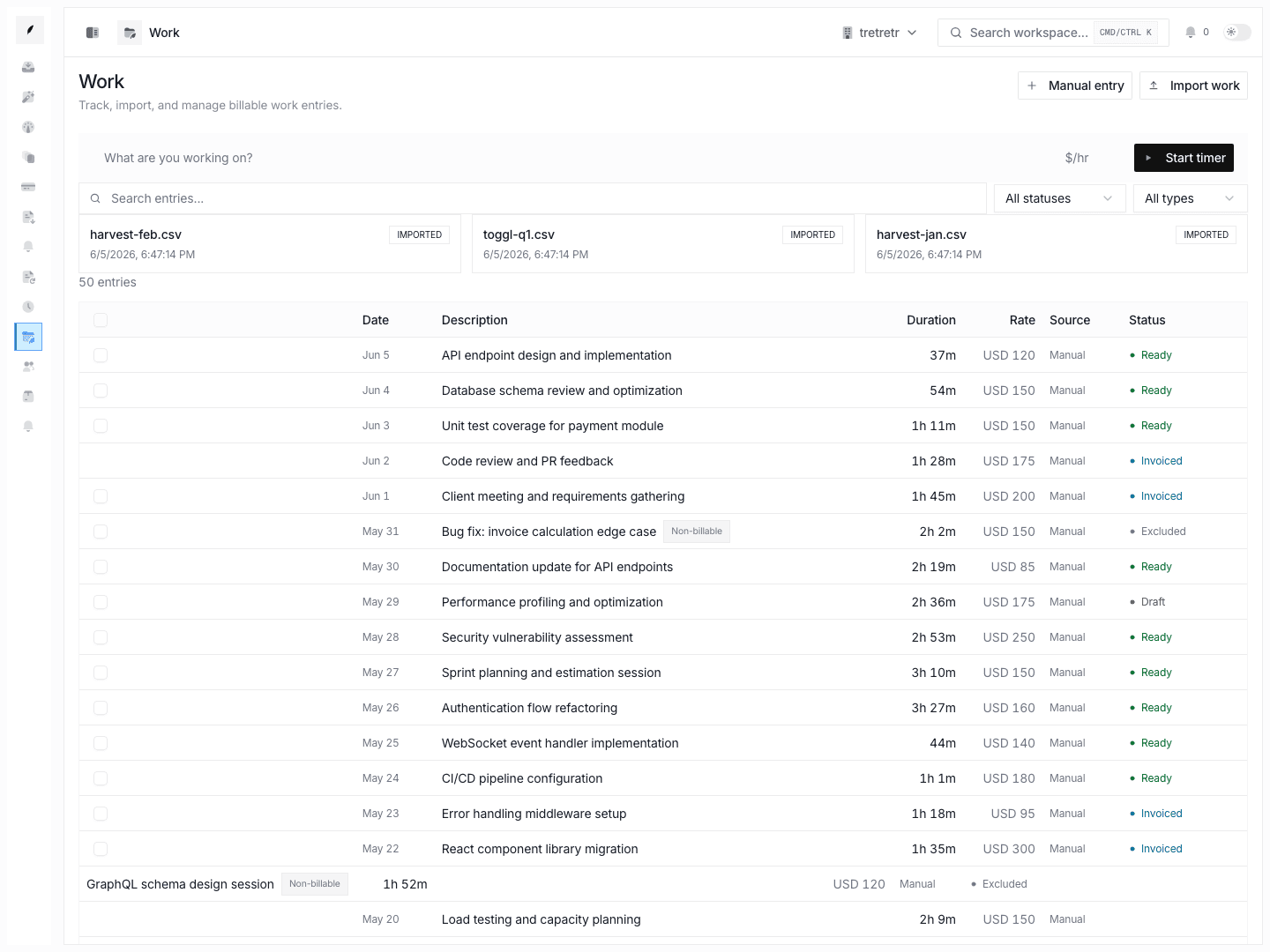
Work entries are billable time or service records in Corinthian. They give your team a review queue between captured work and the finished invoice, so you can confirm duration, rate, source, billable state, and supporting context before creating an invoice draft.
The work entries list lives in Work in the main navigation.
What You Can Do
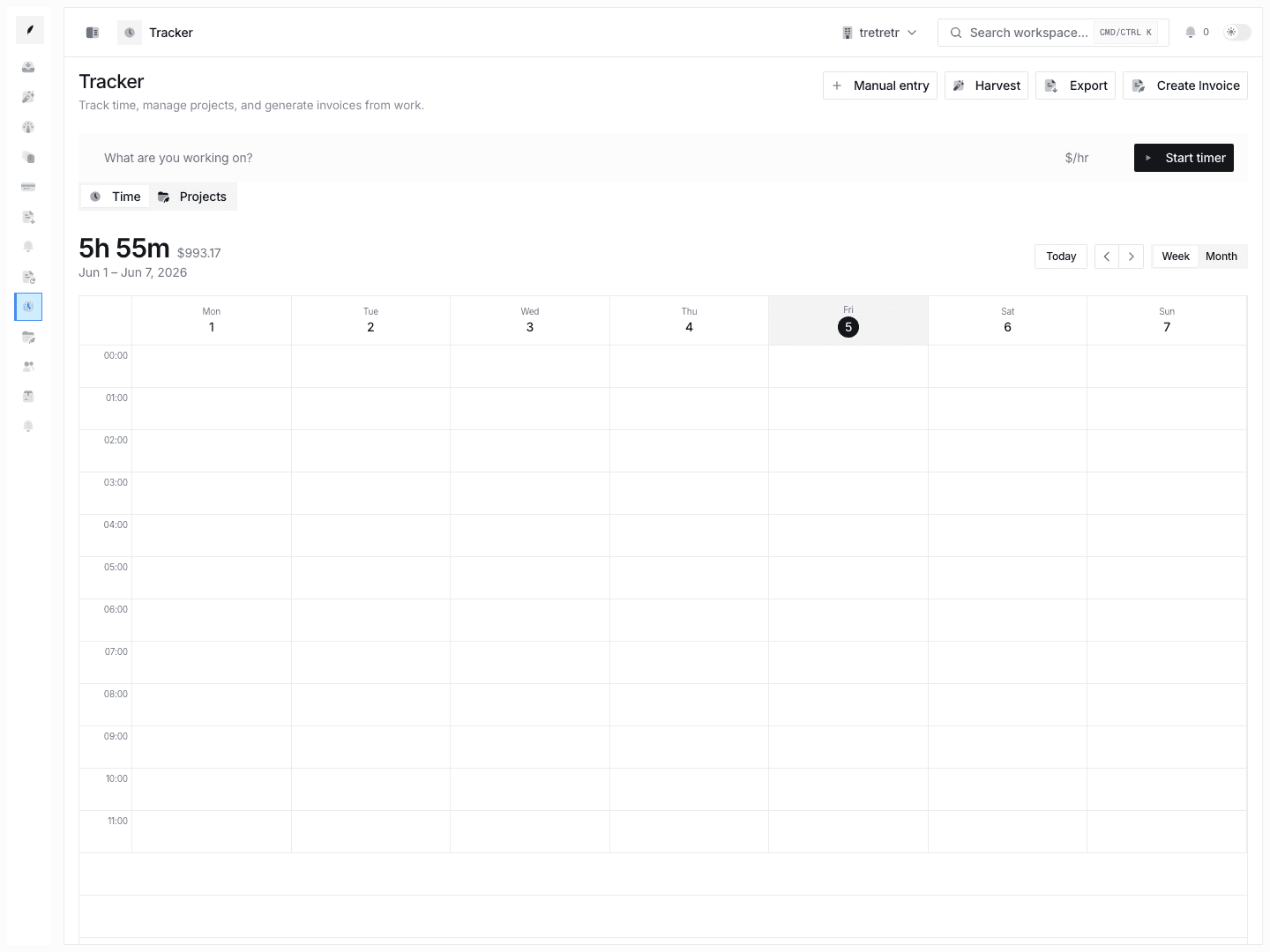
- start or stop the active work timer
- add a manual entry from the Work page
- import work from a CSV export
- search the work list
- filter by billing status and billable state
- inspect a work entry in a detail sheet
- toggle whether an entry is billable
- attach supporting artifacts
- select ready billable entries and create an invoice draft
Add a Manual Entry
- Open Work.
- Click Manual entry.
- Enter a description, hours, minutes, date, hourly rate, and billable state.
- Click Add.
Manual entries appear in the same table as imported entries. They can be selected for invoice creation once they are billable and ready.
Import Work
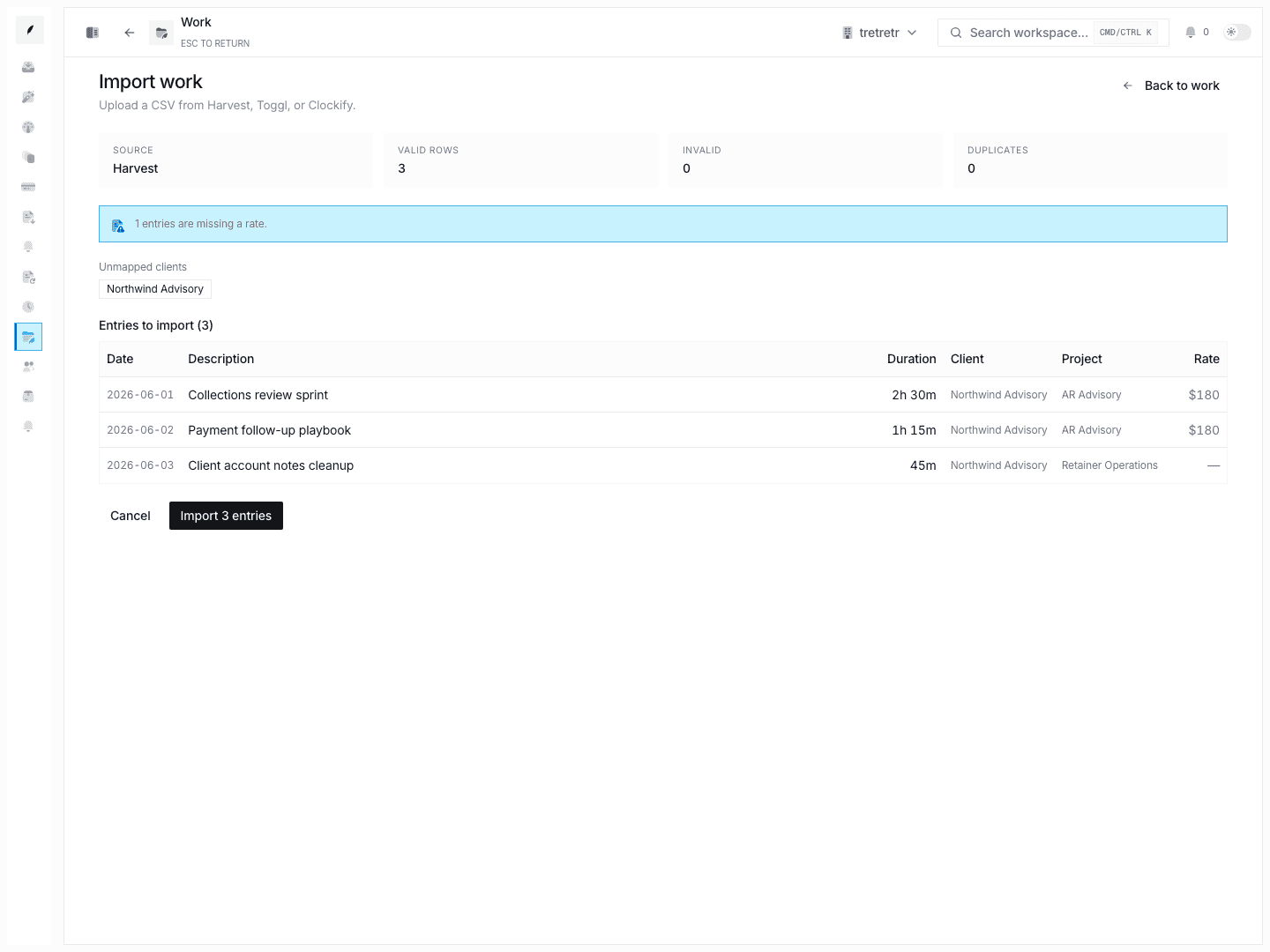
The Import work page supports CSV uploads for time-tracking exports. The upload step accepts .csv files and the preview step shows how Corinthian parsed the file before anything is imported.
The preview includes:
- detected source
- valid rows
- invalid rows
- duplicate rows
- missing rates
- unmapped clients
- validation errors
- the first parsed rows that will be imported
When the preview looks correct, click Import entries. Corinthian creates an import job, imports the valid rows, skips duplicates, and returns you to the work list.
Review the Work List
The Work page shows each entry with:
- date
- description
- duration
- rate
- source
- billing status
- billable state
Use the search field to find entries by text. Use the status filter to narrow to Ready, Excluded, Draft linked, Invoiced, or Written off work. Use the billable filter to show all entries, only billable entries, or only non-billable entries.
Inspect an Entry
Click a row to open the entry detail sheet. The sheet shows:
- duration
- rate
- calculated amount
- entry date
- time range, when available
- description
- client-facing label, when available
- internal summary, when available
- source and import batch
- billable toggle
- supporting artifacts
Use the billable toggle when a captured entry should not be included in invoice creation. Use artifacts for timesheets, document links, meeting notes, issue links, milestone notes, or SOW references that support the work.
Create an Invoice Draft
- Open Work.
- Filter or search until the right entries are visible.
- Select entries with the row checkboxes.
- Click Create invoice.
- Choose a grouping strategy in the preview sheet.
- Review included entries, line items, subtotal, warnings, and exclusions.
- Click Create invoice draft.
- Open the draft in the invoice builder to finish and send it.
The preview can group selected work by project, day, task, person, individual entry, or a flat summary. Corinthian only includes selected entries that are billable and ready.
Current Limits
The current Work page does not expose project-rate defaults, workspace-rate defaults, rate recommendations, global rounding rules for tracked time, or table-level bulk actions for assigning projects, deleting entries, or changing billable state across many rows at once.
Troubleshooting
I do not see the Create invoice button
The button only appears when at least one selected entry is both billable and ready. Check the entry status and billable toggle.
Imported entries are missing rates
The import preview flags missing rates before import. Add rates in the source export or open the imported entries and review them before creating an invoice draft.
Some rows were skipped during import
The import result reports skipped duplicate rows. Review the duplicate count in the preview and import result before uploading the same file again.
The invoice draft excludes some selected entries
Open the preview sheet and check the exclusions section. Entries can be excluded when they are not billable, are not ready, or do not meet the invoice draft requirements for the selected set.