Settings Members
Invite teammates, manage active members, review invite delivery, and handle ownership transfer.
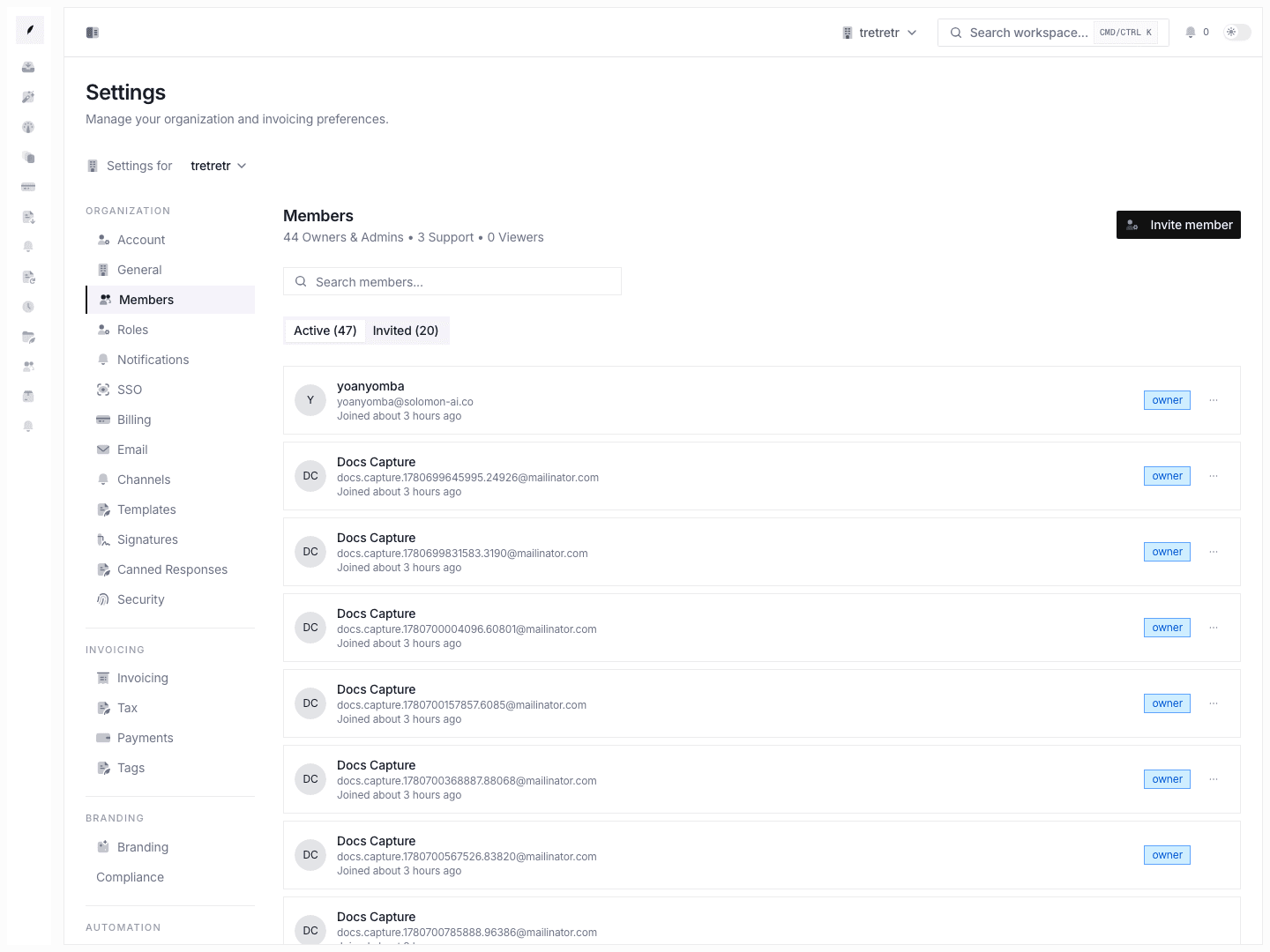
Settings → Members is where you manage the current workspace roster and invitation history.
Typical Workflow
- Open Settings → Members.
- Search for the teammate or invitation you need.
- Use the
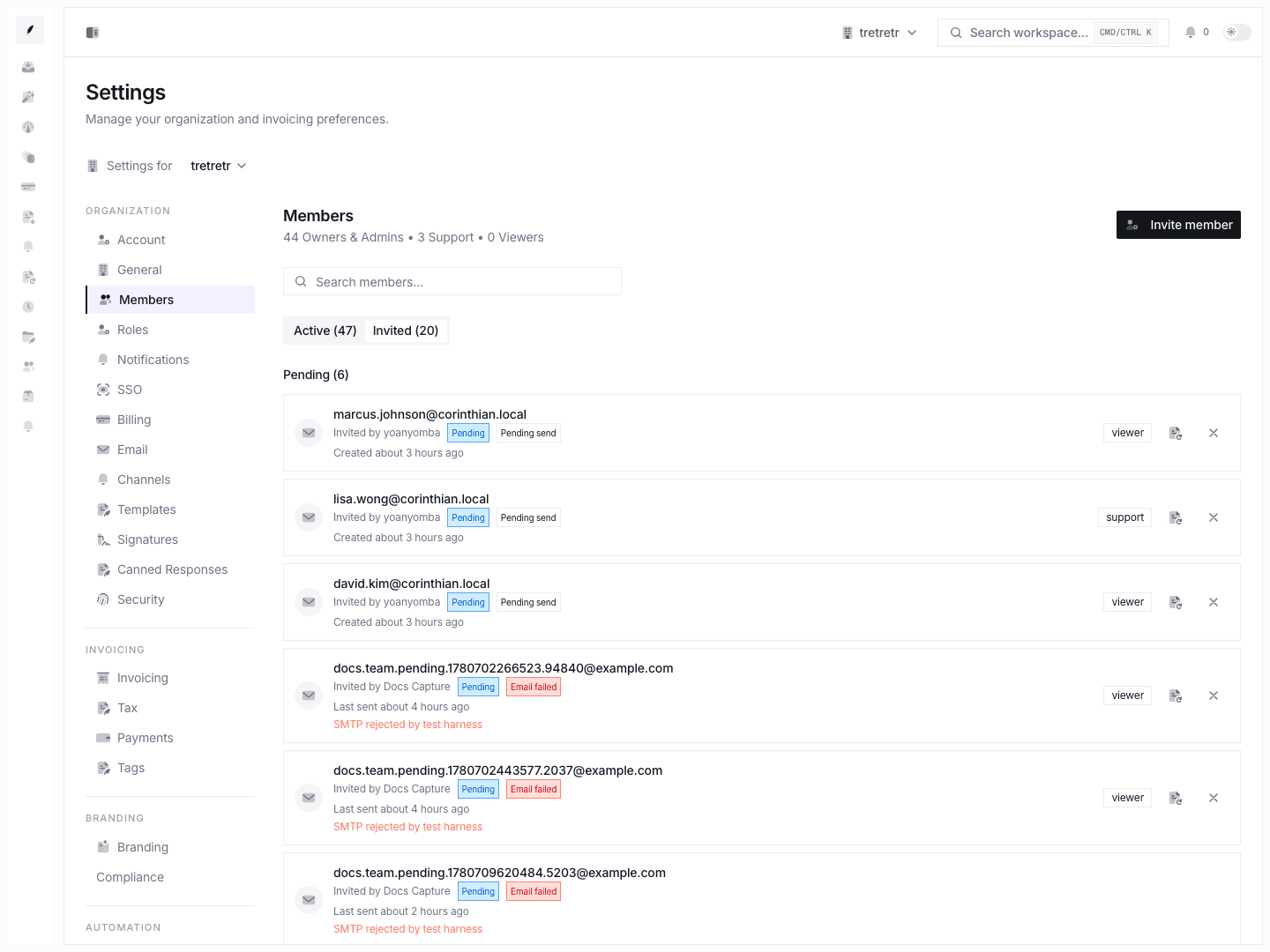
ActiveorInvitedtab depending on whether the person already has access. - Update role, resend or revoke an invite, transfer ownership, or remove the member.
After changes are saved, the workspace roster reflects the intended access state and invite delivery status.
What you can do
- invite a member
- search active or invited people
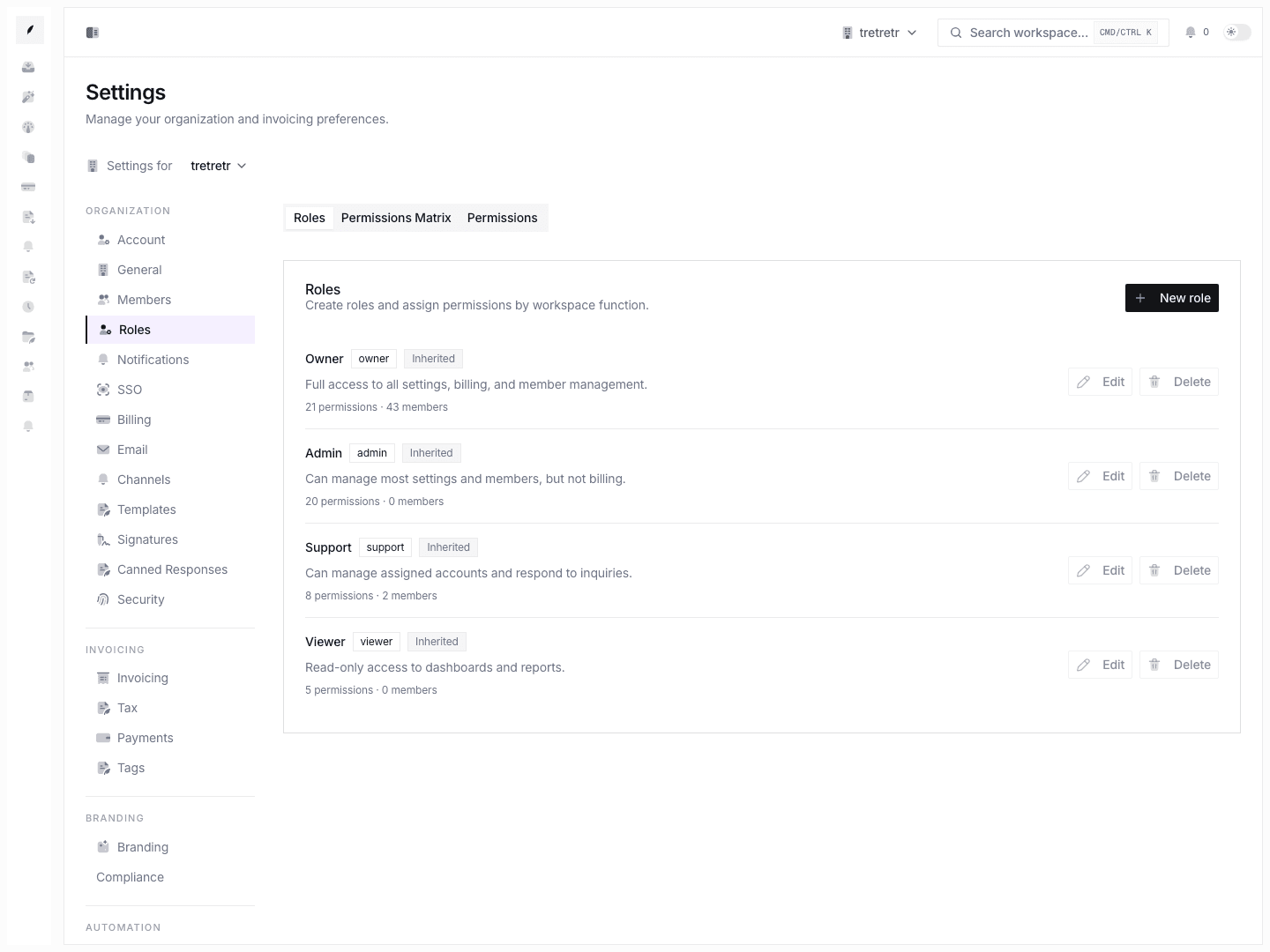
- update non-owner roles
- transfer ownership
- remove members with impact review
- resend or revoke invitations
State and permission behavior
- ownership transfer is explicit and demotes the current owner as part of the handoff
- invite delivery state matters: a pending invite can still show
Email failed - removing a member revokes access immediately but keeps existing business records in place
Troubleshooting
The invite exists, but the user says they never got it
Check the delivery state first. Email failed is different from Pending and different again from Accepted.
I cannot make someone an owner from the normal role menu
That is expected. Ownership transfer is a dedicated action.