Apps & Integrations
Review installed apps, connect Stripe, and inspect available integrations from Apps.
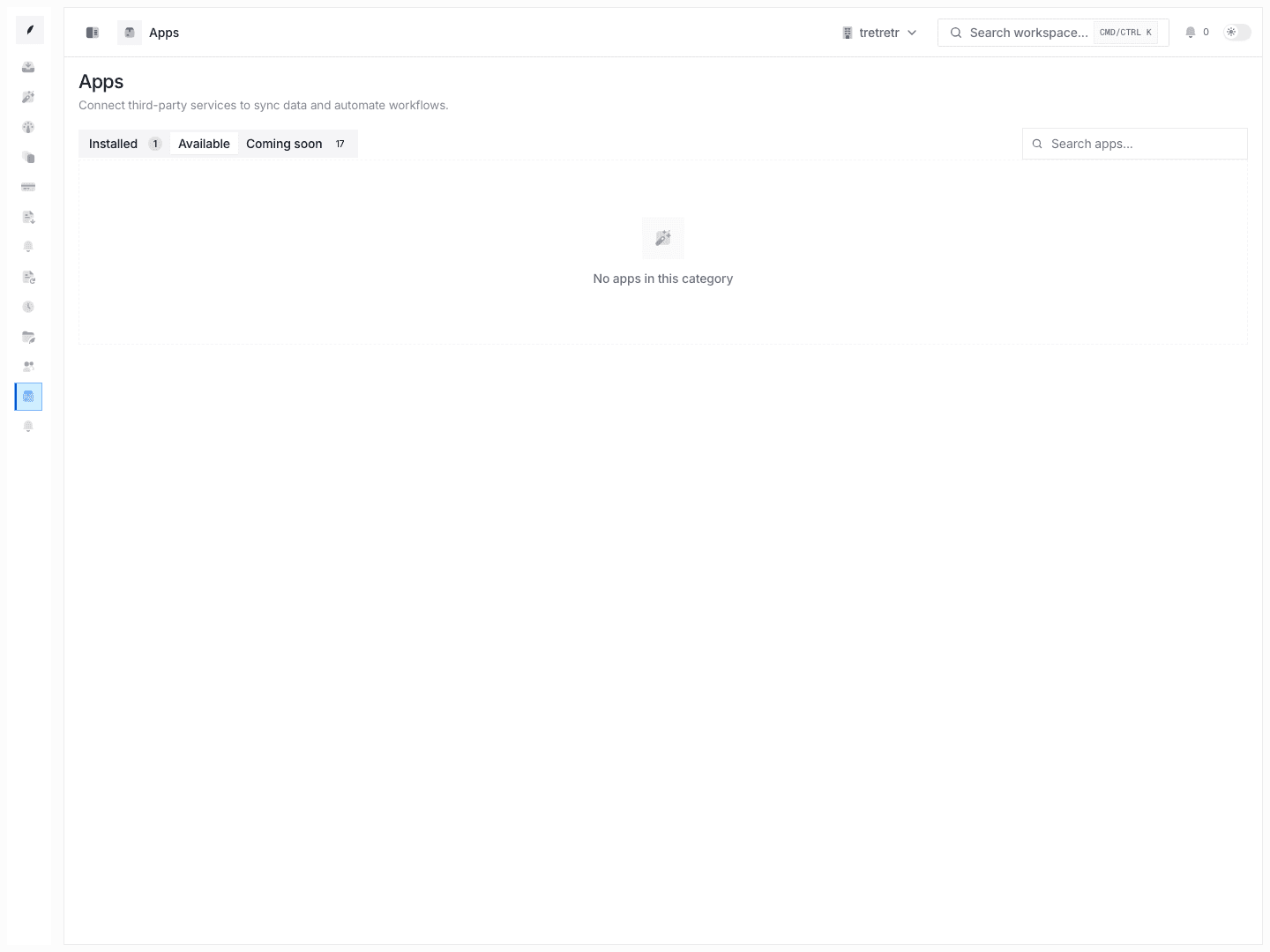
Apps is the integration hub for Corinthian. It separates installed apps from available and coming-soon options, and it is the main place to manage Stripe connection state.
What You Can Do Here
- browse Installed, Available, and Coming soon tabs
- search for apps by name
- connect or disconnect supported integrations
- review permission-gated or read-only install state
- import or refresh app-backed data where the app supports it
Stripe Lives Here
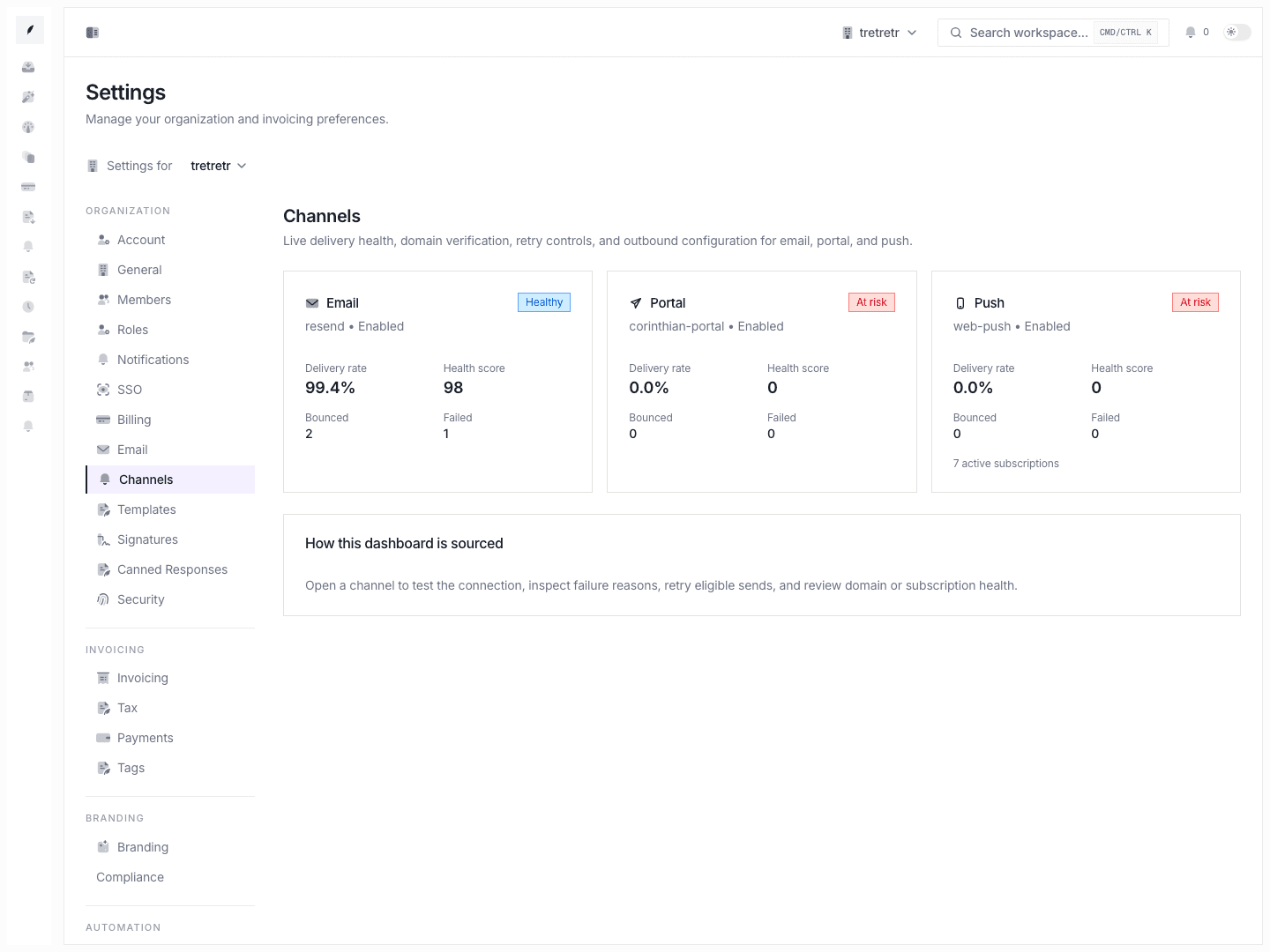
If your team needs Stripe, manage that connection from Apps, not from Settings → Payments.
The current Stripe app flow is where you:
- connect the workspace to Stripe
- disconnect the workspace from Stripe
- review environment lock behavior
- trigger Stripe-related import or sync actions exposed by the app
Operational Workflow
- Open Apps.
- Check whether the app you need is already installed.
- Move to Available if you are adding a new integration.
- Complete the connection flow and confirm the workspace has the right environment and permissions.
- Return to the related product area, such as invoices or payments, to verify the integration effect.
State Notes
- Some workspaces will see read-only integration state if the current user lacks install permissions.
- Available apps can differ from installed apps, and coming-soon entries are not live functionality.
- Stripe connection state affects payment operations, but manual payment instructions still live in Settings Payments.