Configure Invoice Defaults and Reminders
Set the invoice prefix, payment terms, default copy, delivery behavior, and reminder cadence that shape new invoice work in Corinthian.
These settings make new invoices start from the right defaults so the team does not have to correct them one by one later.
What These Settings Control
These settings are split across three places:
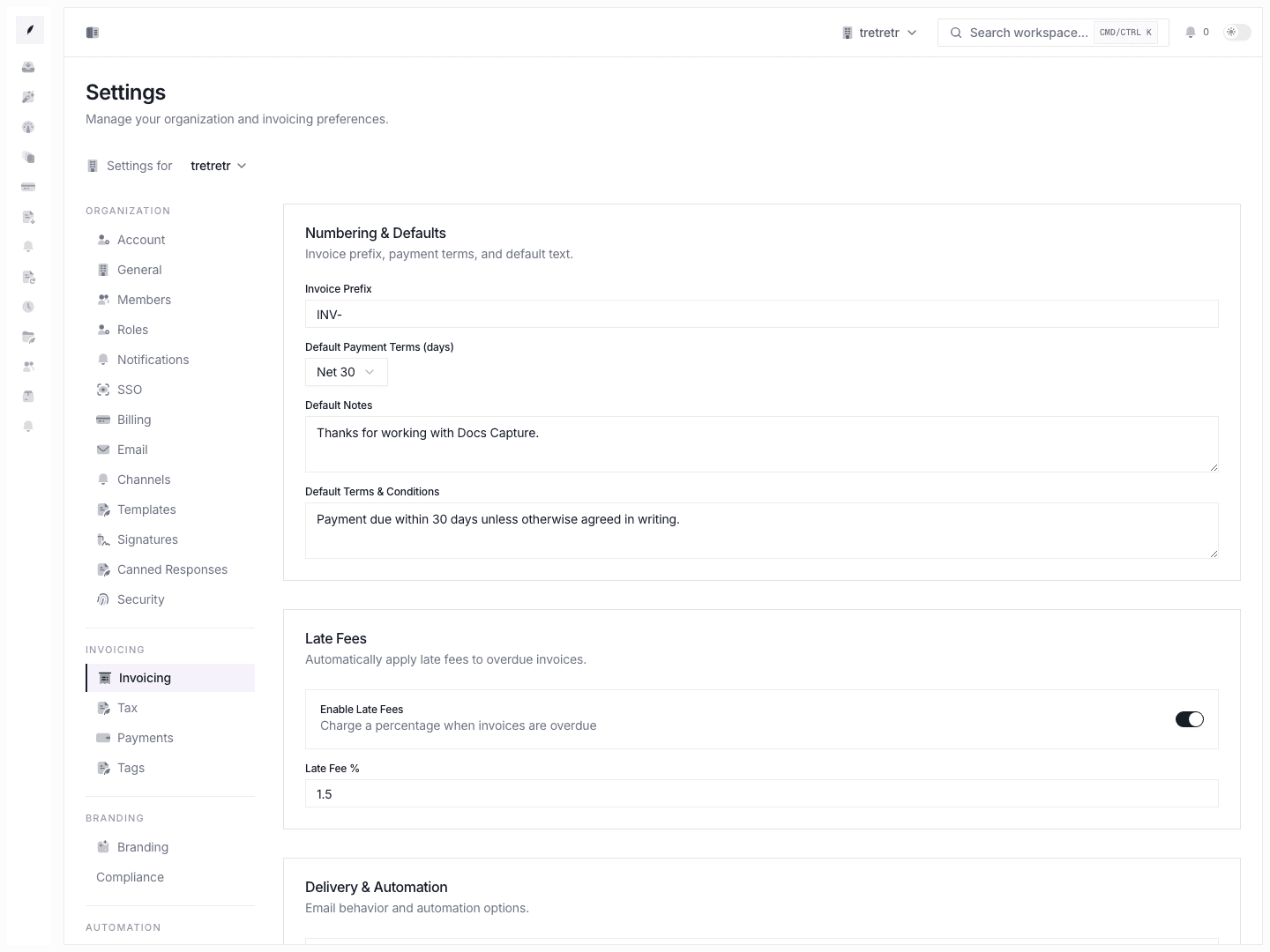
- Settings → Invoicing for prefix, payment terms, default notes, default terms, late fees, PDF attachment behavior, always-BCC, auto-reminders, and partial-payments policy
- Settings → Reminders for first, second, and final reminder offsets
- Settings → Notifications for the default reminder tone
Some of these settings clearly change the defaults used in new invoice creation and outbound invoice email. Others are stored workspace policy and should be verified in a live overdue flow before you rely on them in production.
1. Set the baseline invoice defaults
Go to Settings → Invoicing.
Start with the fields that shape every new draft most directly:
- Invoice Prefix
- Default Payment Terms
- Default Notes
- Default Terms & Conditions
These defaults feed the invoice creation experience, so agree on them before the team creates a large batch of new invoices.
Recommended operating pattern
- Pick one prefix convention and keep it stable.
- Set the default payment terms your finance team uses most often.
- Keep default notes short and reusable.
- Put longer legal or billing policy language into default terms instead of the notes field.
2. Decide whether late fees are a real policy or just a stored option
Use the Late Fees card to control:
- whether late fees are enabled
- the default late-fee percent
Only turn this on if the team already has a real collections policy behind it. This is not a cosmetic setting.
3. Set the delivery defaults teams will notice immediately
The Delivery & Automation section controls the outbound defaults most likely to affect day-to-day sending:
- Attach PDF to Email
- Always BCC
- Auto Reminders
- Allow Partial Payments
What is safest to verify after saving
- create a fresh invoice draft and confirm the expected defaults are prefilled
- send a test invoice email and confirm PDF attachment behavior
- verify the BCC address is copied when it should be
- confirm the team understands whether partial payments are supposed to be allowed in the downstream payment flow
4. Set reminder timing separately in Settings → Reminders
Go to Settings → Reminders after the invoice defaults are in place.
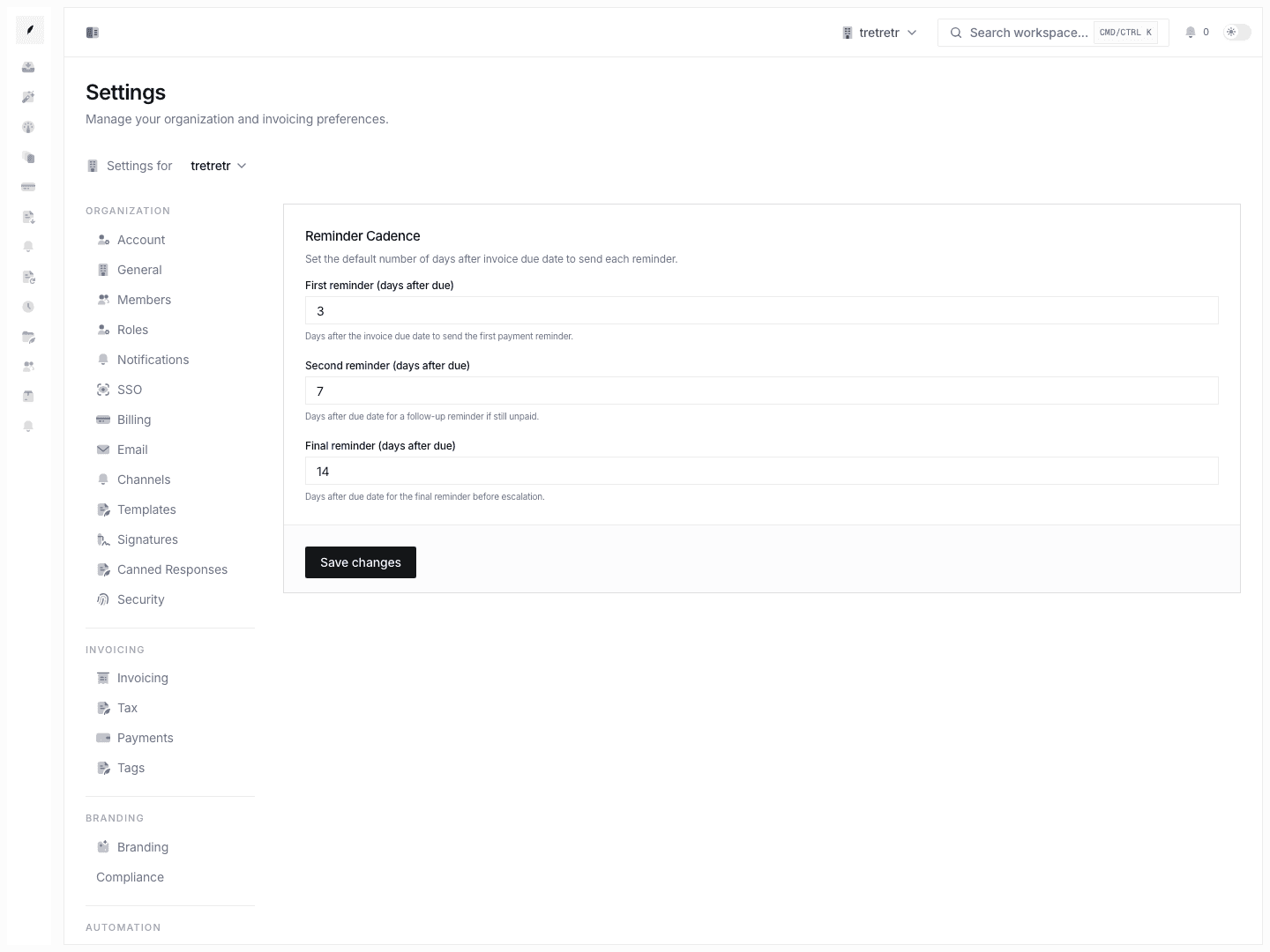
This page controls the default day offsets after due date for:
- the first reminder
- the second reminder
- the final reminder
Use a cadence that matches your collections motion. A high-touch finance team may want shorter intervals than a lighter-touch recurring billing workflow.
5. Set the default reminder tone in Settings → Notifications
The tone setting does not live on the reminders page. It lives in the org-wide form under Settings → Notifications.
Use it to define the default language posture for reminder email, such as:
friendlyprofessionalfirmurgent
Keep the tone aligned with the escalation policy so the copy and the team behavior do not drift apart.
6. Test from the real invoice flow
Do not stop after saving the settings.
Run a real check:
- Open Create Invoice.
- Confirm prefix, terms, notes, and terms are prefilled the way you expect.
- Send a test invoice or draft email flow.
- Confirm PDF and BCC behavior.
- For reminder policy, verify the stored cadence and tone on a real overdue invoice workflow before depending on it for overdue follow-up.
Current limitations to keep in mind
- The invoicing page mixes defaults that clearly affect new invoice creation with stored policy flags that deserve live verification.
- Reminder cadence and tone are real workspace settings, but you should validate the overdue flow before promising fully automatic behavior to the team.
- Partial-payments policy is stored in settings, but the docs should not promise more than the documented workflow clearly supports.
What to verify before rollout
- new invoice drafts inherit the expected prefix, terms, notes, and terms text
- outbound invoice email behavior matches the PDF and BCC settings
- the reminder cadence fits the real collections motion
- the reminder tone matches the team’s escalation policy
- everyone knows which settings affect new invoices immediately versus which ones should be verified downstream
Related pages
Configure Enterprise SSO
Set up verified domains, choose a join policy, test SSO safely, and reconcile directory sync from the Corinthian SSO settings page.
Configure Payment and Tax Settings
Set the bank instructions, payment reference details, VAT behavior, and default tax rate that appear in invoice operations.