Create Your First Invoice
Create a real invoice using Corinthian’s invoice builder, clients workspace, and follow-up workflow.
This walkthrough follows Corinthian’s invoice workflow from client creation to a saved invoice. It avoids old navigation labels and unsupported send steps.
Before You Start
- confirm the workspace defaults you want under Settings → Invoicing, Tax, and Payments
- make sure the client record exists in Clients
1. Create or Verify the Client
- Open Clients.
- Create the client if it does not exist yet.
- Verify the billing email and client name are correct before you invoice them.
2. Draft the Invoice
- Open Create invoice.
- Select the client.
- Add the line items and pricing.
- Set the due date and notes.
- Review the totals and invoice preview.
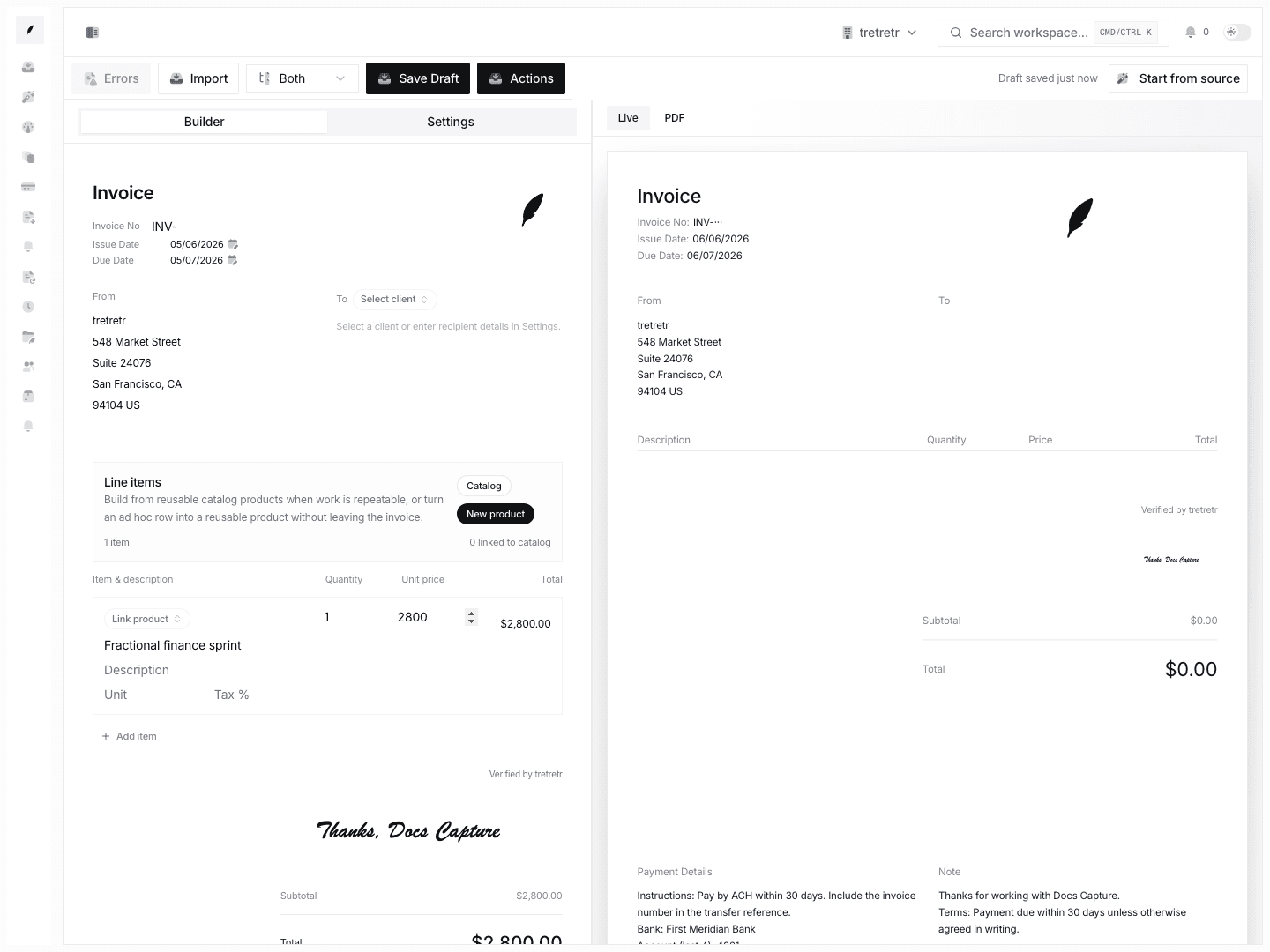
3. Confirm Defaults
Before you treat the invoice as ready, verify:
- reminder timing matches the current workspace defaults
- tax behavior is correct
- payment instructions still match the way you want the client to pay
- branding looks correct in the preview
4. Save and Continue Operationally
Save the invoice and then use the next product areas around it:
- Invoices to review saved invoice state
- Inbox to handle replies and follow-up work
- Apps if Stripe connection state matters for the workspace