Create and Manage Clients
Create client records, update account details, use full profiles, and manage archive or delete actions with confidence.
This page walks through the full client-record workflow, from creation and quick edits to profiles, archive behavior, and deletion.
Before you start
Have the minimum billing identity ready:
- client name
- primary billing email if you have one
- website if you want enrichment to qualify
- phone, address, tax ID, or notes when those matter for invoicing
The current create flow is intentionally narrow. Corinthian expects deeper account maintenance to happen after the record exists.
1. Create the base record
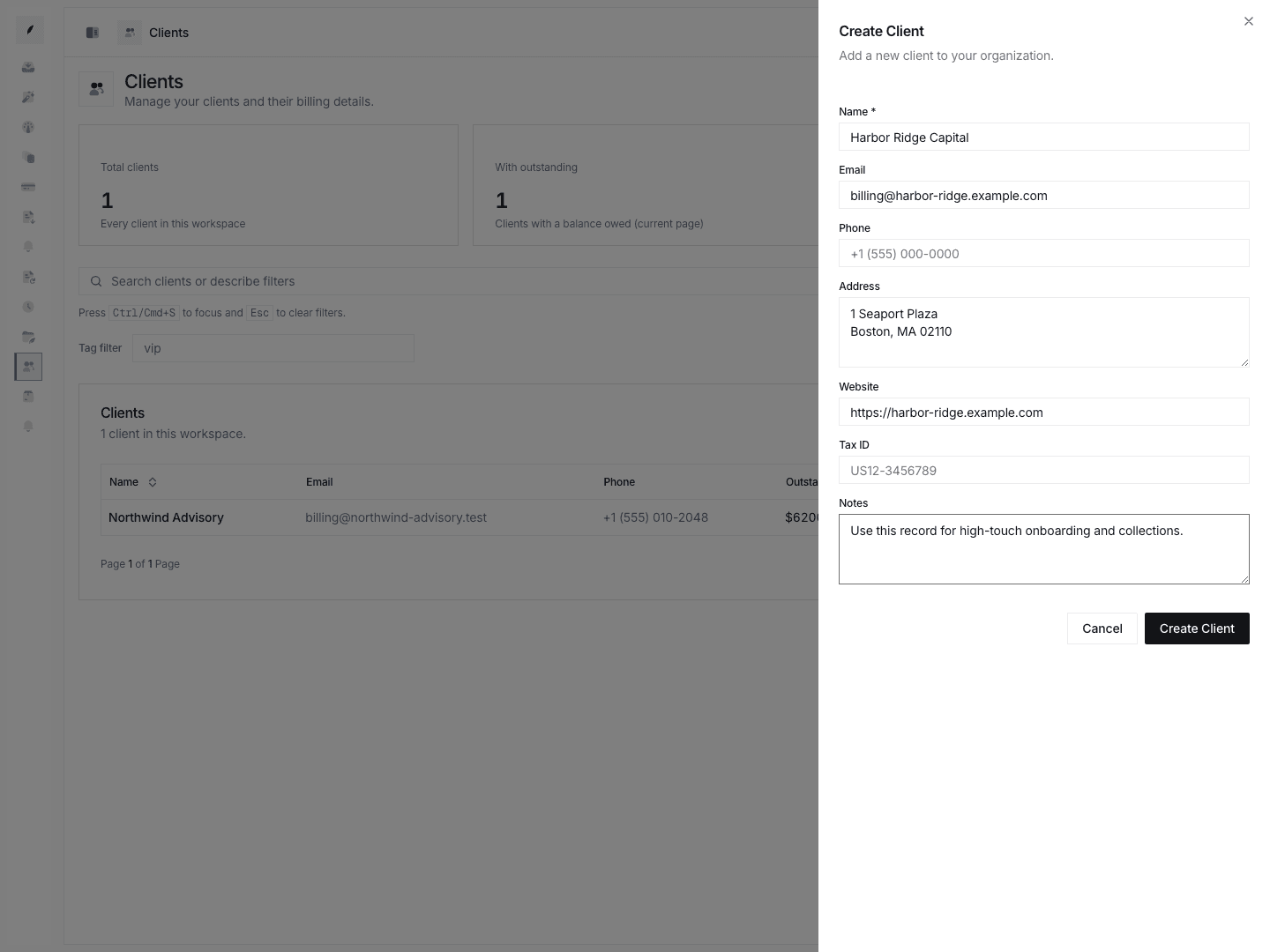
Go to Clients and click Create Client.
The shared create sheet captures:
namewhich is requiredemailphoneaddresswebsitetaxIdnotes
What to know about validation
- Name is required.
- Email is validated if you enter one.
- Website is validated if you enter one.
If enrichment matters, enter both name and website before you save. Those are the current qualifying inputs for enrichment runs.
2. Confirm the new client appears in the directory
After saving, Corinthian returns you to the Clients directory and refreshes the list.
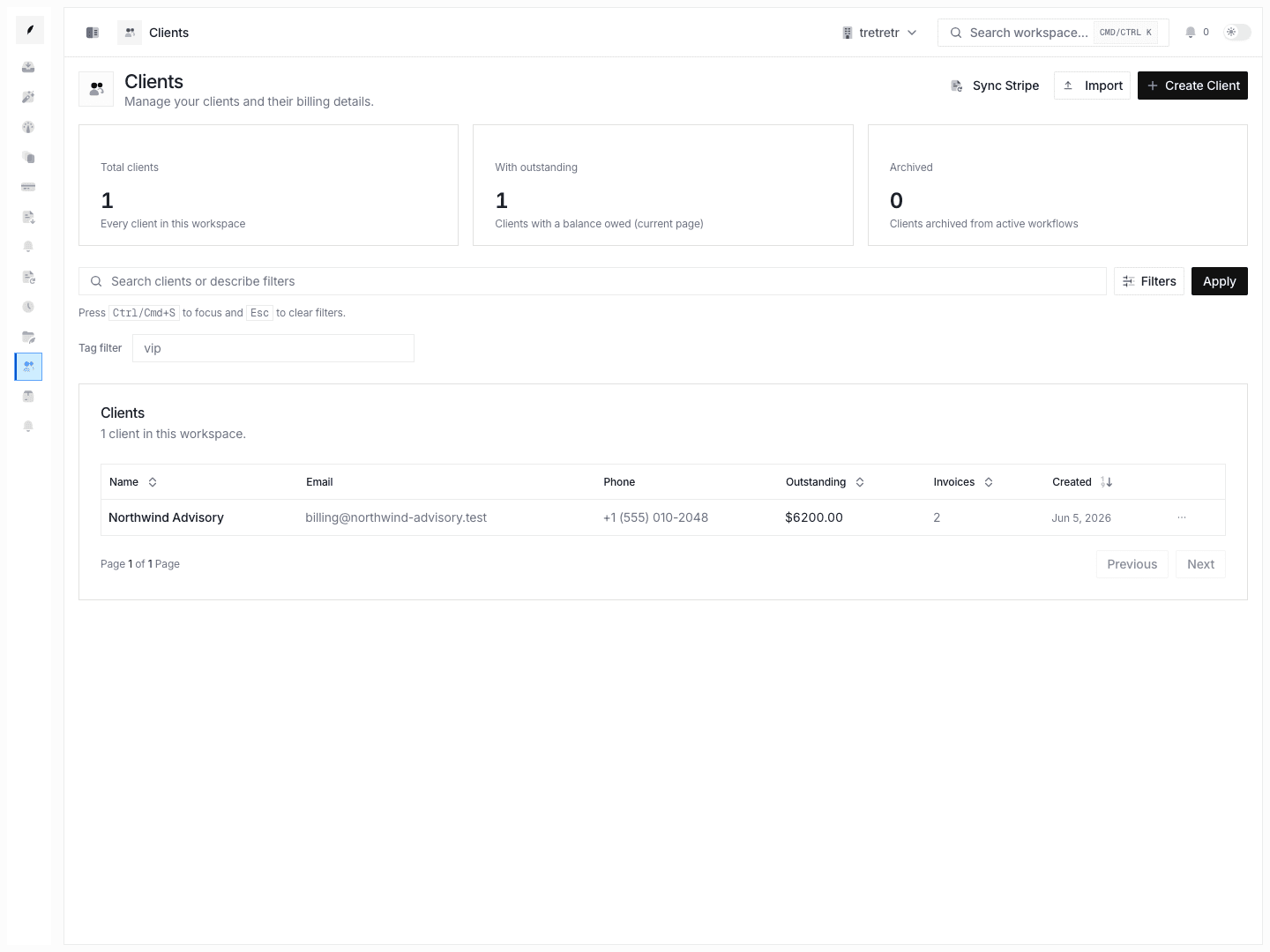
Use the directory to verify:
- the record appears with the right name
- the email and phone are correct in the row
- the client is in the expected archived state
- the list context is clean before you move into edits
3. Use the detail sheet for fast edits
Click the client row to open the quick detail sheet.
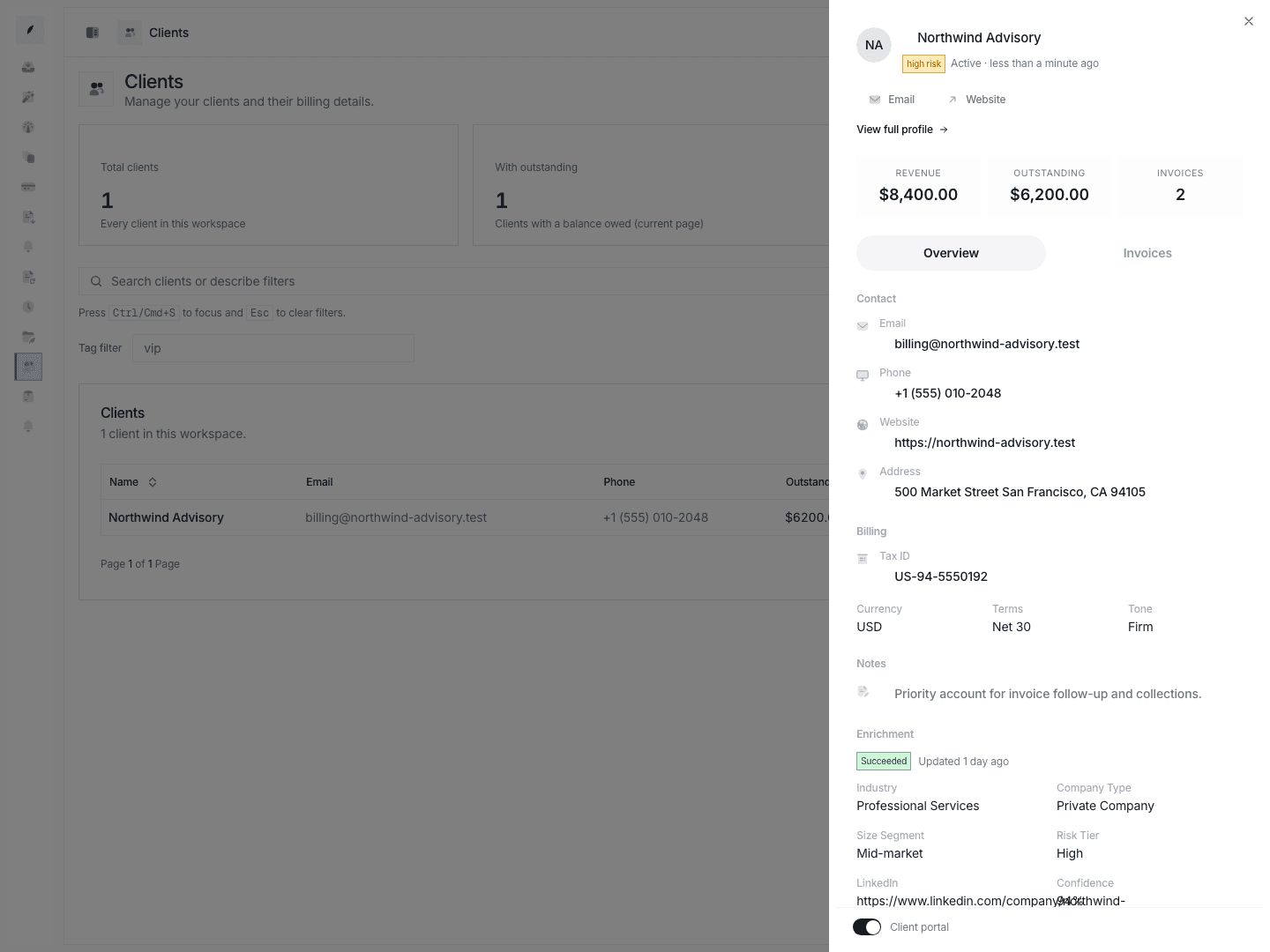
This is the fastest place to handle day-to-day client maintenance.
What you can change here
- name
- phone
- website
- address
- tax ID
- notes
What else the sheet gives you
- revenue, outstanding balance, and invoice count
- quick email and website links
- a portal toggle in the sticky footer
- an Invoices tab with recent invoices
- a direct Invoice button so you can jump into invoice creation
- Archive or Unarchive from the footer
- View full profile when the record needs deeper work
4. Open the full profile for deeper account maintenance
Use View full profile when the client needs more than a quick correction.
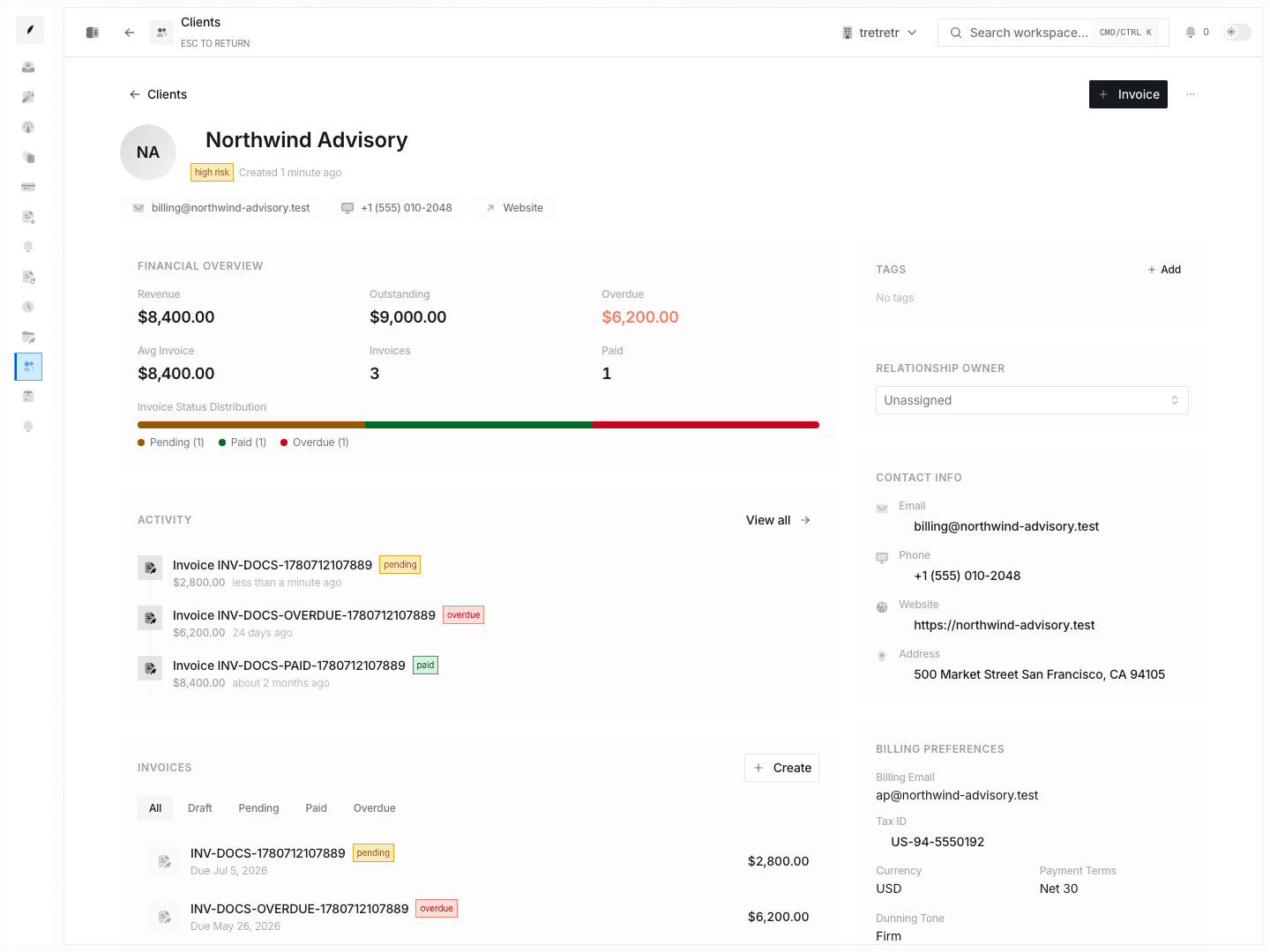
The full profile adds the deeper maintenance layer:
- financial overview and invoice analytics
- recent account activity
- full invoice table
- relationship owner assignment
- separate contact and billing sections
- billing and collections contact groups
- risk and credit context
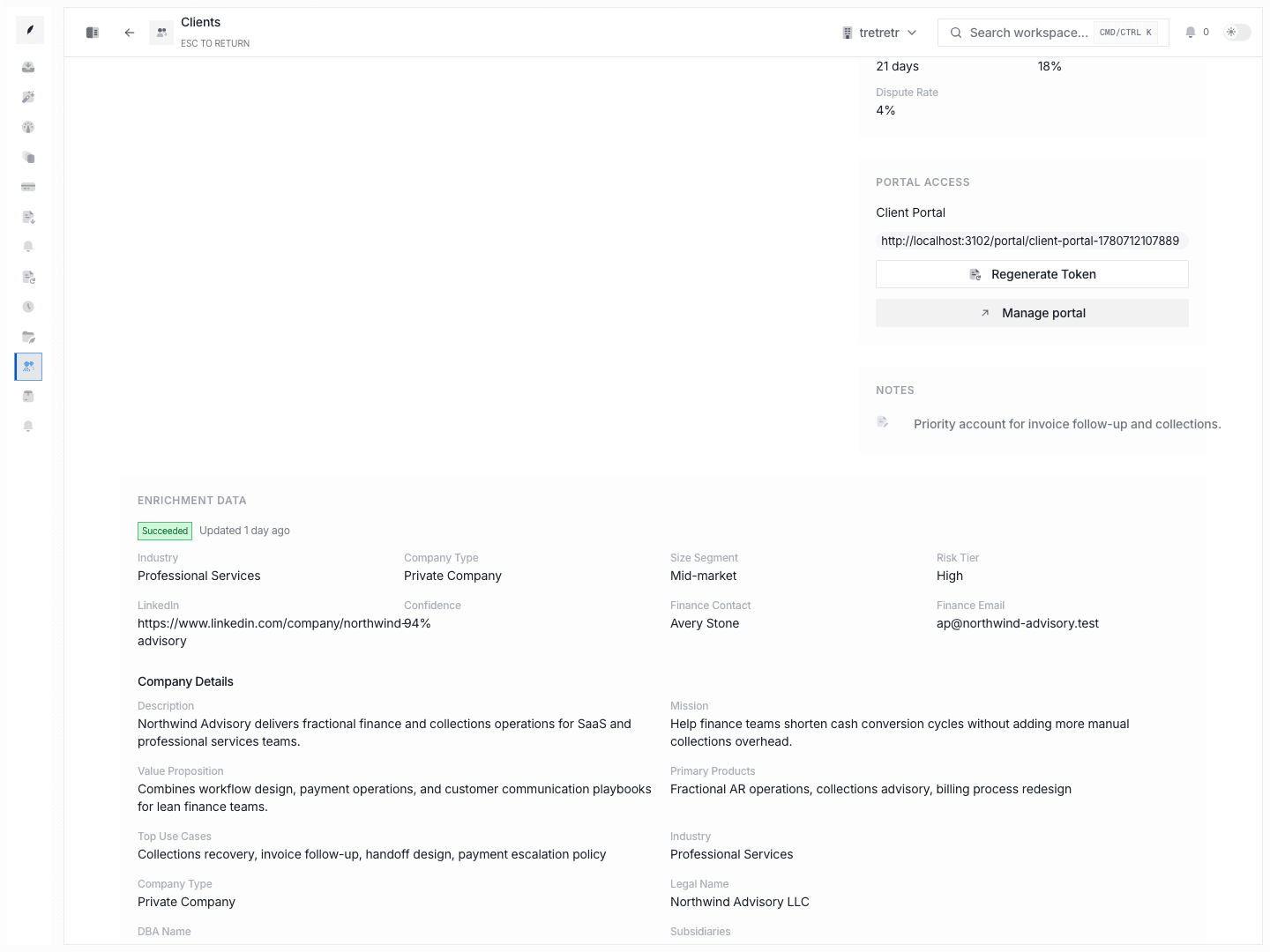
- portal URL management and token regeneration
- larger notes and enrichment sections
This is the right place to keep the client current over time.
5. Know the difference between archive and delete
Corinthian treats archive and delete differently.
Archive
Use Archive when the client should leave active day-to-day work but the team still needs:
- invoice history
- notes
- portal state
- owner context
- enrichment context
Archive is available from the list and the detail sheet.
Delete
Use Delete only when the record should truly be removed.
The current destructive delete path lives in the list row action menu, not inside the detail sheet or full profile. Use it sparingly.
6. Make the record enrichment-ready
If the workspace is entitled for enrichment, Corinthian can enrich the client after create or update when the record qualifies.
Best input pattern
- keep the client name exact
- add the real website, not a placeholder
- verify the billing email still points to the right account
What to do when enrichment does not look right
- if the record is
skipped, confirm the website exists and the workspace can run enrichment - if the record is
failed, read the saved error and decide whether the record or timing should change - if the record is
succeeded, review finance contacts, invoice submission instructions, and risk context before high-touch billing work
7. Recommended client-management loop
- Create the client with the base sheet.
- Confirm the row exists in the directory.
- Open the detail sheet for immediate corrections and portal or invoice actions.
- Move to the full profile for owner, billing, contacts, portal, and risk maintenance.
- Archive stale records instead of deleting them when history still matters.
What to verify before leaving the record
- name, billing email, and website are correct
- the client is archived only if that is intentional
- portal access is in the expected state
- the next invoice can use this client without more cleanup
- enrichment status is understood before the team relies on it
Related pages
Connect Workspace Email
Enable Corinthian email, return inbound replies to the inbox, verify a sending domain, and configure alternate and BCC mailboxes.
Create Custom Roles and Assign Permissions
Use the roles settings page to create custom roles, define custom permissions, and edit what each non-built-in role can do.