Follow-Up Sequences
Build ordered follow-up paths with triggers, conditions, exit rules, messages, tasks, escalation, and collection-stage actions.
Follow-up sequences turn an overdue-invoice policy into an ordered set of actions. Build and manage them under Settings → Follow-up sequences, then start or check a sequence from the related Invoice Inbox thread.
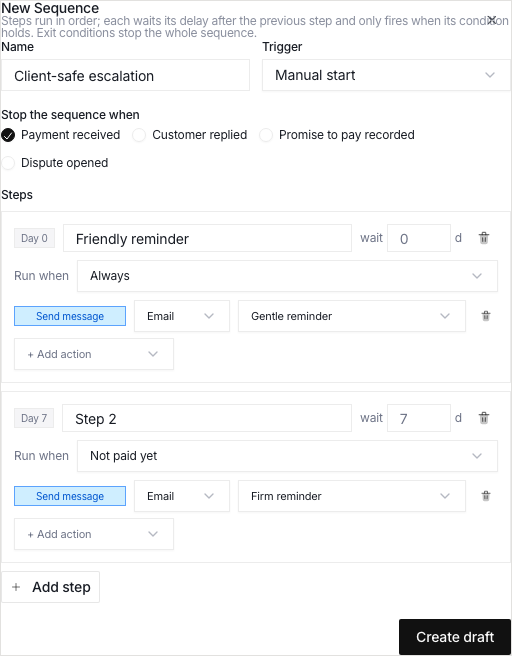
Sequence Lifecycle
A sequence definition can be:
- Draft while you edit the steps
- Active when you can start it for invoice threads
- Archived when you must not use it for new work
Duplicate a sequence when you want to test a different cadence. The duplicate does not change the original. The duplicate begins as a draft.
Choose a Trigger
The editor supports two starts:
- Manual start lets an operator select an active sequence from an invoice thread.
- When invoice overdue enrolls eligible invoices after the set number of days past due.
Use a manual start for relationship-sensitive or exceptional accounts. Use an overdue start for a repeatable organization policy.
Define Exit Rules First
Exit rules stop the whole sequence when the receivable changes state. Available rules include:
- payment collected
- client replied
- promise to pay recorded
- dispute opened
Choose every state that must stop automated follow-up. Exit rules are the safety boundary between a valid cadence and a message that ignores new client context.
Build the Steps
Each step has:
- a name
- a delay after the previous step
- a condition that must still be true
- one or more actions
The editor shows the cumulative day for each step. You can then read the cadence as a timeline.
Conditions
- always
- no reply since the previous step
- invoice not paid
- no reply and not paid
- more than a chosen number of days past due
Actions
- send an email or configured SMS message from a selected reminder template
- create a task with a title, priority, and due offset
- escalate thread priority
- move the invoice to firm reminder, final notice, or escalated
- notify the team
A single step can combine actions. For example, a firm reminder can send a message, create a call task, and advance the collection stage together.
Start and Control a Sequence From a Thread
Open the invoice thread and use its Sequence section to:
- start an active sequence
- read the current step and status
- pause or resume an instance
- skip the current step when the action is no longer correct
- cancel the sequence when the team takes over manually
Record the reason for manual intervention in the thread so the timeline explains why the sequence changed.
How Sequences Stop or Pause
Payment, client reply, dispute, and promise events can stop or pause active follow-up. The sequence and the organization policy control this behavior. A broken promise can resume the collection path and raise urgency.
The Invoice Inbox timeline is the source for what happened. Do not infer sequence state only from the invoice age.
Current Scope
- The settings editor is a linear step builder, not the visual Collections workflow designer.
- The settings do not give a control for business-day delays.
- This editor does not show balance-threshold conditions or label actions.
- Dunning experiments can appear in measurement views after setup. You cannot create an experiment from this settings page.
- Conduitt can turn on smart-dunning behavior one workspace at a time. The Dunning view records the mode and reason for available decisions.